Beginner's Guide to Streaming on Twitch
Are you ready to take your passion for gaming or entertainment to the next level and share it with a global audience? Look no further than Twitch, the premier live streaming platform for gamers and creators. In this comprehensive beginner's guide, we'll walk you through the essential steps and tips to help you get started with streaming on Twitch.
Step 1: Setting Up Your Twitch Account
Creating a Twitch account is the first step to starting your streaming journey. To do this, follow these simple steps:
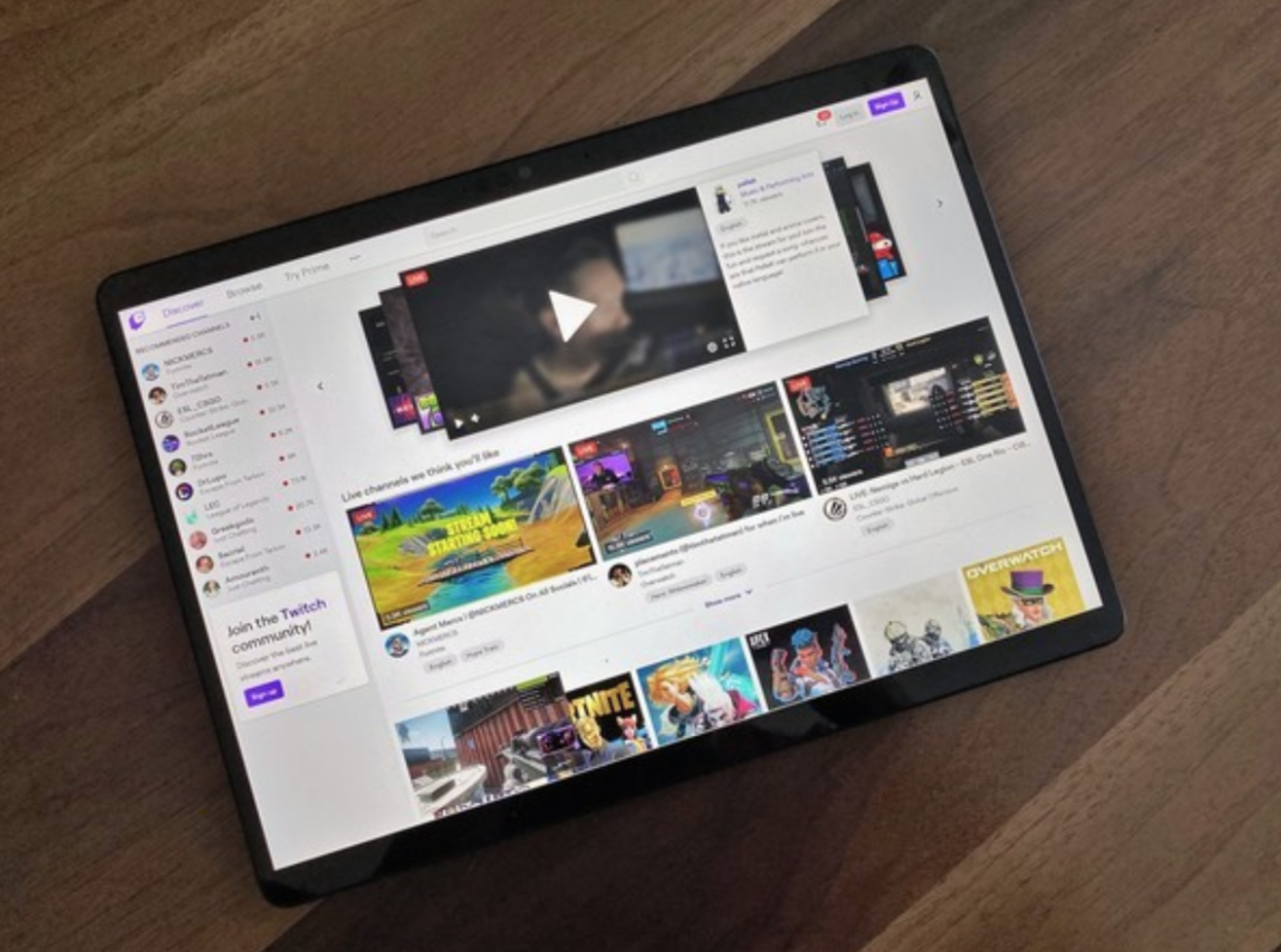
- Go to www.twitch.tv and click on "Sign Up" in the top right corner.
- Fill out the registration form with your email address, username, and password.
- Verify your email address by clicking on the confirmation link sent by Twitch.
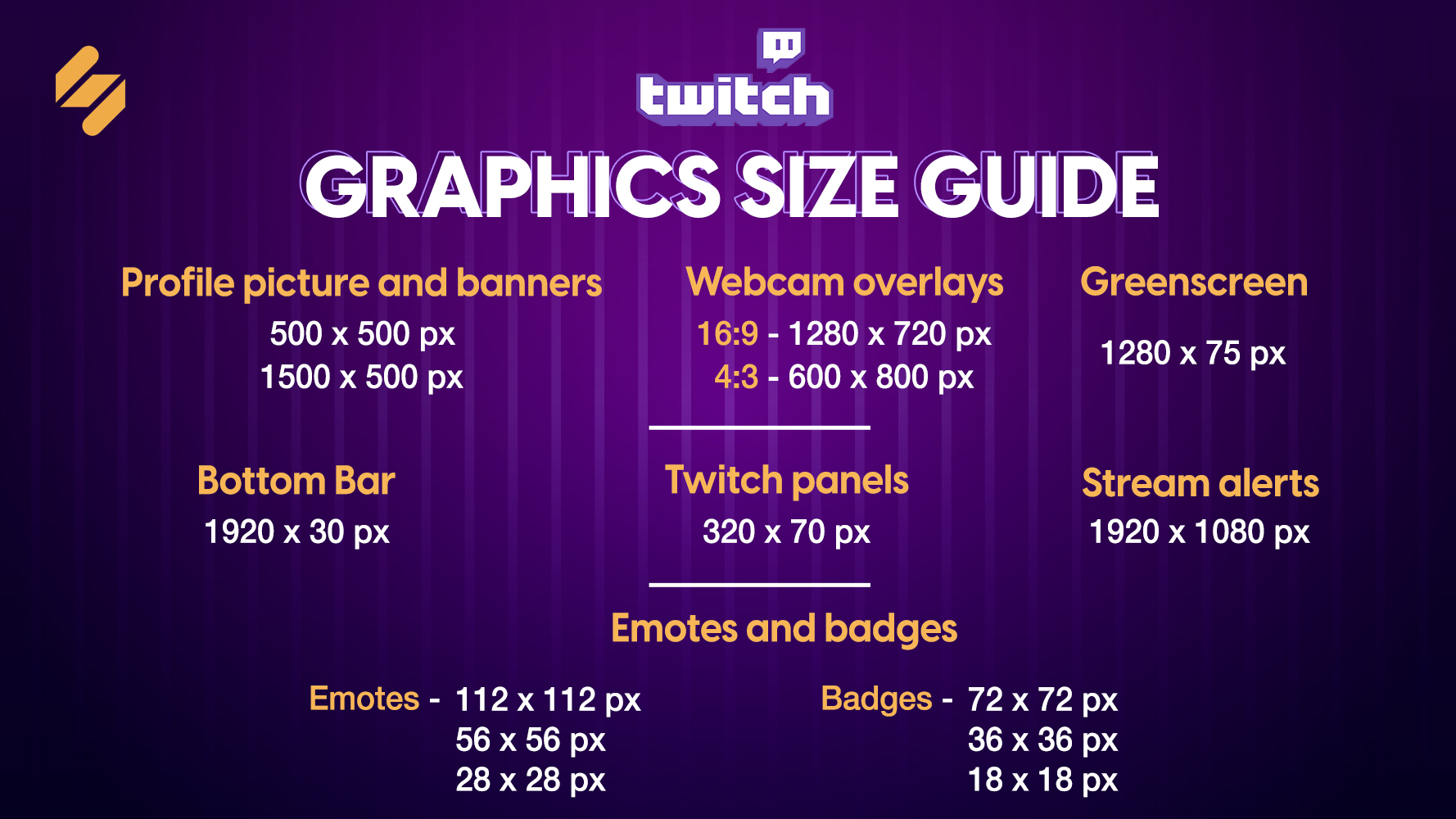
- Set up your profile by adding a profile picture, bio, and other details.
Step 2: Setting Up Your Channel
Once you have a verified Twitch account, it's time to set up your channel:
- Customize your channel's appearance by choosing a profile picture, banner, and color scheme.
- Write a compelling bio that showcases your personality and streaming style.
- Set up your channel categories and tags to help viewers find your content.
Step 3: Choosing the Right Equipment
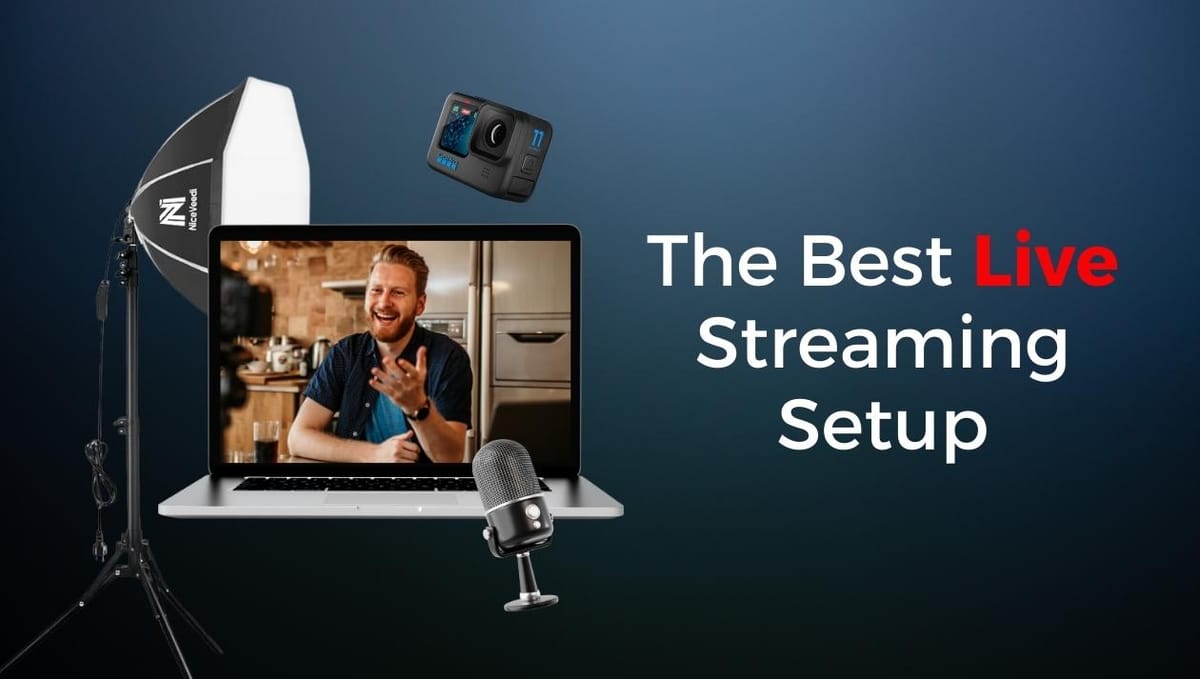
Investing in good quality equipment is crucial for a successful stream. Here are some essential items you'll need:
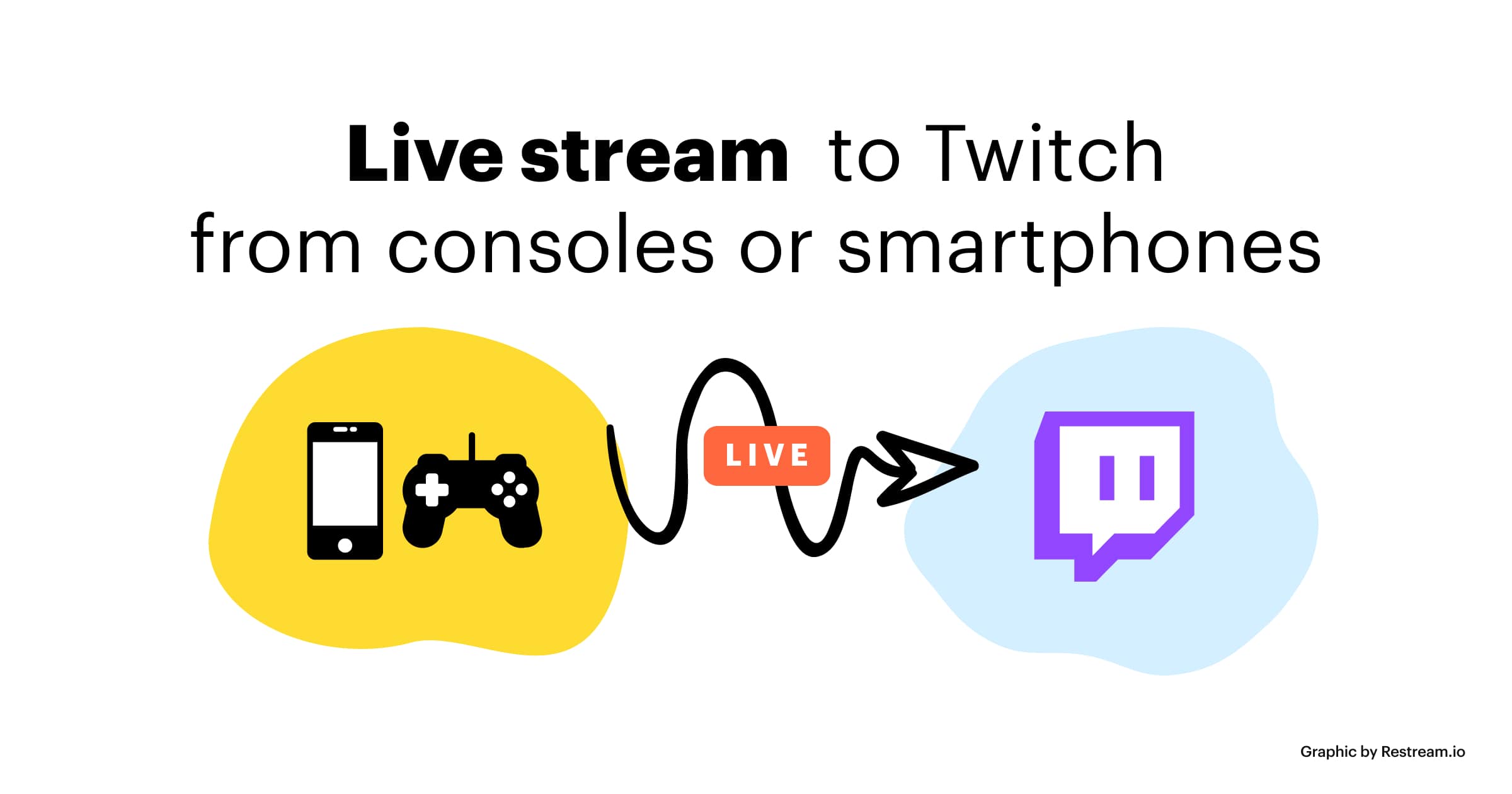
- Computer or gaming console (PS4, Xbox, or Nintendo Switch)
- Microphone (USB microphone or a gaming headset with a built-in mic)
- Webcam (separate or integrated into your gaming headset)
- Internet connection (stable and fast internet connection is a must)
- Headphones (good quality headphones for clear audio and comfort)
Step 4: Streaming Software and Settings
Download and install the necessary streaming software to connect your equipment and stream to Twitch:
- OBS Studio (free and widely used streaming software)
- XSplit (user-friendly interface and good for beginners)
- Streamlabs OBS (a popular choice for Twitch streamers)
Step 5: Going Live
Once you have your equipment and software set up, it's time to go live! Follow these steps:
- Log in to your Twitch account and navigate to the Dashboard.
- Click on the "Live" button and select your stream type (video game, music, art, etc.).
- Choose your stream title, description, and tags for your stream.
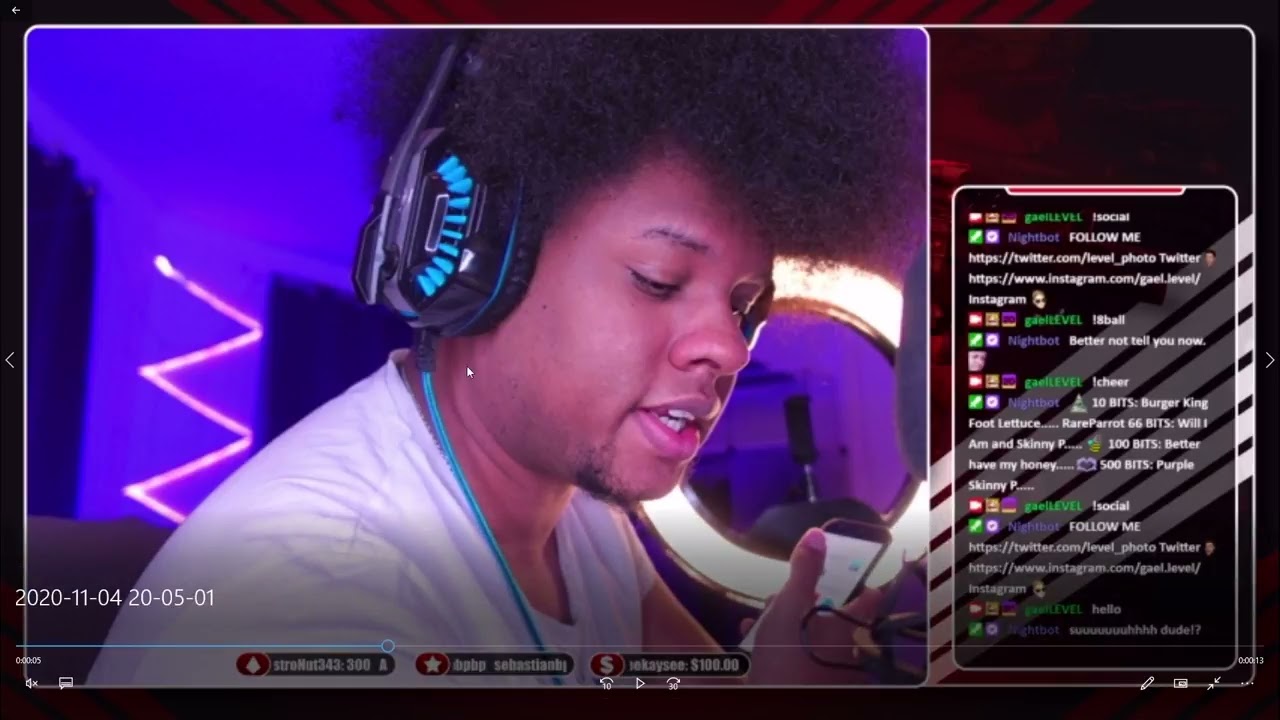
- Start your stream and interact with your audience in real-time!
Step 6: Building Your Audience and Community
Building a loyal audience takes time and effort, but here are some tips to get you started:
- Engage with your audience through live chat, polls, and Q&A sessions.
- Offer incentives, such as subscriber-only content, exclusive plots, or special perks.
- Interact with other streamers and participate in online communities.
- Run regular giveaways and contests to reward your viewers.
Conclusion
Streaming on Twitch can be an incredibly rewarding experience, offering a chance to connect with like-minded individuals, share your passions, and build a community around your content. By following the steps outlined in this beginner's guide, you'll be well on your way to starting your streaming journey and taking the first steps towards success.
Remember, streaming is all about having fun and connecting with your audience. Don't be afraid to experiment, try new things, and adapt to your audience's feedback. Happy streaming!