How to Set Up a Multiplayer Minecraft Server
Setting up your own Minecraft server allows you to customize the world, use admin commands, test out fan-made Minecraft mods, and play with your friends. The best part is that you are in control. In this article, we will guide you through the process of setting up a multiplayer Minecraft server, from installing the necessary software to optimizing performance and inviting players to join you.
Step 1: Installing the Server Software
The first step in setting up a Minecraft server is to obtain the server software. Mojang Studios distributes the server software for free, and it can be installed on most operating systems, including Windows, macOS, GNU/Linux, and BSD. To install the server software, follow these steps:
- Download the Minecraft server software from the official Minecraft website.
- Run the installer and follow the instructions to install the software.
- Once the installation is complete, you will have a Minecraft server in your directory.
Step 2: Configuring the Server Properties File
After installing the server software, you will need to configure the server properties file. This file determines the settings for your server, such as the game mode, difficulty level, and player count. To configure the server properties file, follow these steps:
- Open the server.properties file in a text editor.
- Change the settings to your liking. Some common settings include:
- gamemode=survival
- difficulty=easy
- player_count=10
Step 3: Launching the Server
Now that the server properties file is configured, it's time to launch the server. To launch the server, follow these steps:
- Make sure you are in the Minecraft server directory.
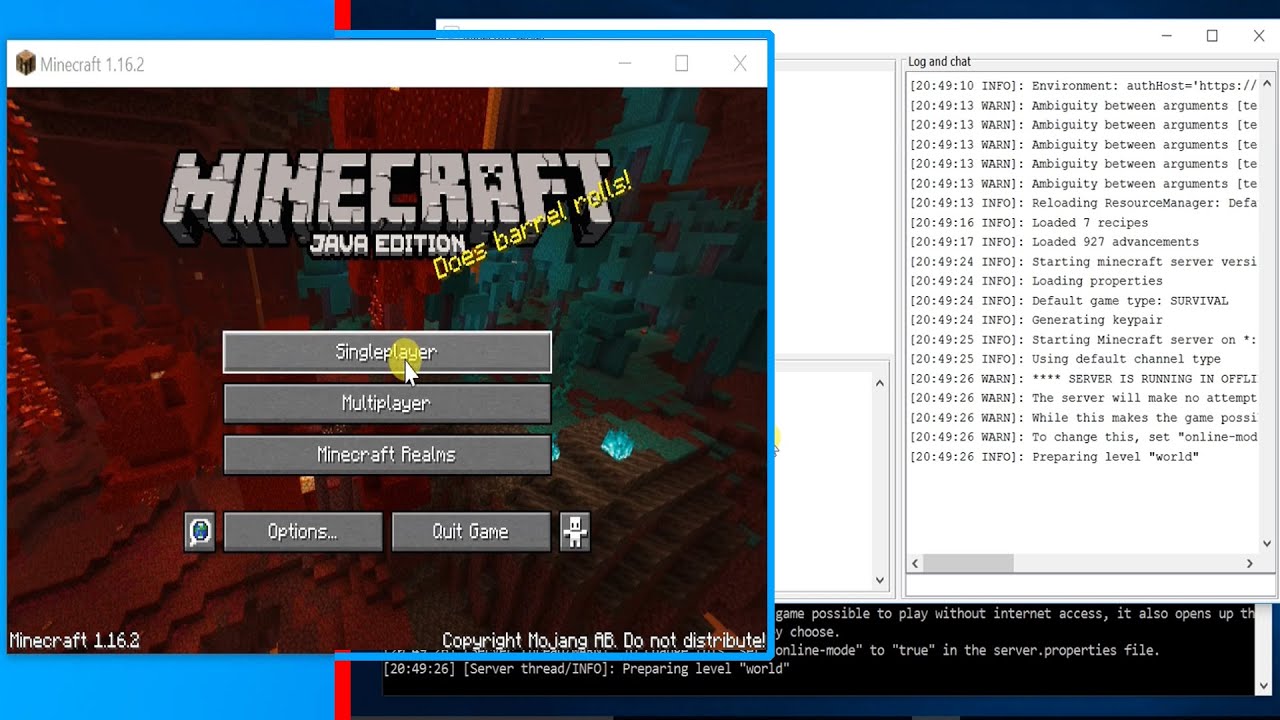
- Enter the command `java -jar "your jar name".jar` in Command Prompt. Replace `"your jar name"` with the actual name of the jar file.
- The server should now launch, and you should see a message indicating that the server is online.
Step 4: Optimizing Performance
Once the server is launched, it's time to optimize the performance. To optimize the performance, follow these steps:
- Check the server's RAM usage and adjust the settings accordingly.
- Configure the server's tick rate to optimize performance.
- Periodically update the server's software to ensure you have the latest features and performance improvements.
Step 5: Inviting Players to Join
Finally, it's time to invite players to join your server. To invite players, follow these steps:

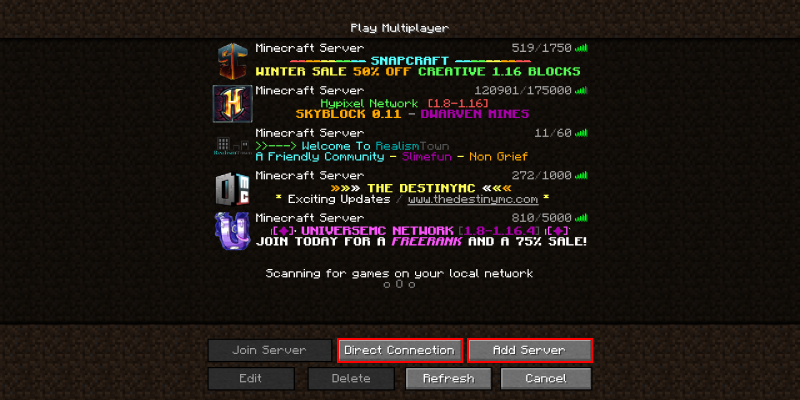
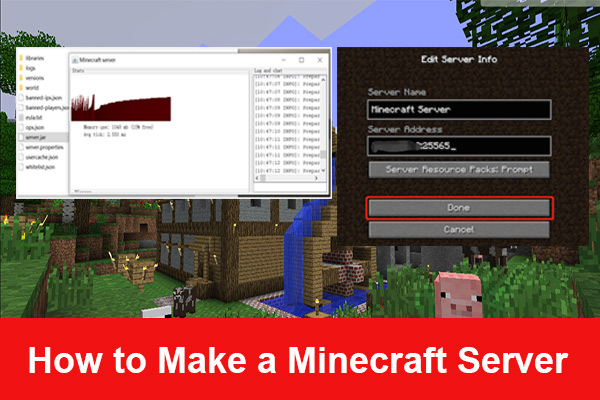
- Share your server's IP address and port number with your friends.
- Configure your server to allow player connections.
- Restart the server to apply the changes.
- Invite your friends to join your server by sharing the IP address and port number.
Conclusion
Setting up a Minecraft server is a straightforward process that requires some technical know-how. By following the steps outlined in this article, you can set up a multiplayer Minecraft server that runs smoothly and allows you to play with your friends. Remember to keep your server software up to date, optimize the performance, and invite players to join your server.
Frequently Asked Questions
Q: How do I install the Minecraft server software?
A: You can download the Minecraft server software from the official Minecraft website and follow the instructions to install it.
Q: What are the common settings in the server properties file?
A: Some common settings in the server properties file include gamemode, difficulty level, and player count.
Q: How do I launch the server?
A: To launch the server, enter the command `java -jar "your jar name".jar` in Command Prompt, replacing `"your jar name"` with the actual name of the jar file.
References
For more information on setting up a Minecraft server, visit the Minecraft server setup page on the Minecraft Wiki.
Conclusion
Setting up a Minecraft server is a great way to customize the world, use admin commands, test out fan-made Minecraft mods, and play with your friends. By following the steps outlined in this article, you can set up a multiplayer Minecraft server that runs smoothly and allows you to play with your friends. Remember to keep your server software up to date, optimize the performance, and invite players to join your server.