Boost Your Computer's Performance with a RAM Upgrade
Are you tired of your computer slowing down due to heavy usage or outdated hardware? One of the simplest and most effective ways to give your PC a performance boost is by upgrading its RAM. In this article, we will guide you through the process of upgrading your RAM, including the benefits, how to choose the right upgrade, and step-by-step instructions for installing new RAM in your PC or laptop.
Why Upgrade Your RAM?
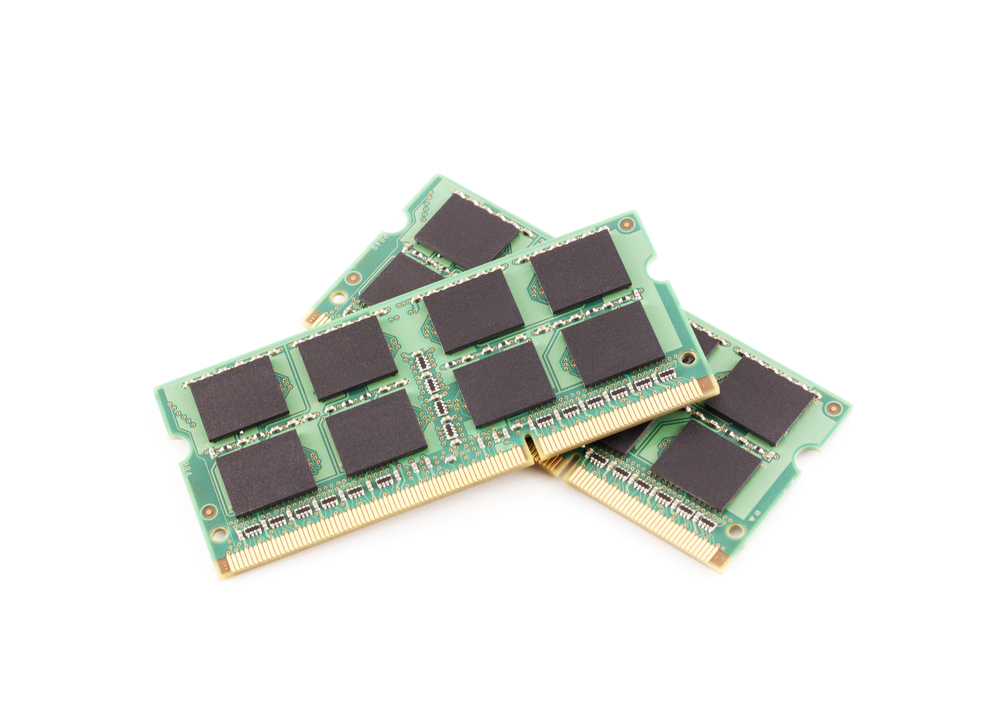
Random Access Memory (RAM) plays a crucial role in your computer's performance. It temporarily stores data and applications, allowing your CPU to access and process information quickly. Upgrading your RAM can significantly improve your computer's multitasking capabilities, reduce lag, and enhance overall system speed. With more RAM, you can run multiple applications simultaneously without experiencing performance drops.
Benefits of Upgrading Your RAM
- Improved multitasking capabilities
- Reduced lag and system crashes
- Enhanced overall system speed
- Increased ability to run multiple applications simultaneously
- Future-proofing your computer for upcoming software and hardware requirements
Choosing the Right RAM Upgrade
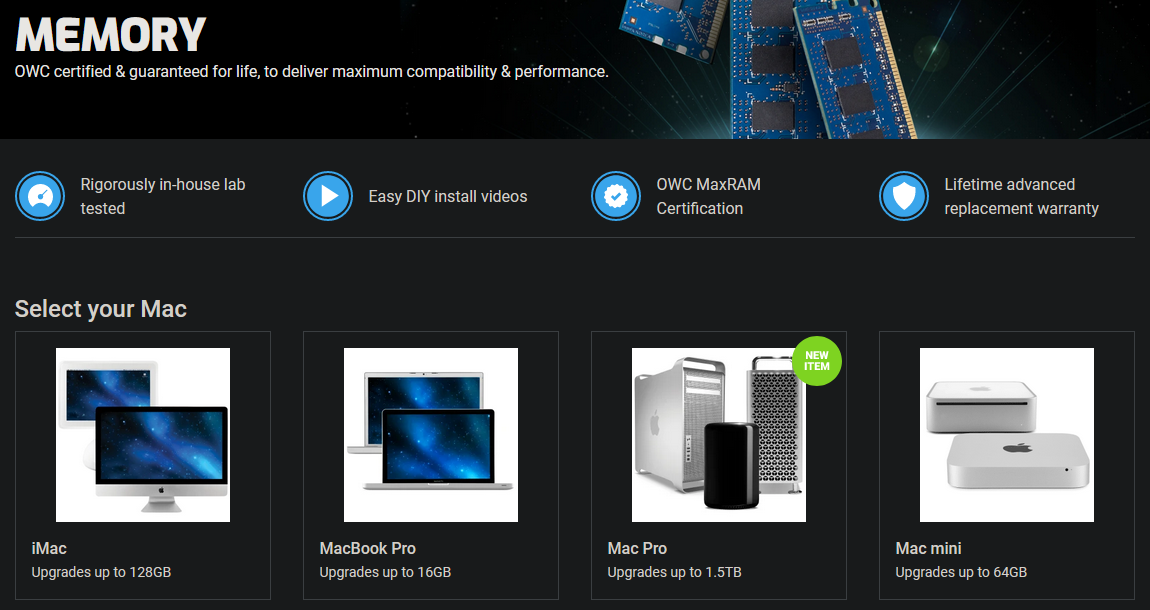
To choose the right RAM upgrade, you need to consider several factors, including the type of RAM your computer currently uses, the maximum amount of RAM supported by your motherboard, and the type of applications you run most frequently. You can find this information by consulting your computer's manual or using software like Speccy to identify your computer's RAM specifications.
When selecting a RAM upgrade, look for the following:
- Compatibility with your computer's motherboard
- Correct speed and timing specifications
- Enough capacity to meet your needs (e.g., 8GB, 16GB, 32GB)
- Quality and brand reputation
Installing New RAM in Your PC or Laptop
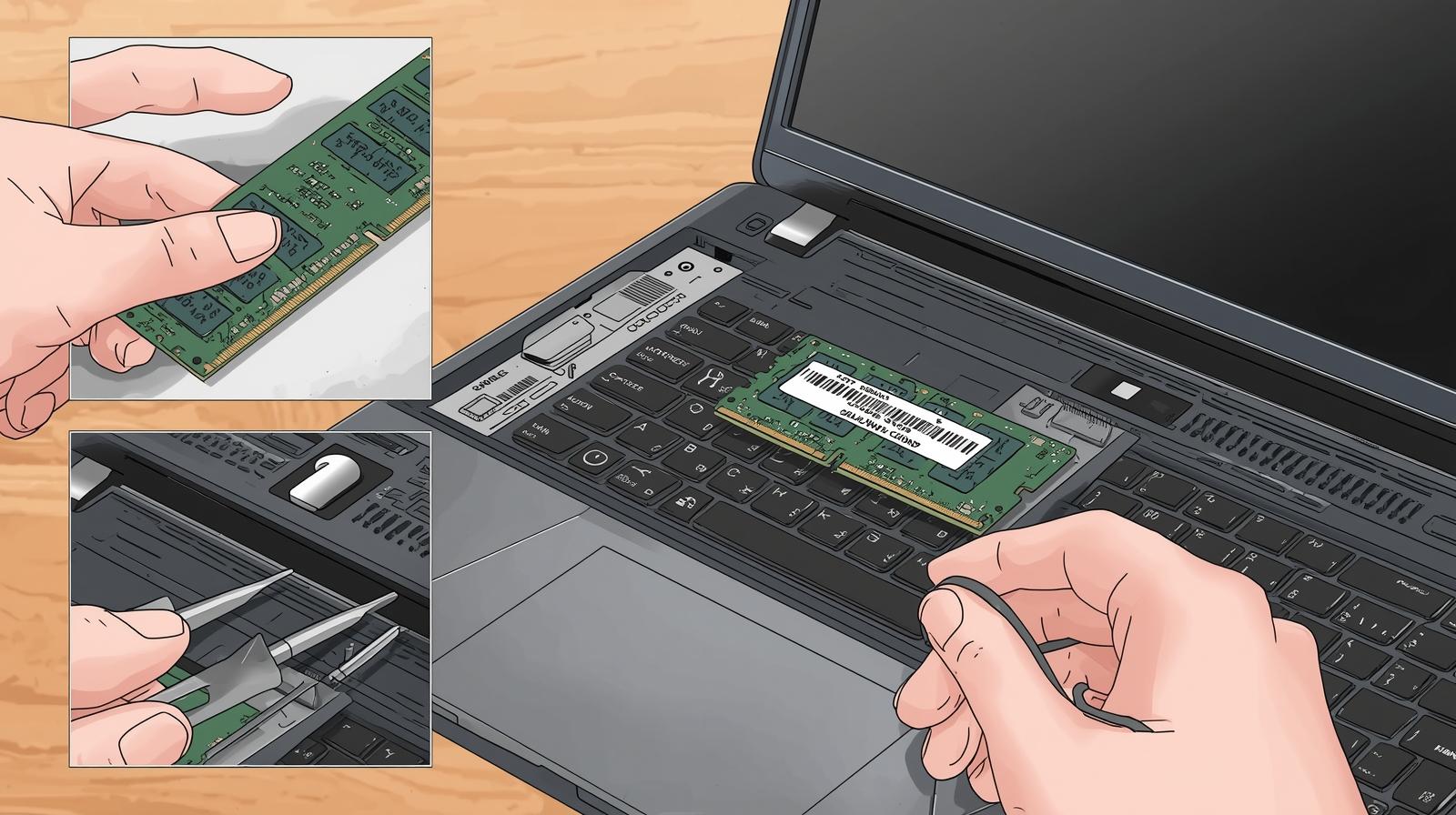
Installing new RAM in your PC or laptop is a relatively simple process, but it requires caution and attention to detail. Here's a step-by-step guide to help you upgrade your RAM safely and effectively:

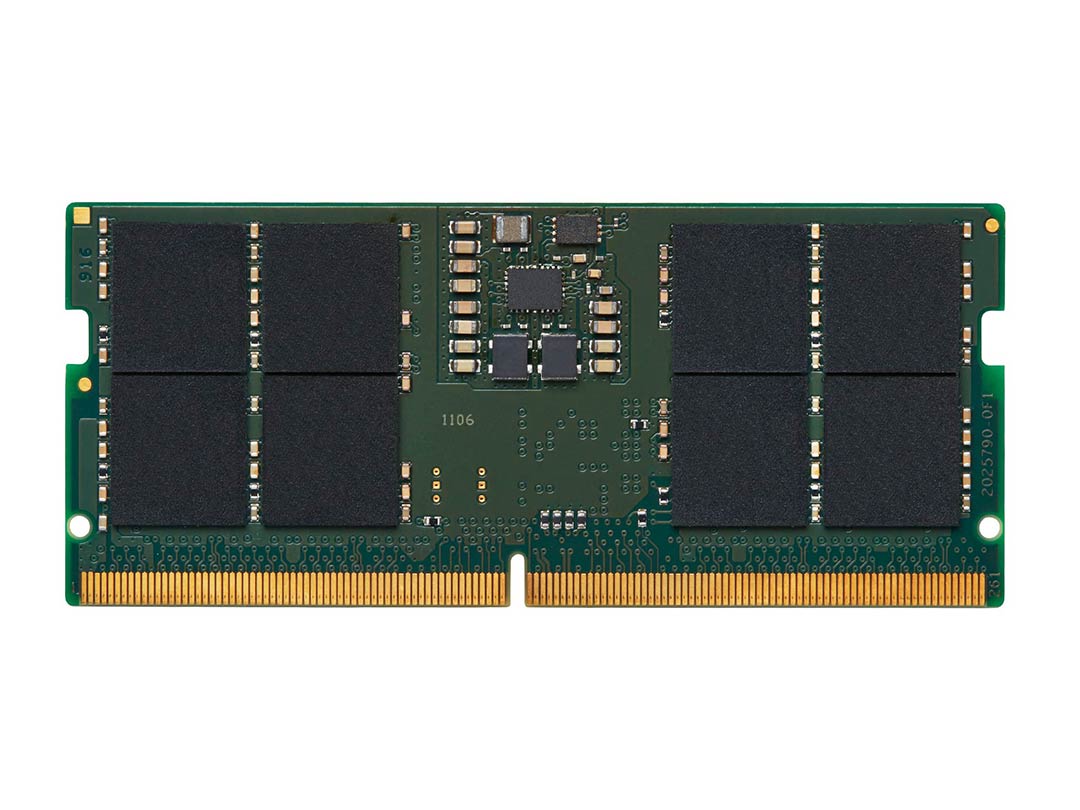
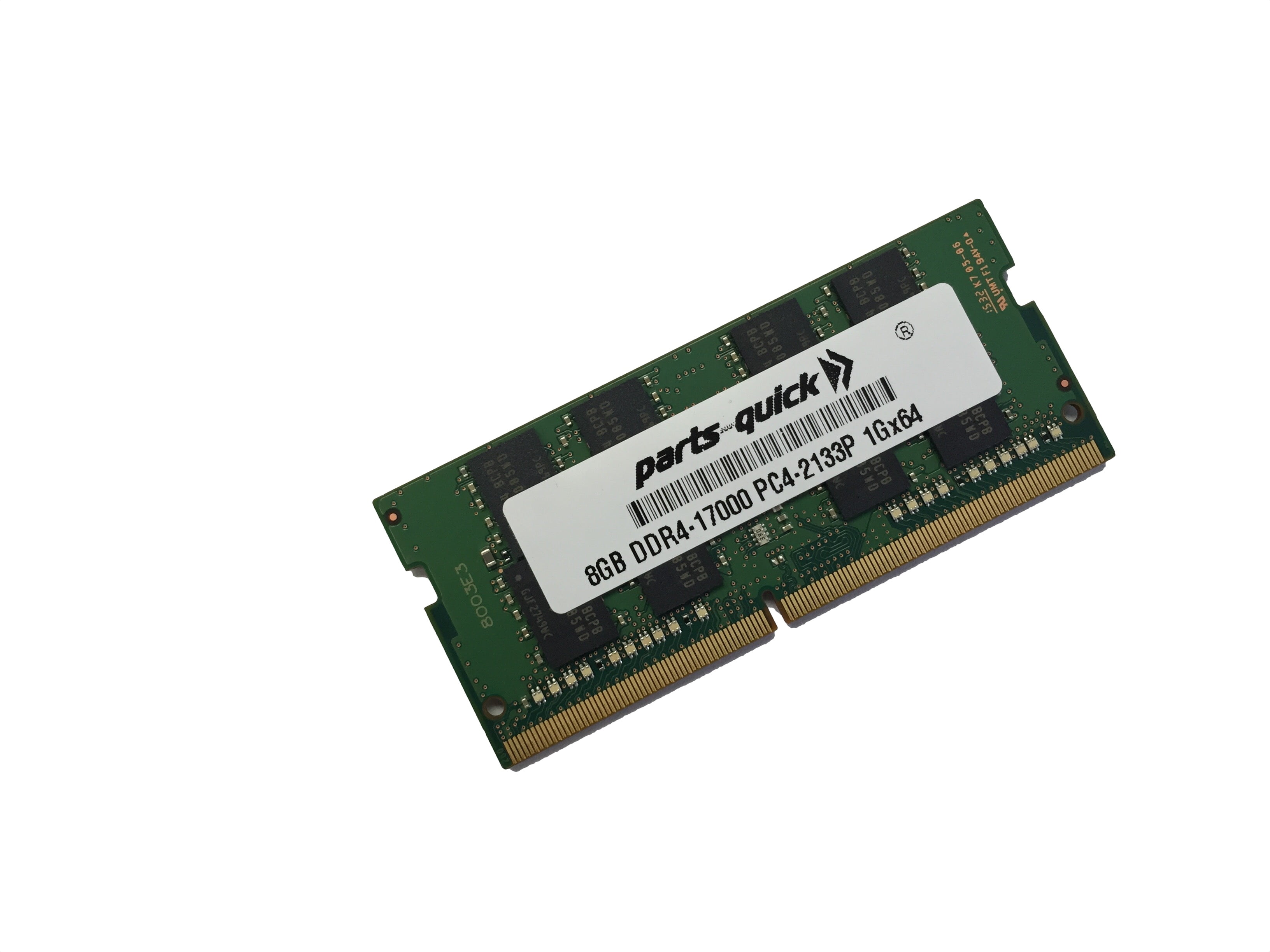
- Determine the type of RAM your computer uses (e.g., DDR3, DDR4, DDR5)
- Shut down your computer and unplug the power cord
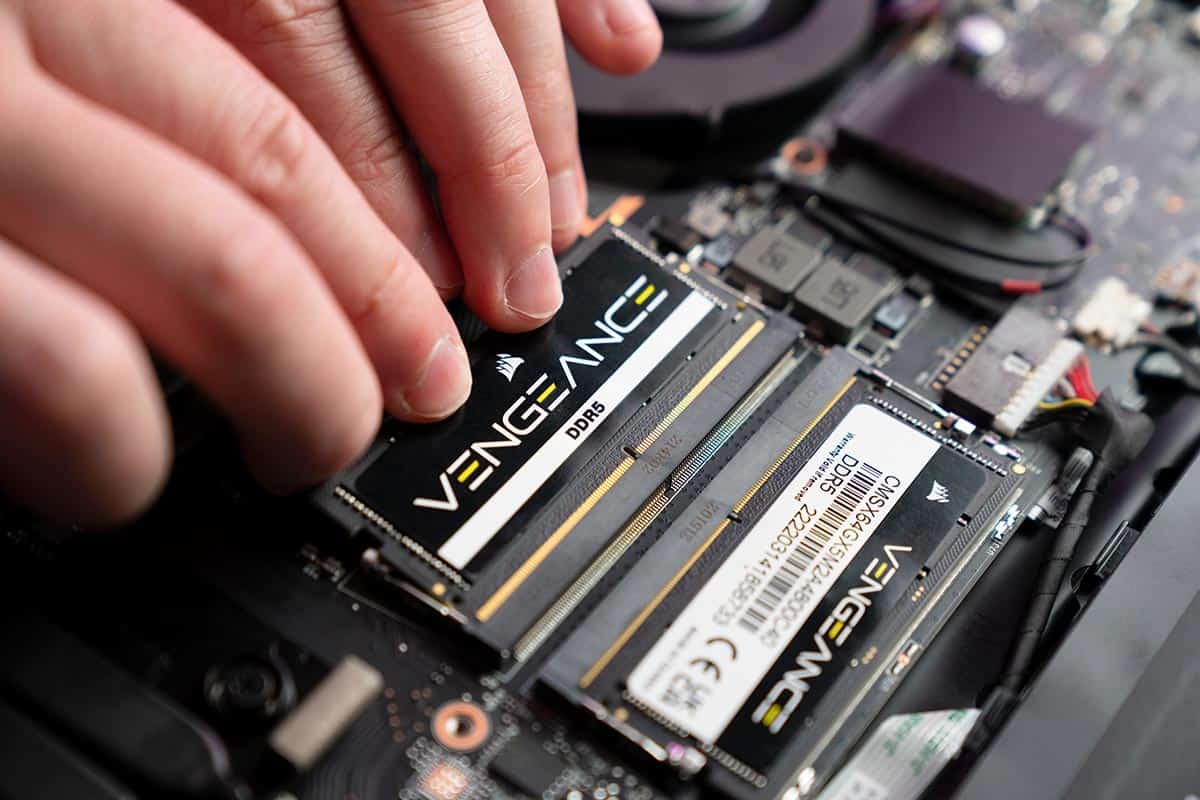
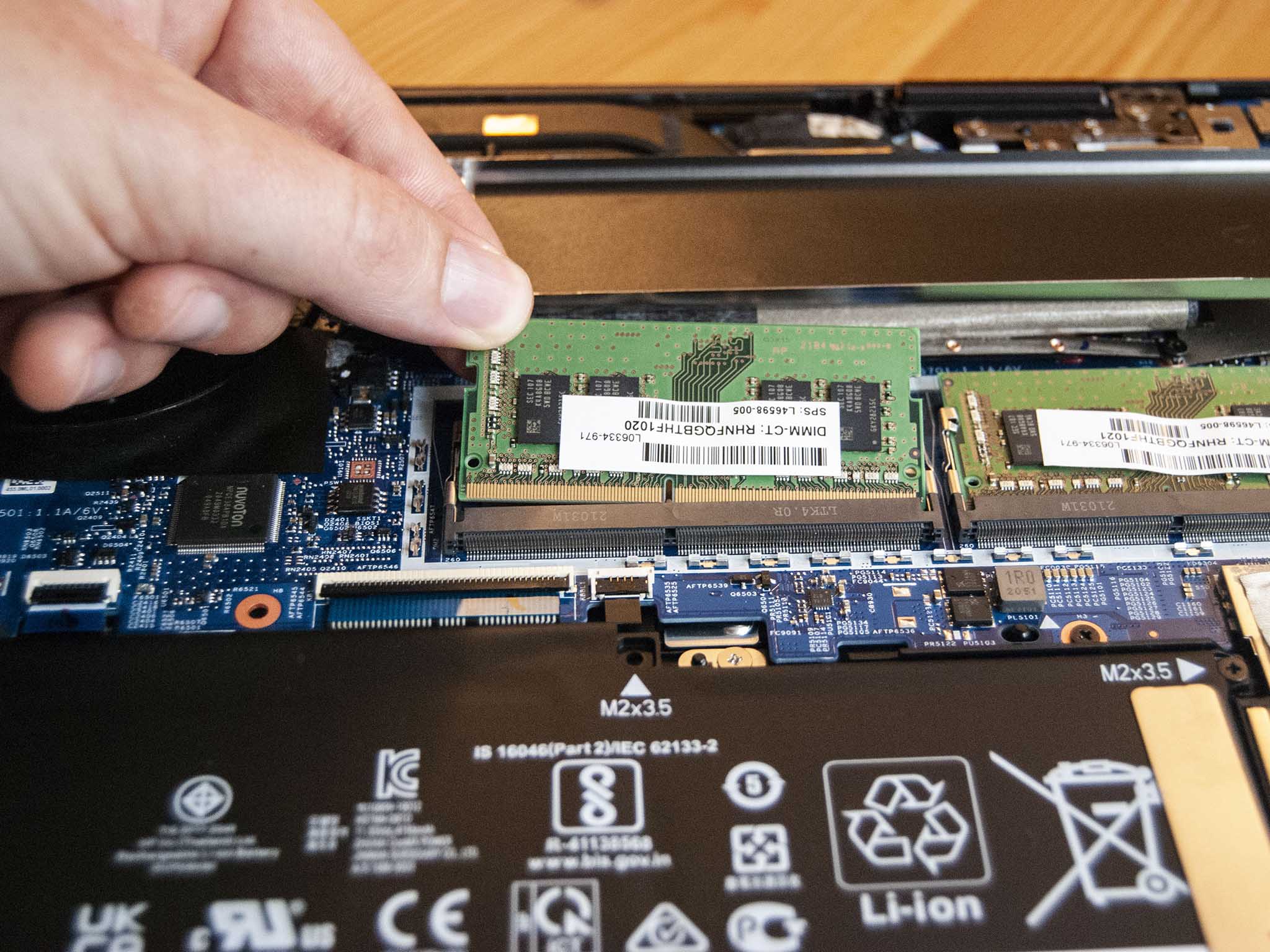
- Open your computer's case or laptop's bottom panel to access the RAM slots
- Identify the RAM slots and determine which ones are available for upgrade
- Remove any protective covering from the new RAM modules
- Align the notches on the new RAM module with the tabs on the RAM slot
- Gently push the new RAM module into the slot at a 45-degree angle
- Secure the new RAM module by gently pushing it into place or using the clips provided
- Close the computer's case or laptop's bottom panel and plug in the power cord
- Restart your computer and verify that the new RAM is recognized
Conclusion
Upgrading your RAM is a simple and cost-effective way to improve your computer's performance and multitasking capabilities. By following the steps outlined in this article, you can choose the right RAM upgrade and install it safely and effectively. Remember to always choose compatible RAM and follow proper installation procedures to ensure optimal performance and system stability.
Additional Resources
For more information on upgrading your RAM, consult the following resources:
- Crucial Memory and SSD Upgrades: https://www.crucial.com/us/en/memory-upgrades
- Kingston RAM Upgrade Guide: https://www.kingston.com/us/learn/upgrade-your-ram
- Newegg RAM Compatibility Checker: https://www.newegg.com/memory-compatibility-checker
Product Recommendations
Some popular RAM upgrade options include:
- Crucial 32GB DDR5 RAM Kit (2x16GB): https://www.amazon.com/Crucial-32GB-DDR5-RAM-Kit/dp/B08B4TYYX4
- Kingston HyperX Fury DDR4 RAM Kit (2x8GB): https://www.amazon.com/Kingston-HyperX-Fury-DDR4-Kit/dp/B07B4TYYX4
Remember to always choose compatible RAM and follow proper installation procedures to ensure optimal performance and system stability.