How to Delete Instagram Account on Instagram Website
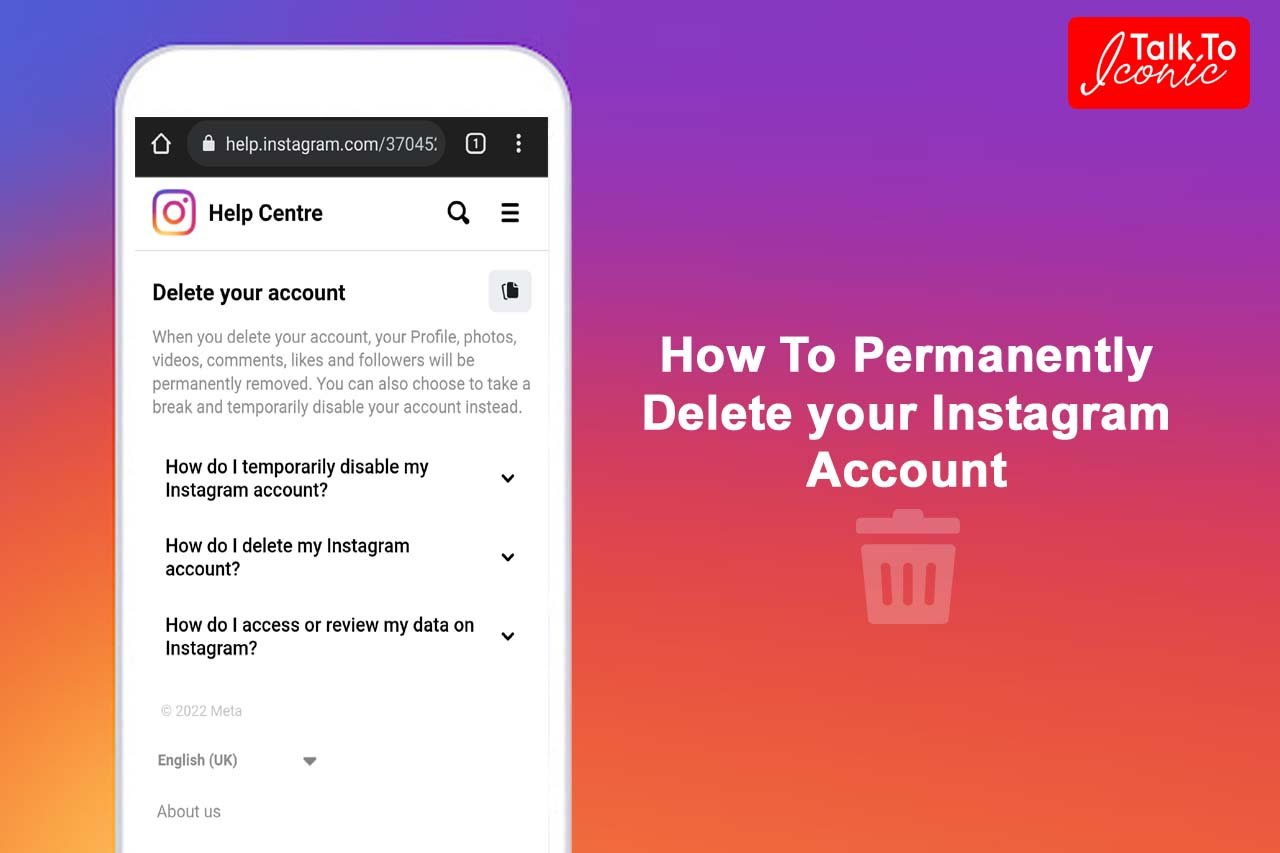
If you're no longer interested in using Instagram or have concerns about your online security, you can delete your Instagram account. This process is straightforward and can be done from the Instagram website. In this article, we'll walk you through the step-by-step process of deleting your Instagram account on the Instagram website.
Before You Delete Your Instagram Account
Before deleting your Instagram account, it's essential to consider the following:
- You'll lose access to all your photos, videos, and data on Instagram.
- You won't be able to reactivate your account once it's deleted.
- You'll need to decide whether to keep or delete your account permanently.
Step 1: Go to the Instagram Deletion Page
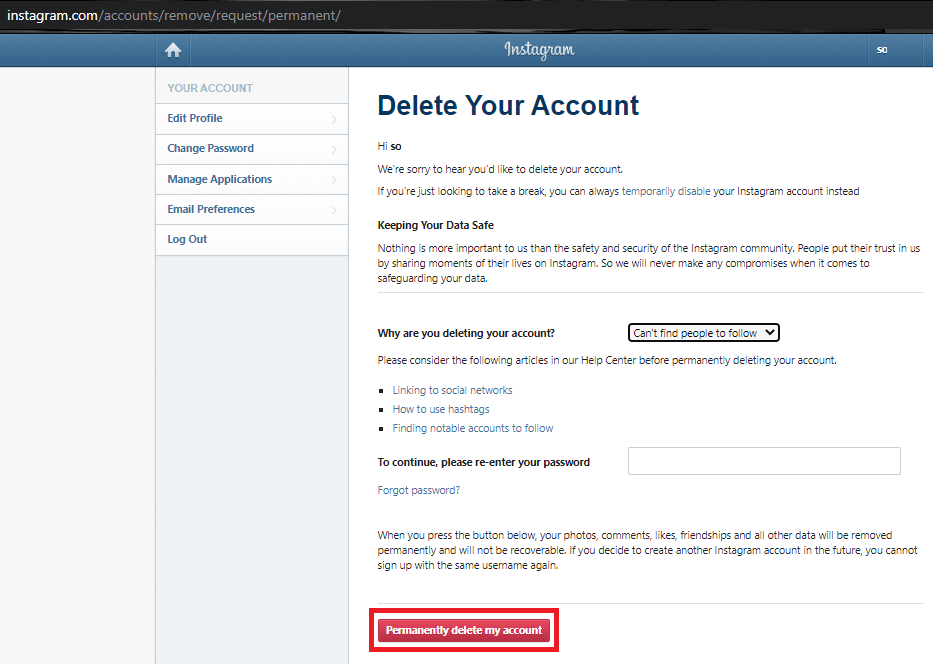
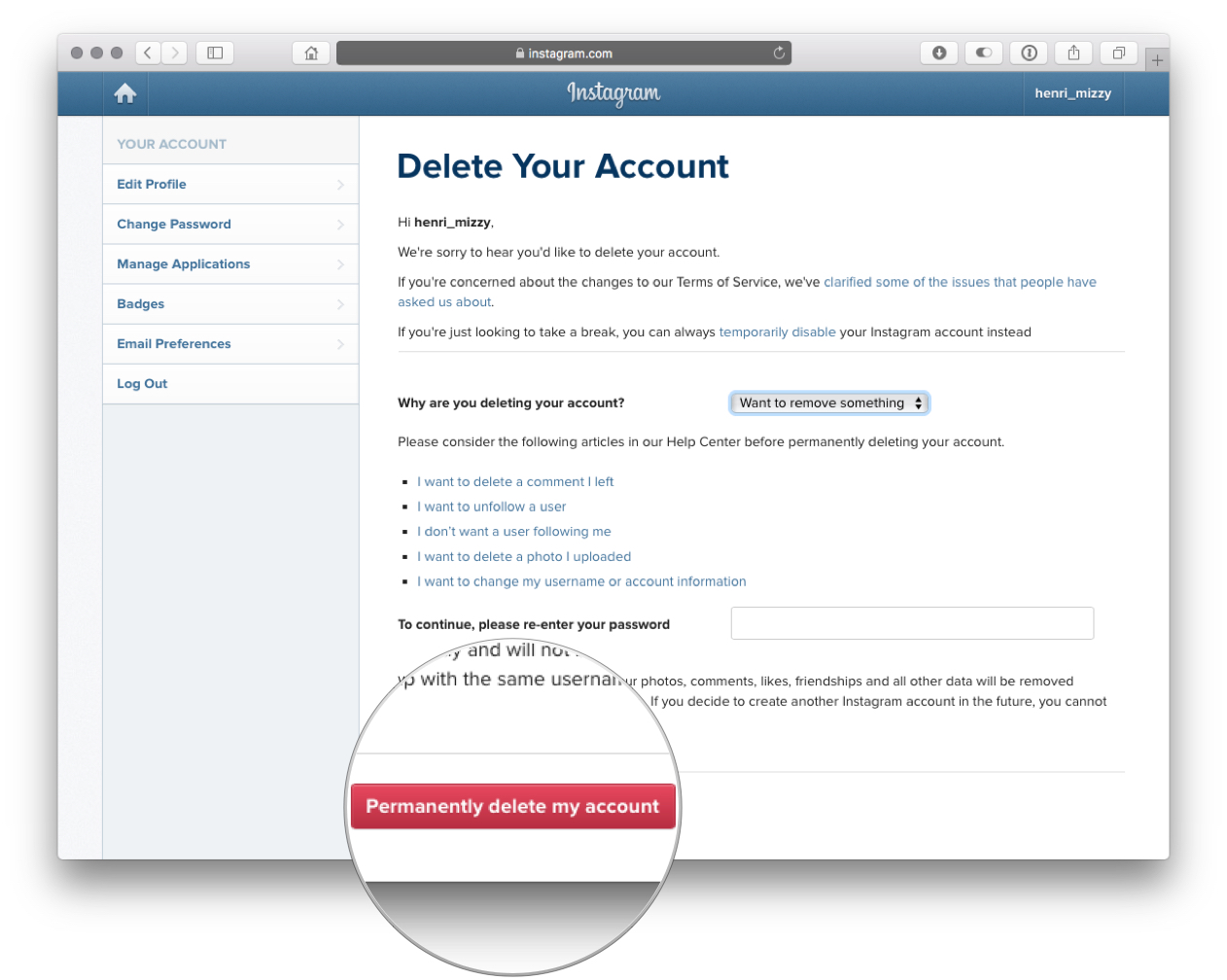
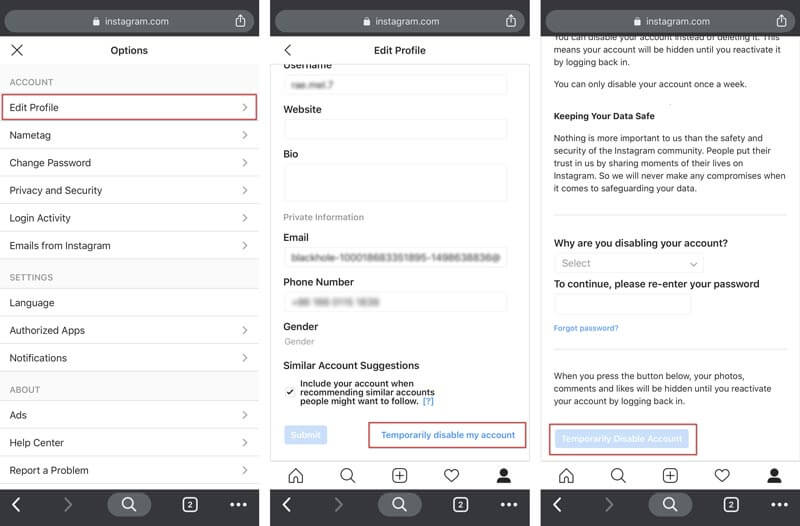
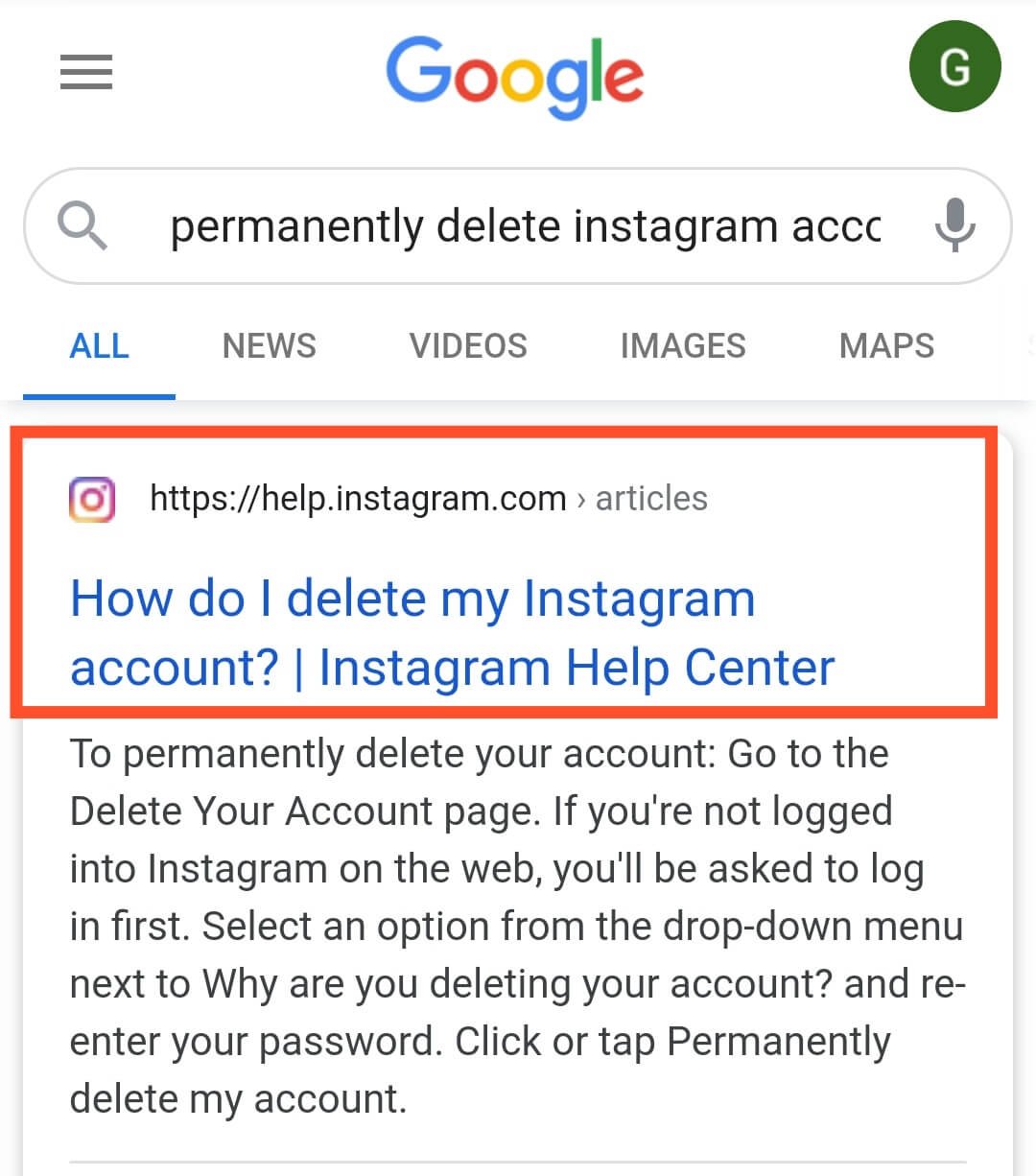
To delete your Instagram account, go to Instagram's dedicated deletion page using any web browser. You can access this page by typing https://www.instagram.com/accounts/remove/request/permanent/ in your browser's address bar.
Step 2: Log in to Your Instagram Account
Enter your Instagram login credentials to access your account. Make sure you're logged in with the account you want to delete.
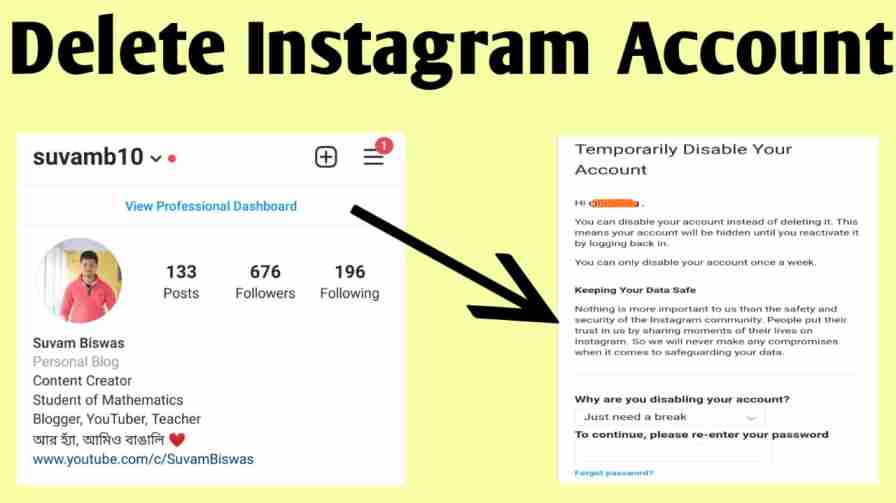
Step 3: Select a Reason for Leaving
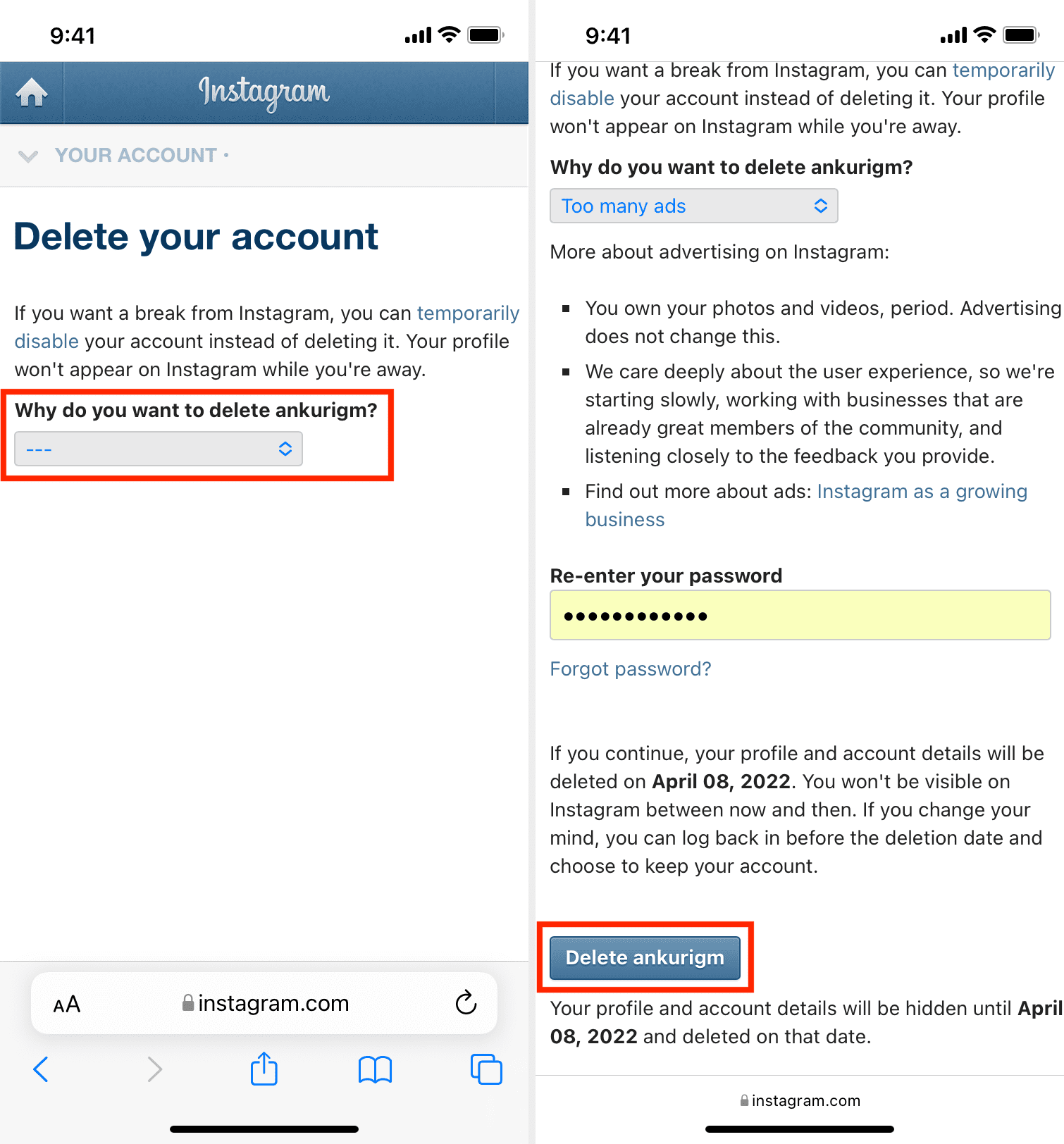
Instagram will ask you to select a reason for leaving the platform. You can choose from a variety of options, including "I don't want to use Instagram anymore" or "I no longer want to see ads on Instagram."
Step 4: Re-enter Your Password
Re-enter your Instagram password to confirm that you're the account owner.
Step 5: Confirm Account Deletion
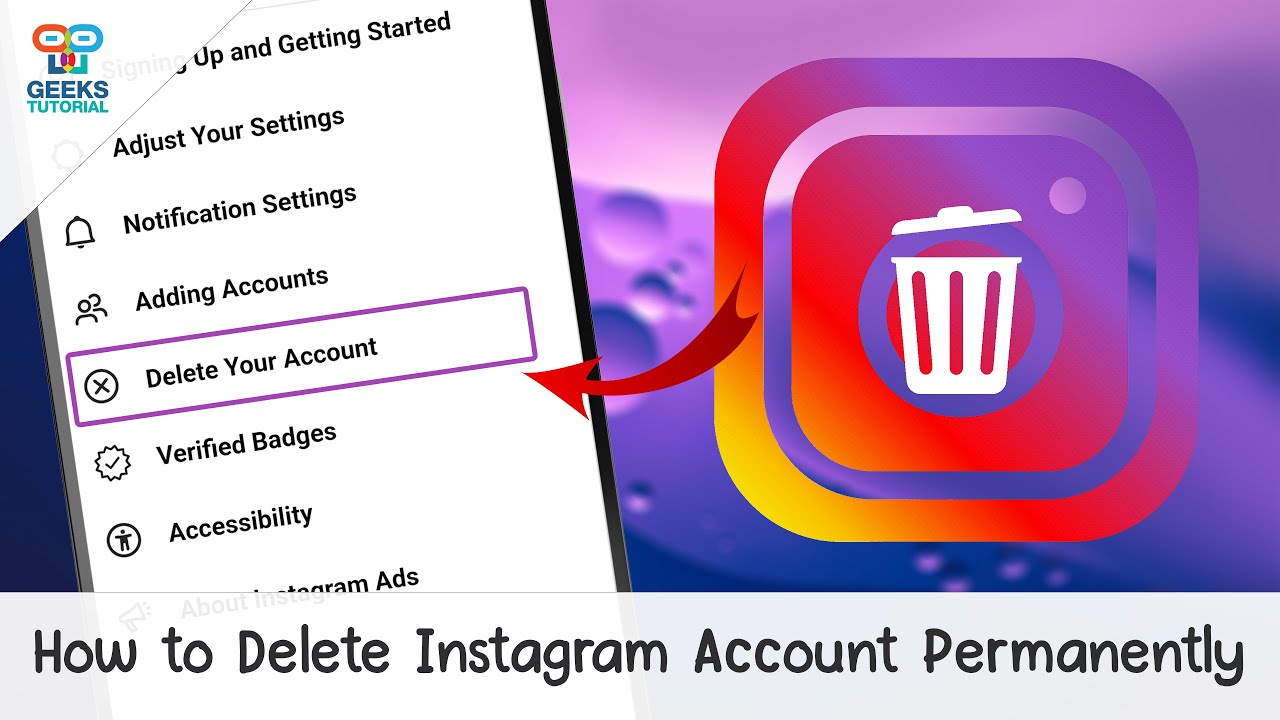
Once you've completed the above steps, you'll be asked to confirm that you want to delete your account. Click the "Delete [username]" button to confirm.
What Happens After You Delete Your Instagram Account?
After deleting your Instagram account, your profile, photos, videos, and data will be permanently removed. You won't be able to reactivate your account, and your data won't be recoverable.
Temporary Deactivation vs. Permanent Deletion
It's essential to understand the difference between temporary deactivation and permanent deletion. Temporary deactivation allows you to take a break from Instagram without deleting your account permanently. If you choose to deactivate your account, you can reactivate it later by logging in to your account.
How to Delete Your Instagram Account from the Mobile App
If you prefer to delete your Instagram account from the mobile app, follow these steps:
- Open the Instagram app and go to your profile page.
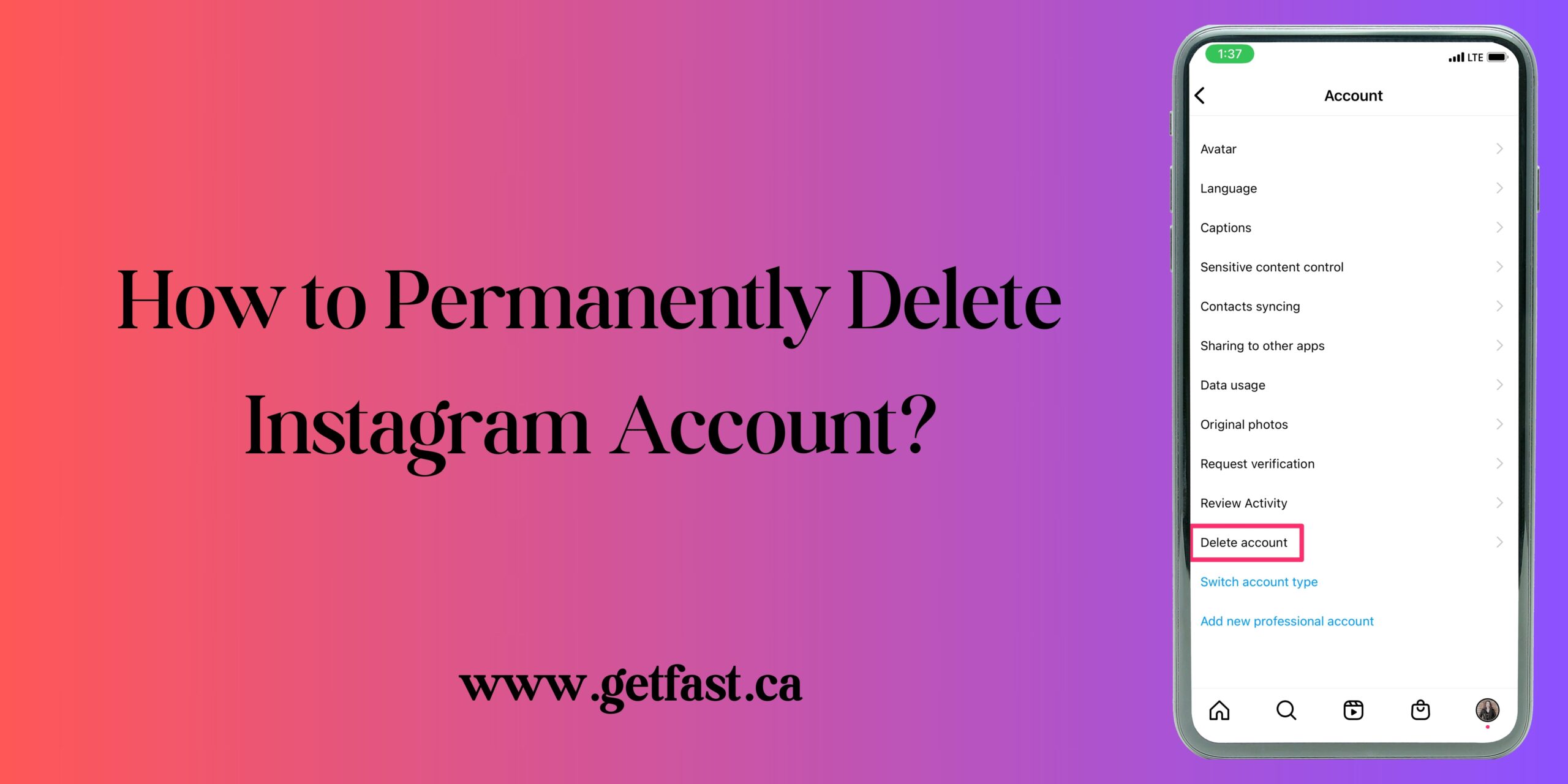
- Tap the three horizontal lines in the top right corner and select "Settings."
- Scroll down and tap "Account" followed by "Delete Account."
- Follow the prompts to confirm account deletion.
Conclusion
Deleting your Instagram account is a straightforward process that can be completed from the Instagram website. Before you delete your account, make sure you've backed up your data and considered the consequences of account deletion. If you're ready to delete your Instagram account, follow the steps outlined in this article to permanently remove your account from the platform.
Additional Resources
For more information on deleting your Instagram account, you can visit Instagram's Help Center or contact their support team for assistance.