Setting Up a Discord Channel: A Step-by-Step Guide
Setting up a Discord channel is a simple task that can help you organize and optimize communication within your server. Whether you want to create channels for specific discussions, limit access to certain roles, or simply give your server a unique touch, in this article, we'll show you how to do it quickly and easily.
Creating a New Channel
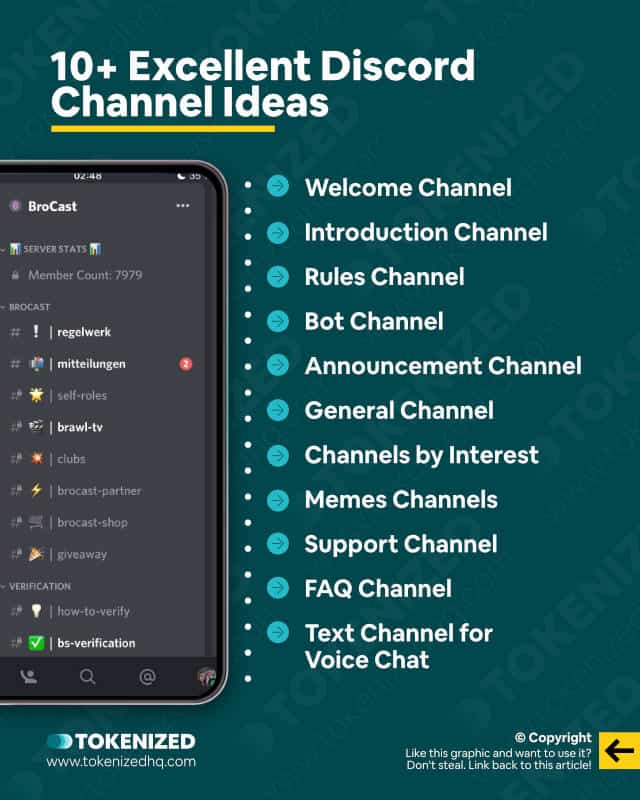
Each channel on your server is organized into categories. To create a new channel or category, right-click anywhere in the channel pane and click either the "Create Channel" or "Create Category" command.
- Give your new channel a name: This will help your members identify the purpose of the channel and ensure that the right people are discussing the right topics.
- Choose the type of channel: You can create a text channel or a voice channel. A text channel is perfect for discussions, and a voice channel is ideal for real-time conversations.
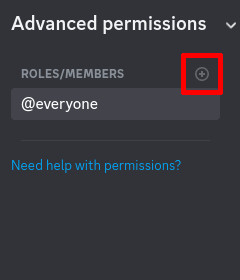
- Configure permissions: Determine who can send messages, join the channel, and participate in the conversation.
- Customize the channel: Add a description, change the color scheme, or use emojis to make your channel stand out.
Organizing Channels
Discord allows you to create categories and channels within them, allowing you to keep your server organized and easy to navigate. Here's how:
- Create a category: This will serve as the top-level container for your channels.
- Add channels to the category: Once you've created your channel, add it to the category that makes the most sense.
- Configure permissions for each channel: Make sure that the right people have access to the right channels.
- Customize the category: Change the name, description, and color scheme to make it stand out.
Customizing Channel Permissions
One of the best things about Discord is its permission system. It allows you to fine-tune who has access to what, ensuring that your channels are safe and secure. Here's how to customize channel permissions:

- Go to the channel settings: Right-click on the channel and select "Channel Settings" or "Edit Channel."
- Configure permissions: Determine who can send messages, join the channel, and participate in the conversation.
- Customize permissions for each role: Ensure that each role in your server has the right level of access to each channel.
- Test permissions: Join different roles and test out the permissions to ensure that everything is working as intended.
Best Practices for Setting Up a Discord Channel
- Plan ahead: Before setting up channels, consider what your community needs and how you can organize your channels accordingly.
- Keep it simple: Avoid cluttering your channels with too many categories and subcategories.
- Communicate with your community: Ensure that your members understand the purpose of each channel and how to use it.
- Customize your channel: Make your channel stand out with a description, custom emojis, and a unique color scheme.
Conclusion
Setting up a Discord channel is a straightforward process that allows you to create organized and secure spaces for your community to communicate. Remember to plan ahead, keep it simple, communicate with your community, and customize your channel to ensure that everyone has a positive experience on your server.
Additional Resources:
For more information on setting up a Discord channel, check out the following resources:
- Discord's Help Center: Learn more about creating channels, configuring permissions, and customizing your channel.
- Discord's Developer Blog: Stay up-to-date with the latest updates and features for developers.
- Discord Server Setup Guide: Learn how to set up a professional Discord server with categories, channels, and permissions.
- Discord Customization Guides: Find tutorials and resources on how to customize your Discord server with themes, bots, and more.