How to Get More Storage on iPhone: A Comprehensive Guide
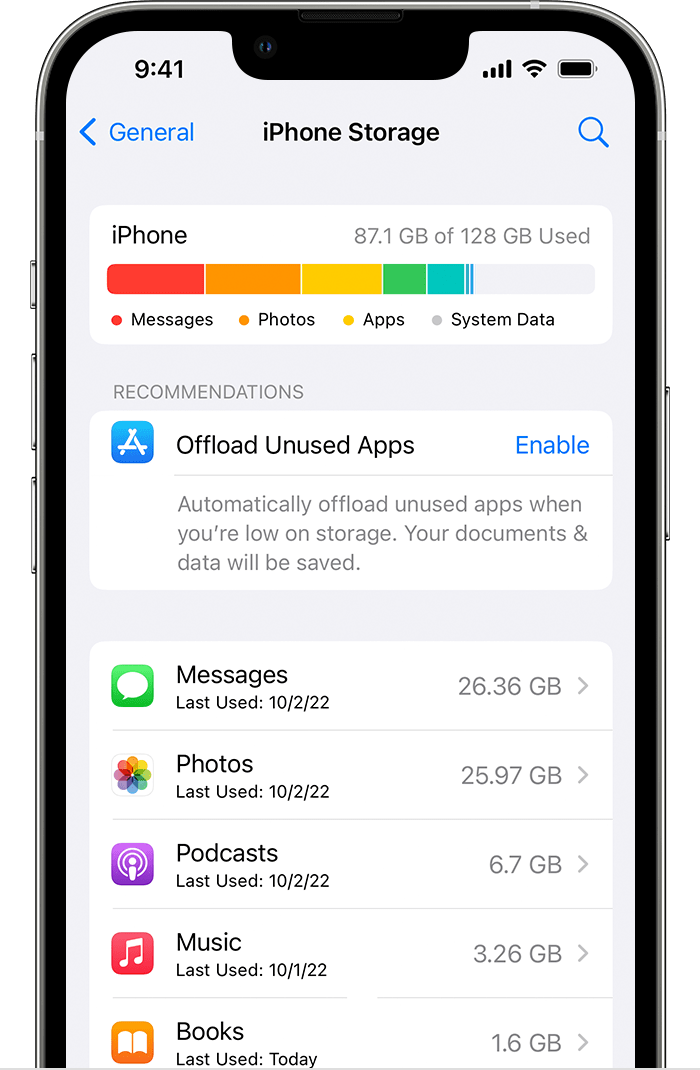
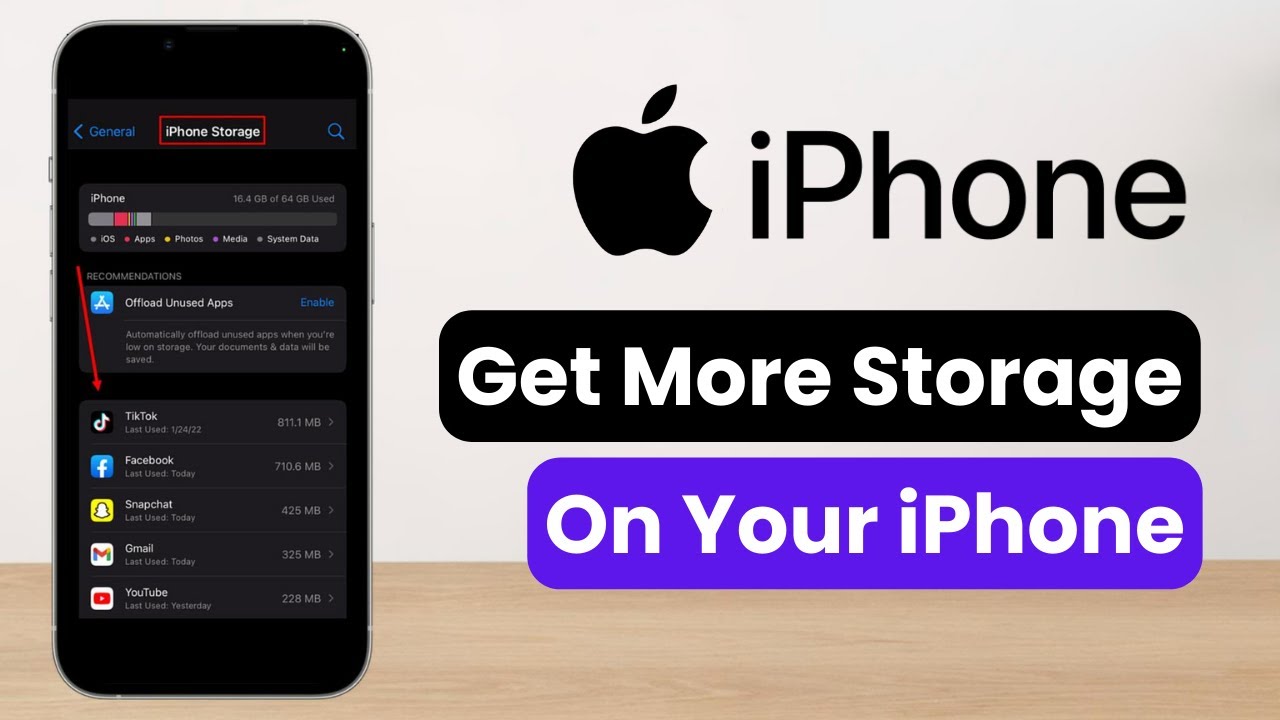
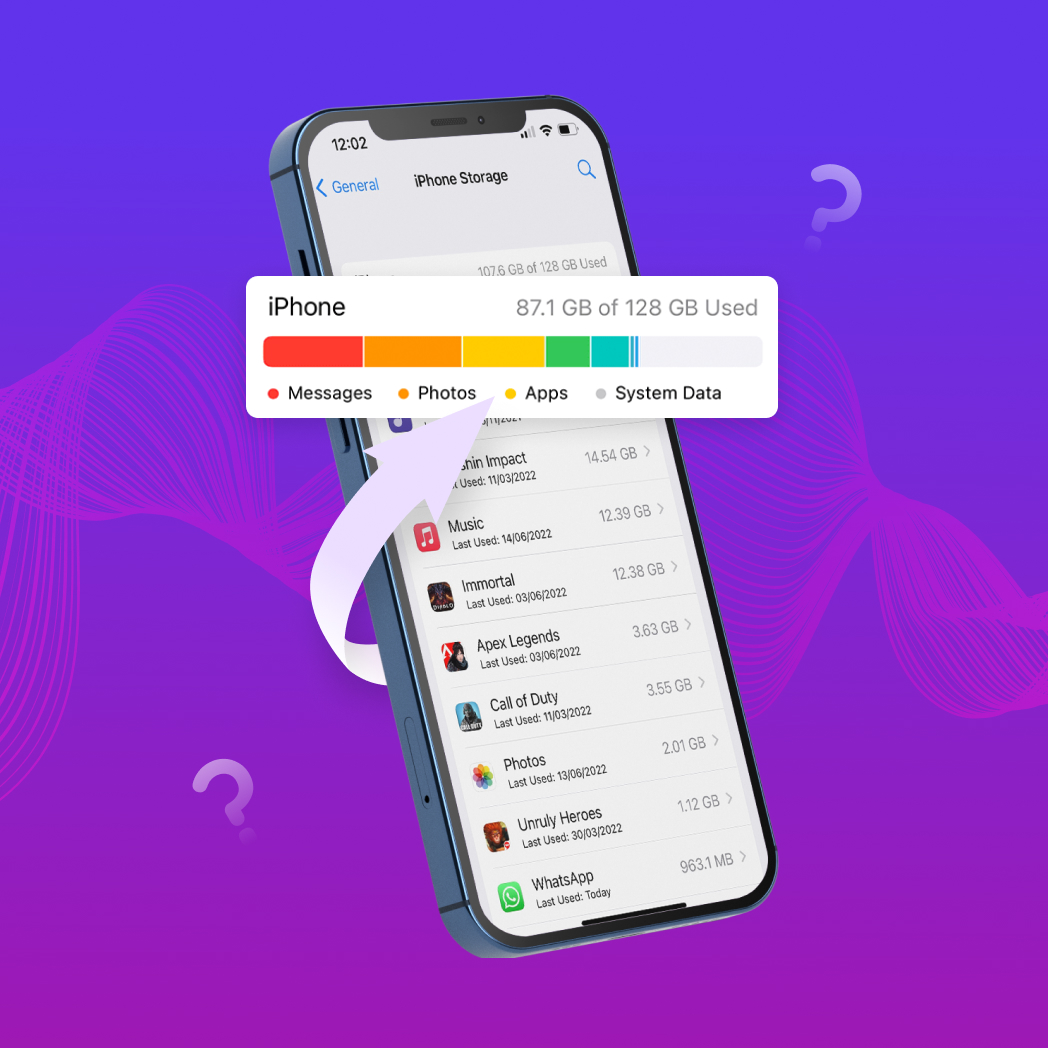
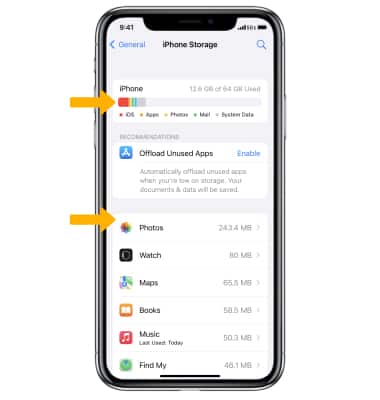
Are you running out of storage space on your iPhone? Don't worry, we've got you covered! In this article, we'll show you how to free up space on your iPhone, get more storage, and keep your device running smoothly. **Step 1: Check Your Current iPhone Storage** Before we dive into the solutions, let's first understand how much storage space is available on your iPhone. To do this, follow these steps: 1. Go to **Settings** > **General** > **iPhone Storage**. 2. This will show you a breakdown of what's using space on your iPhone, including large apps, old message threads, and cached data. **How to Free Up Space on Your iPhone** Now that you know how much storage space is available on your iPhone, it's time to free up some space. Here are some tips to help you do just that: *Remove Unused Apps
+ Go to **Settings** > **General** > **iPhone Storage**. + Look for apps that are using a lot of space and remove them. *Offload Unused Music and Videos
+ Go to **Music** or **Videos** and delete any music or videos that you no longer need. *Clear Your Browser Cache and Cookies
+ Go to **Safari** > **Settings** > **Clear History and Website Data**. + This will delete your browsing history, cookies, and other data that's taking up space on your iPhone. *Delete Old Message Threads
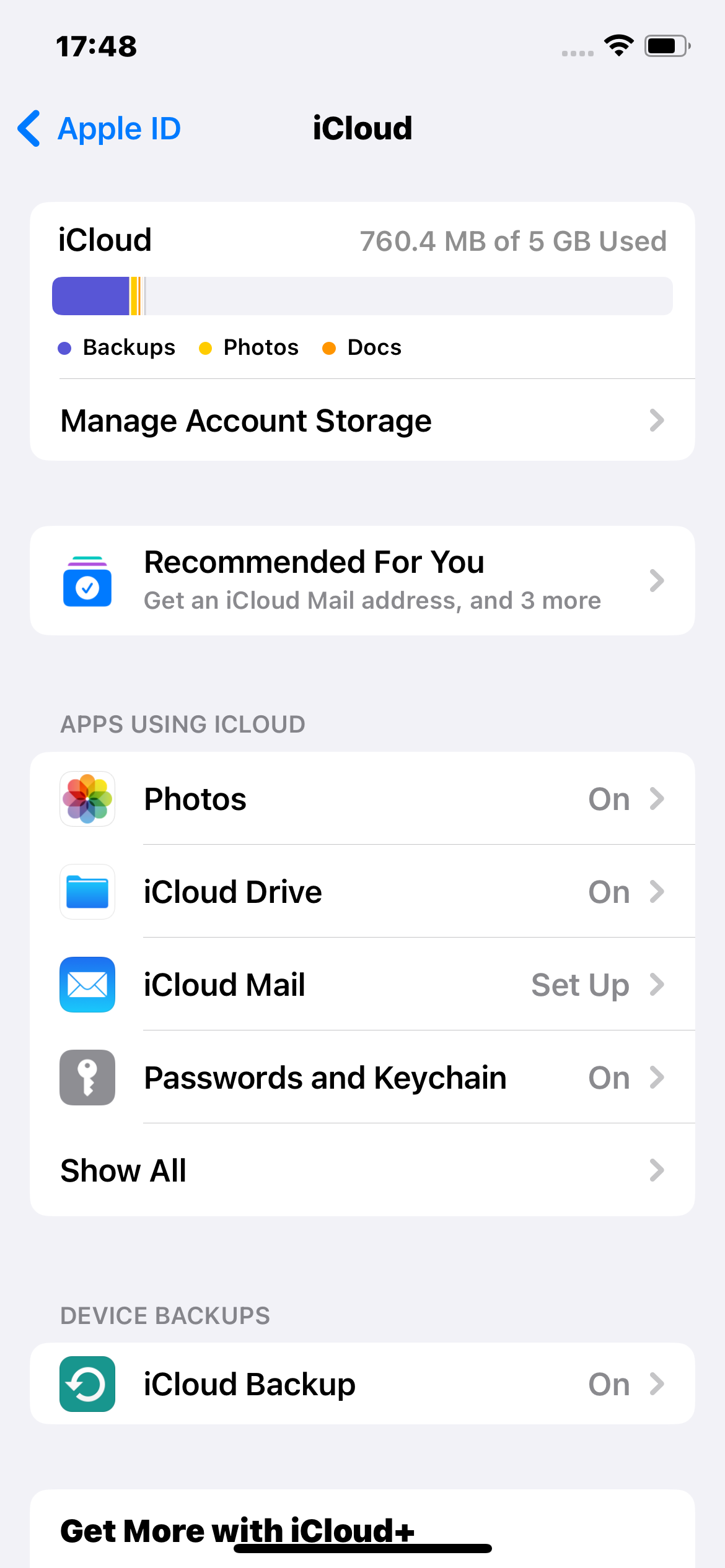
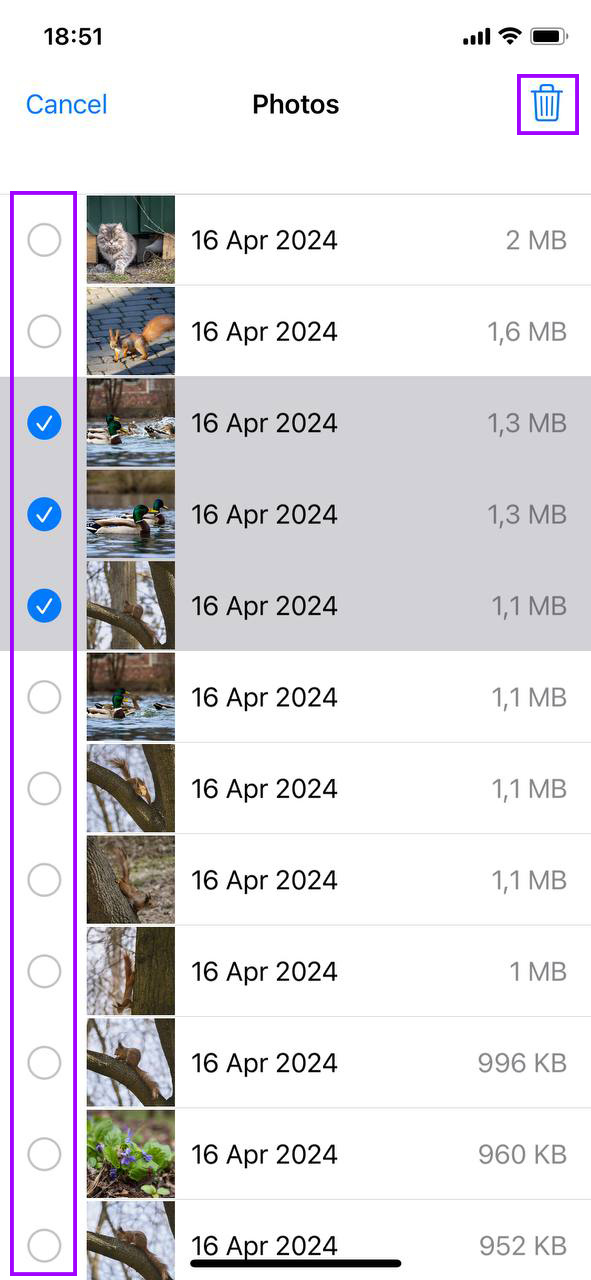
+ Go to **Messages** and delete any old conversations that you no longer need. *Use iCloud Storage
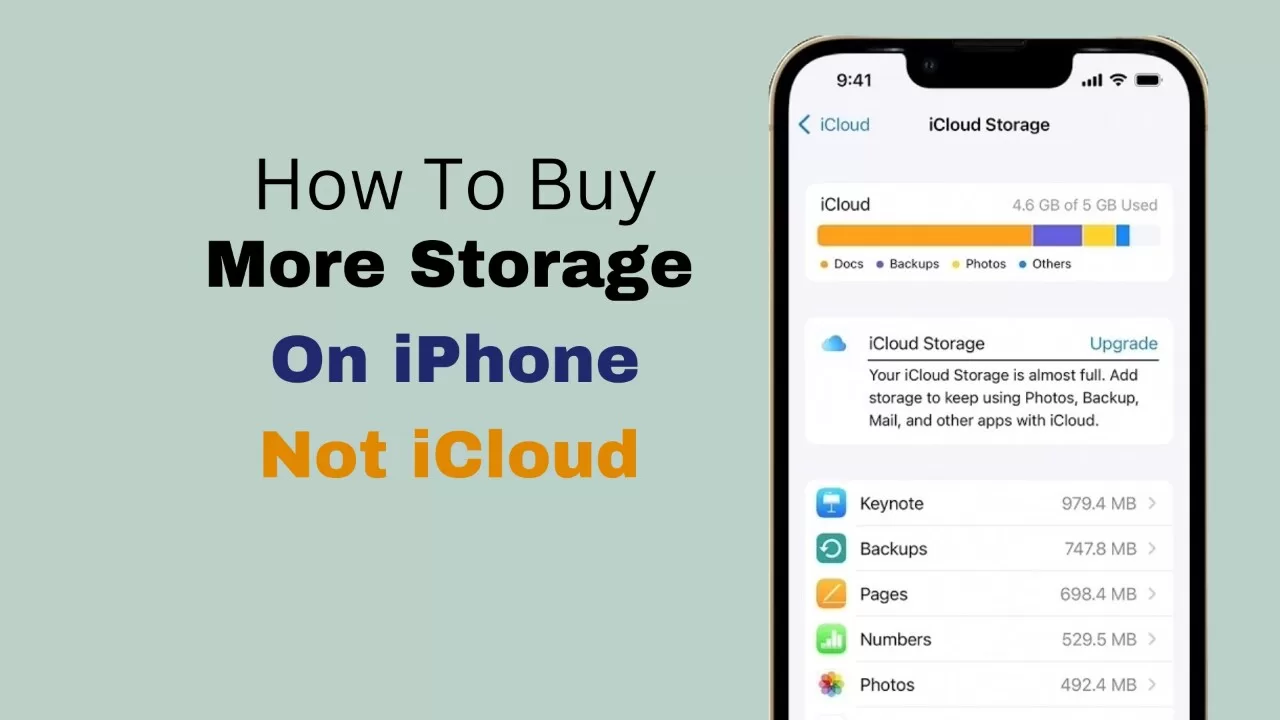
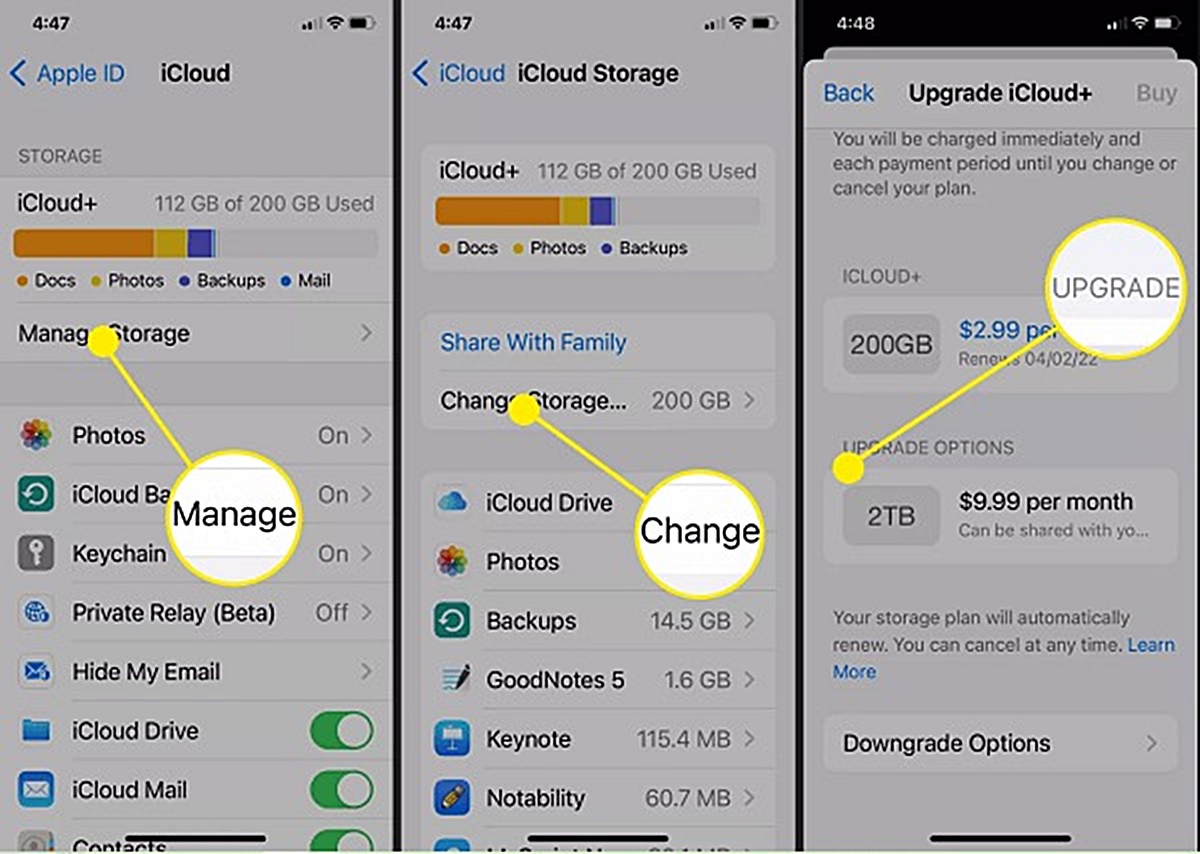
+ Go to **Settings** > **iCloud** > **iCloud Storage**. + This will show you how much storage space is available on your iCloud account. **How to Get More Storage on iPhone** If you've tried the above steps and still need more storage space on your iPhone, here are some additional options: *Buy More iCloud Storage