How to Delete a Facebook Account: A Step-by-Step Guide
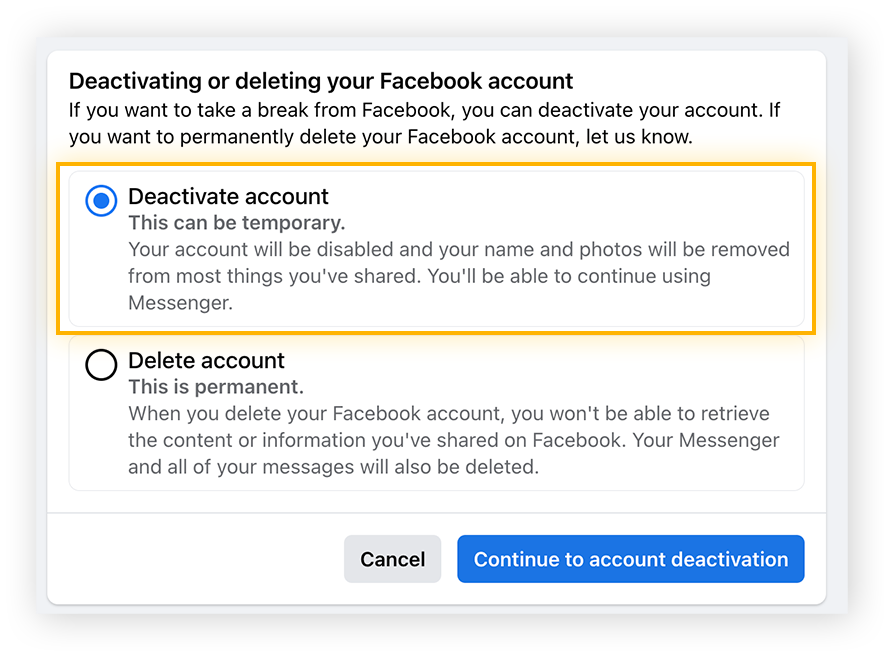
Are you ready to break free from the grip of Facebook and delete your account for good? Maybe you're tired of the constant distractions, pesky ads, or simply want to take a digital detox. Whatever your reason, deleting a Facebook account can be a liberating experience. In this article, we'll guide you through the process of how to delete a Facebook account permanently, while also exploring the differences between deleting and deactivating your account.Why Delete Your Facebook Account?
Before we dive into the nitty-gritty, let's discuss why you might want to delete your Facebook account. Some common reasons include: * Feeling overwhelmed by the constant stream of information and notifications * Concerns about online safety and security * Desire to reduce digital distractions and increase productivity * Need to take a break from social media Whatever your reason, deleting your Facebook account can be a great way to take control of your online presence.How to Delete Your Facebook Account
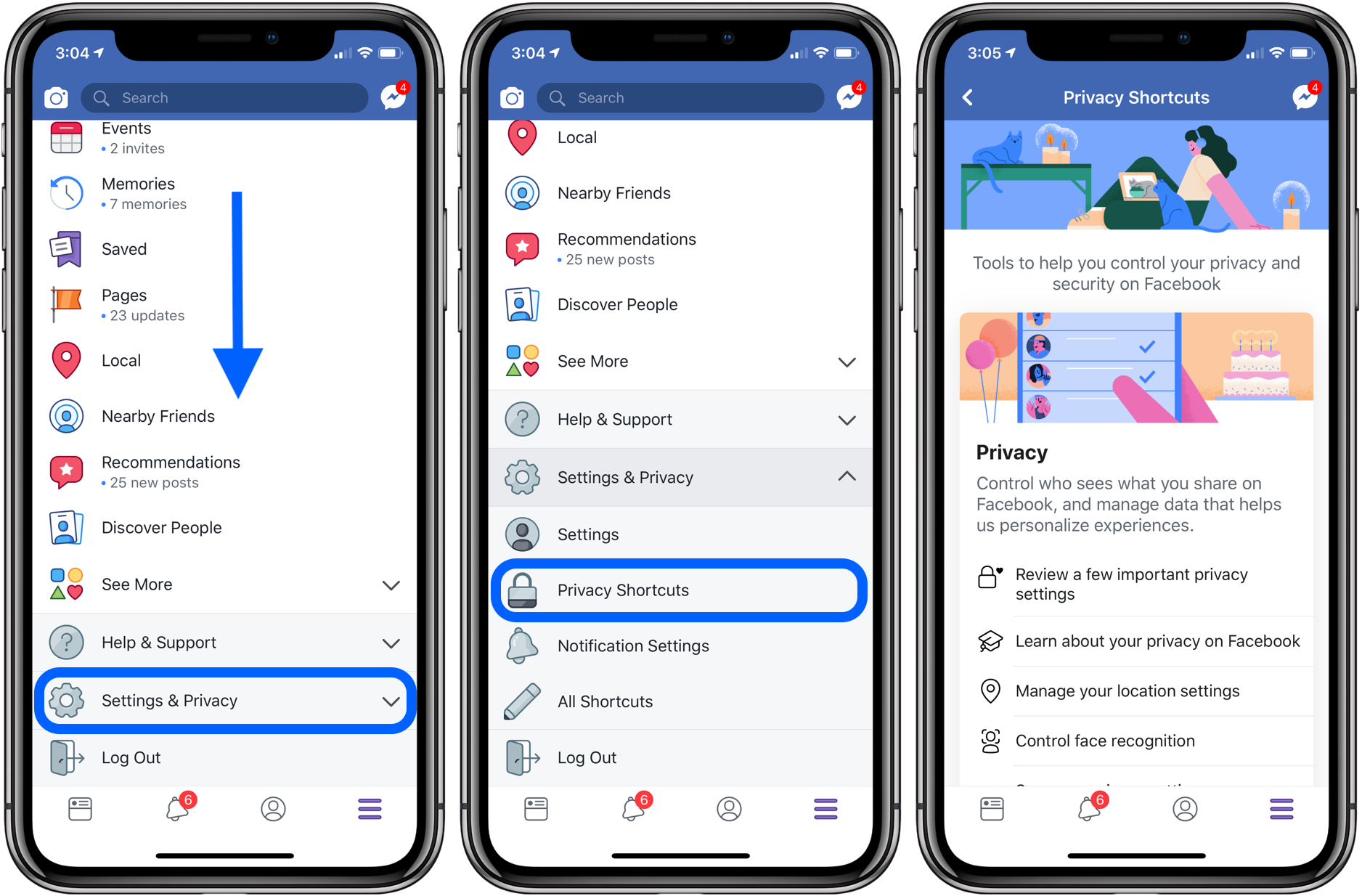
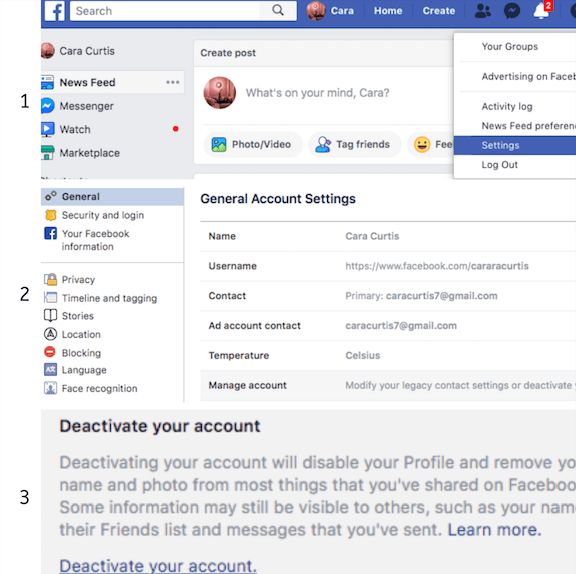
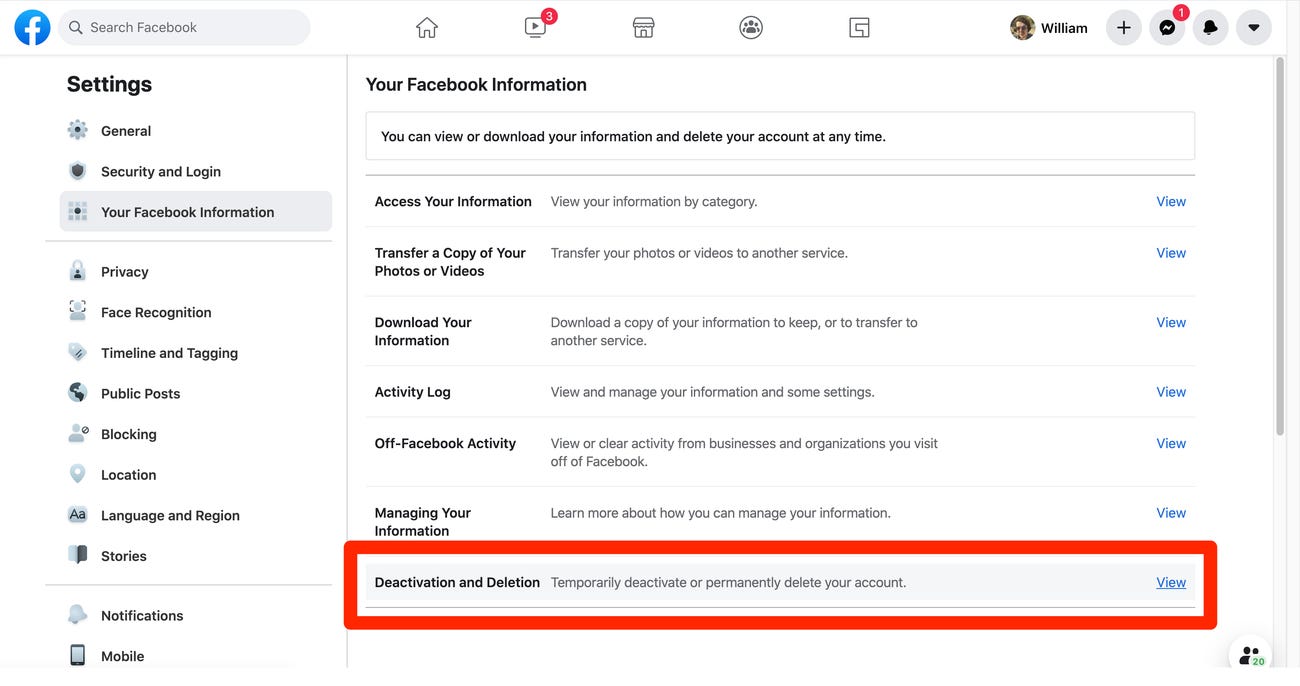
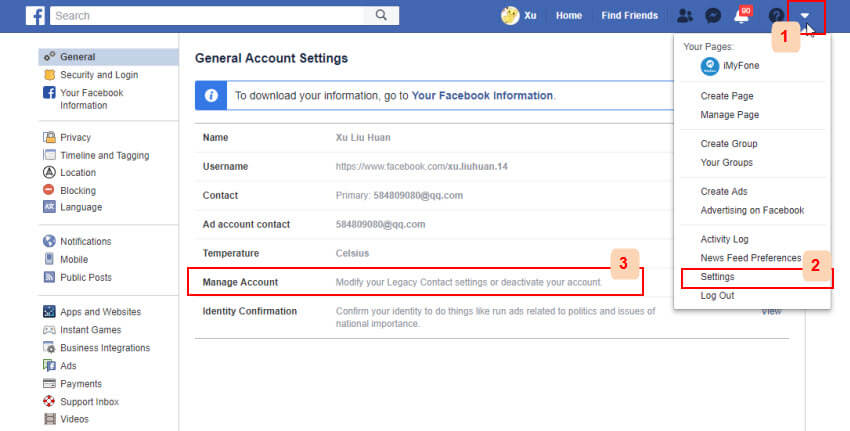
To delete your Facebook account, follow these step-by-step instructions:- Go to the Facebook website and click on the downward-facing arrow in the top right corner. Select "Settings" from the drop-down menu.
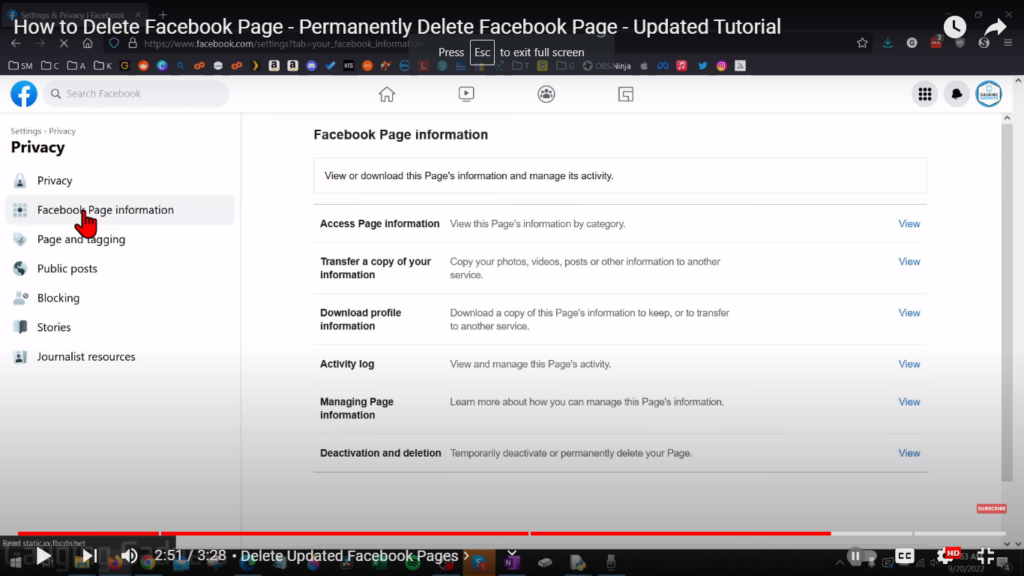
- Scroll down to the "Account Ownership and Control" section and click on the "Deletion" option.
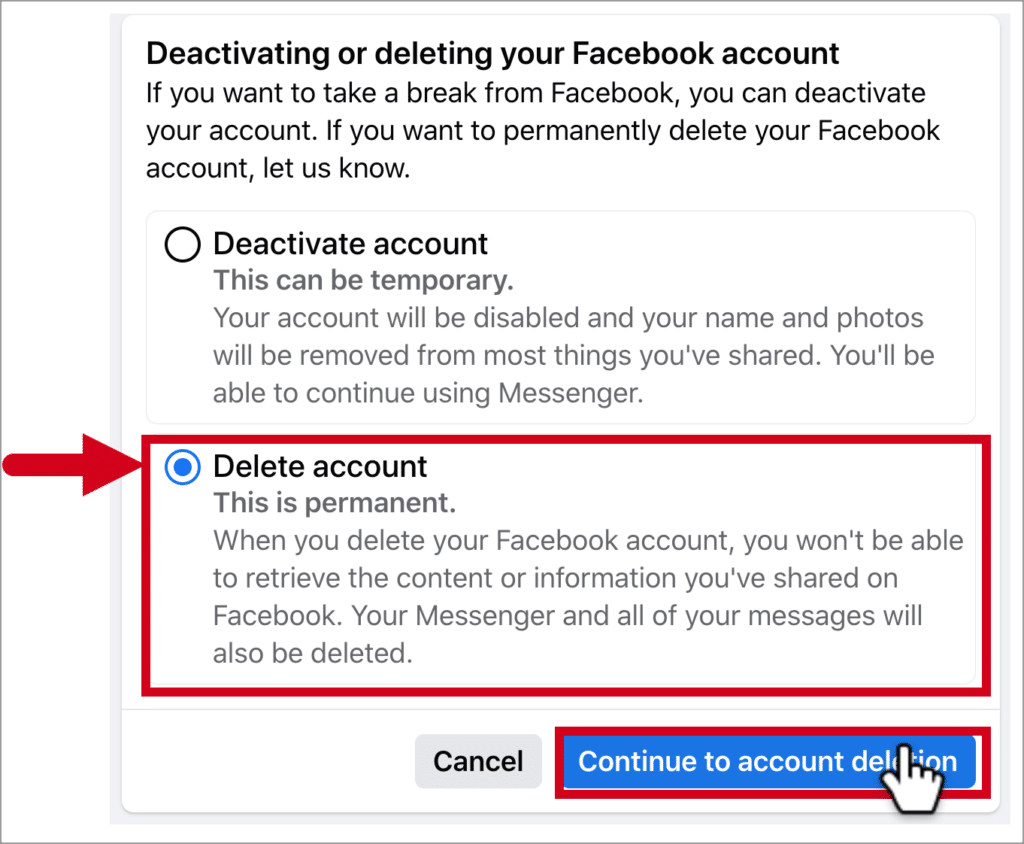
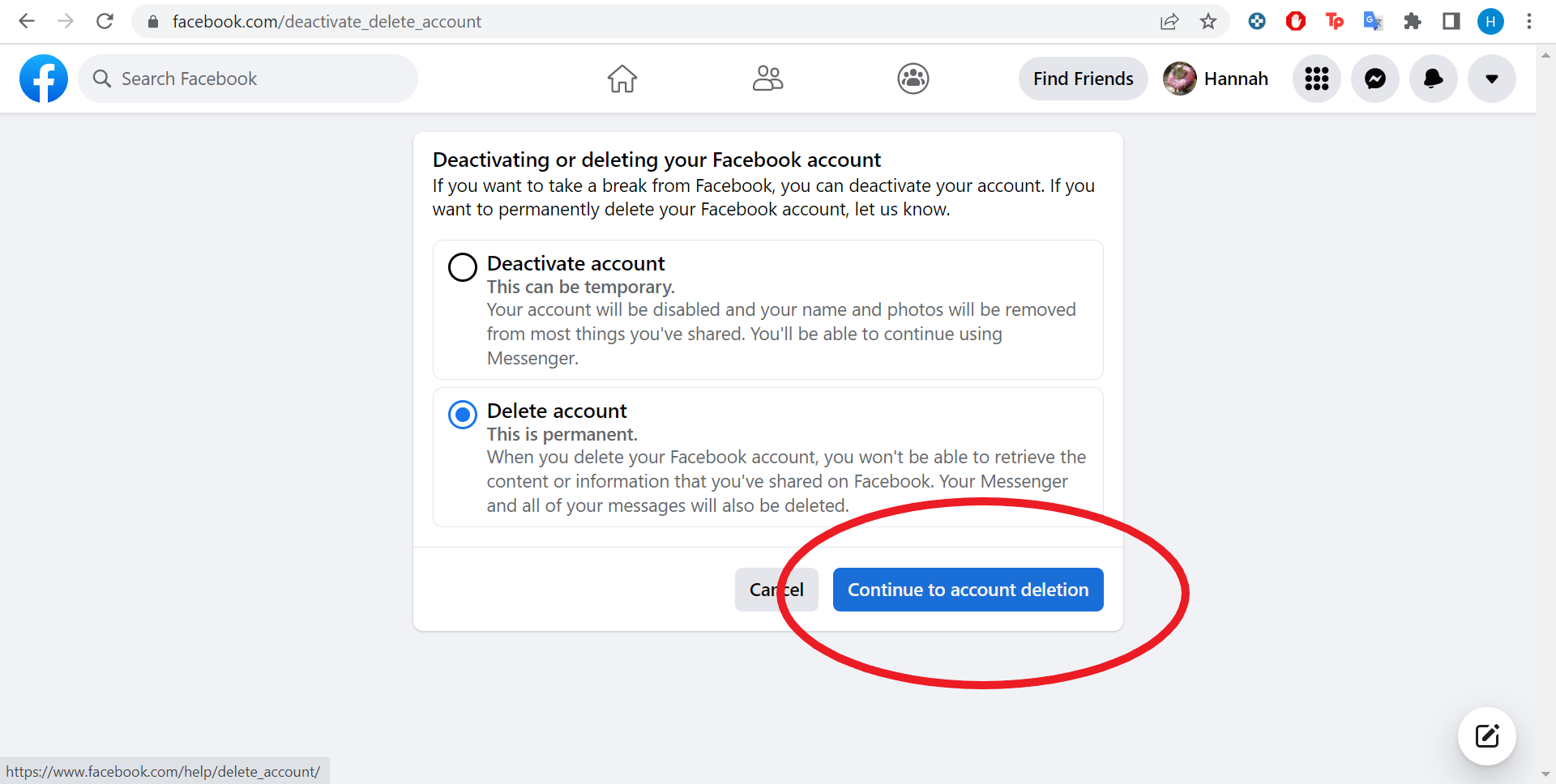
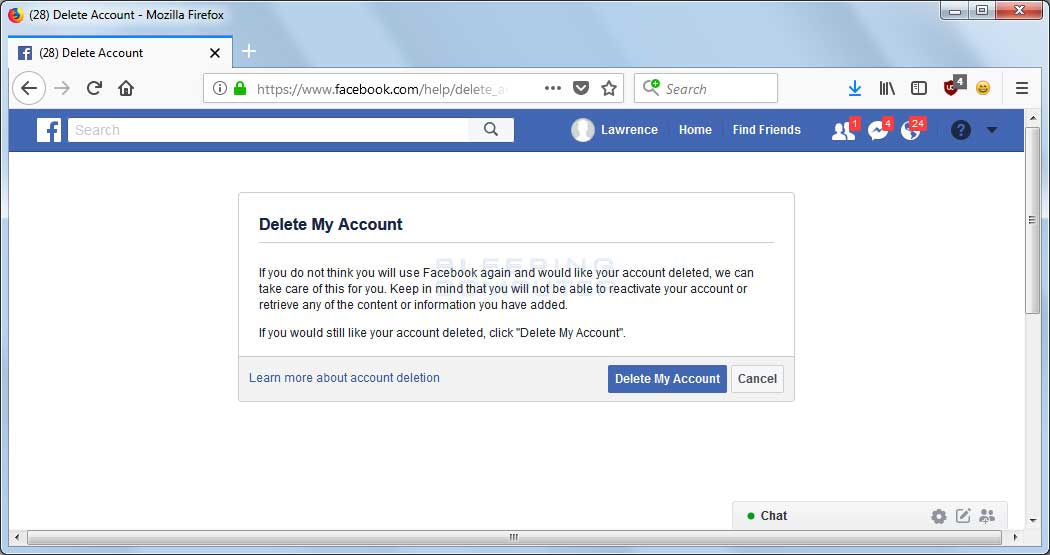
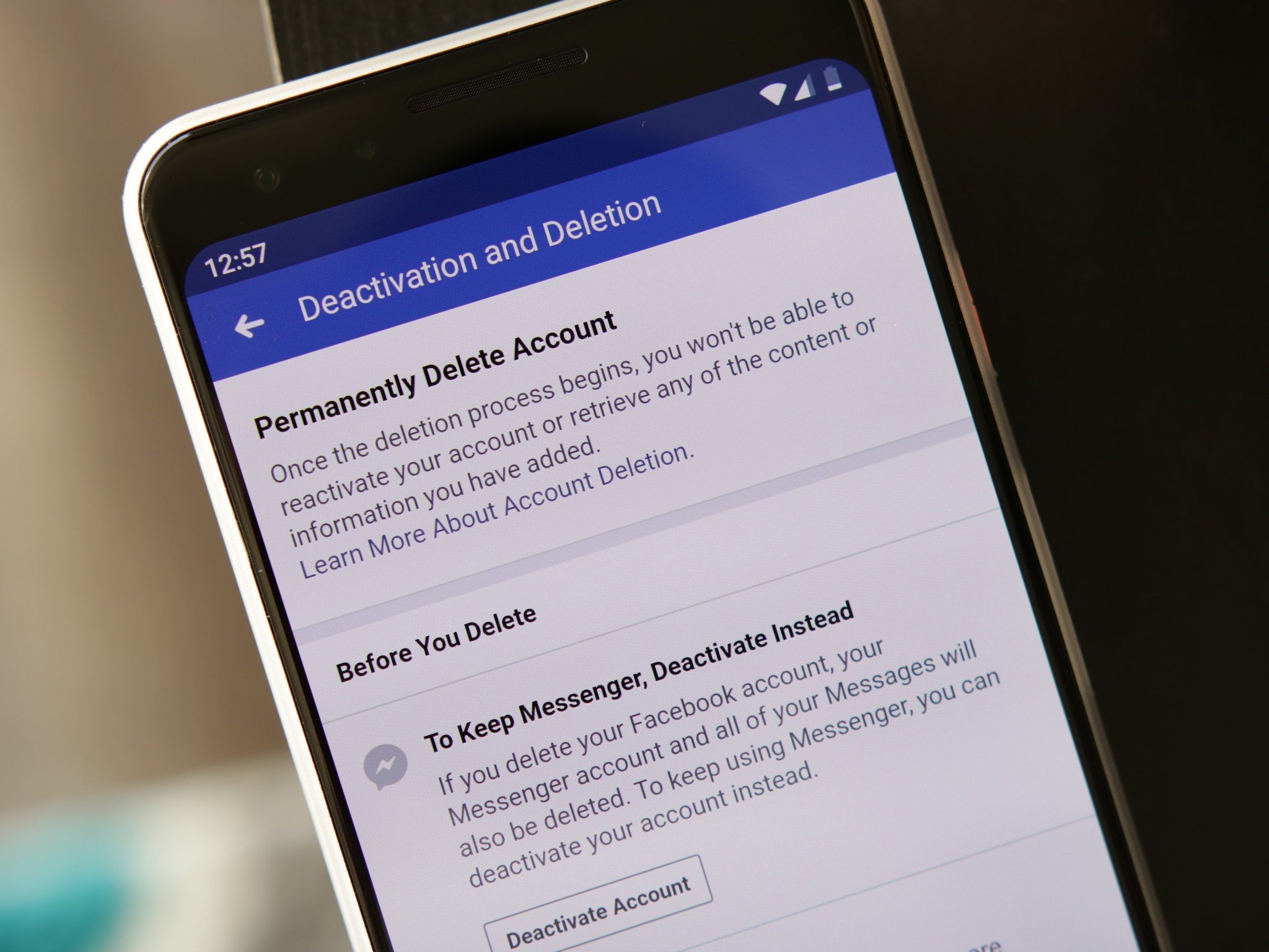
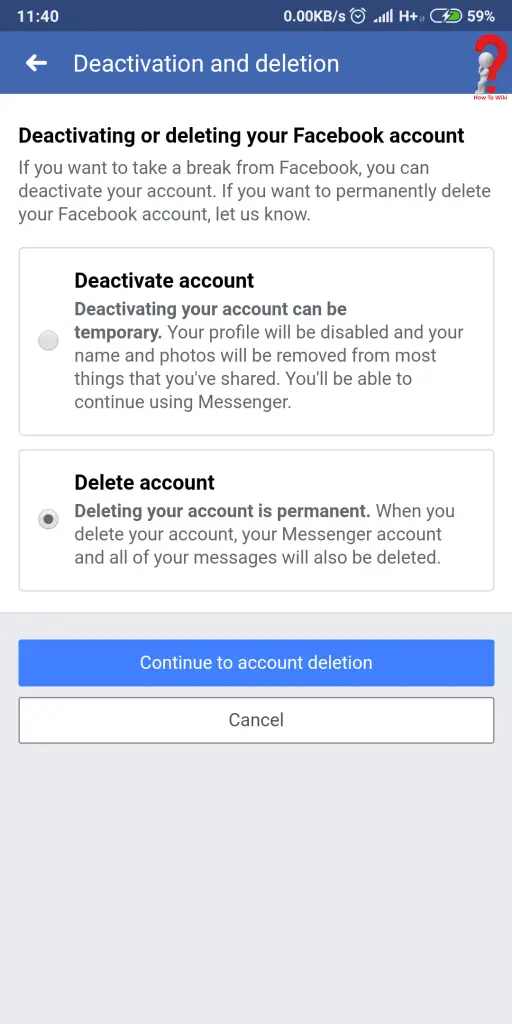
- Click on the "Delete Account" button and select a reason for deleting your account. This will help Facebook understand why you're leaving the platform.
- Enter your password and select the "Next" button.
How to Deactivate Your Facebook Account
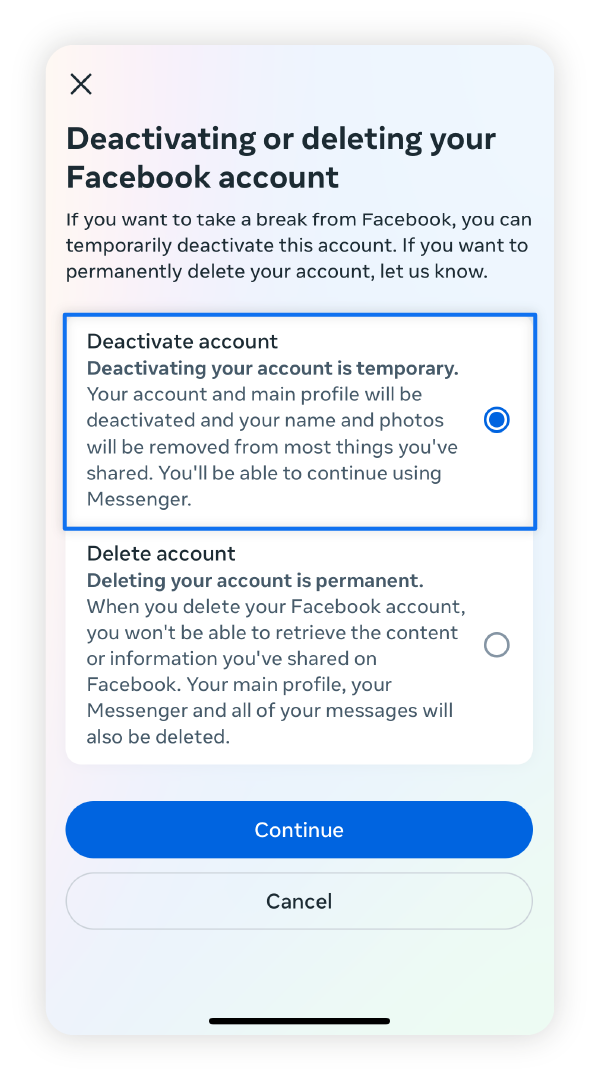
- Go to the Facebook website and log in to your account.
- Click on the downward-facing arrow in the top right corner and select "Settings" from the drop-down menu.
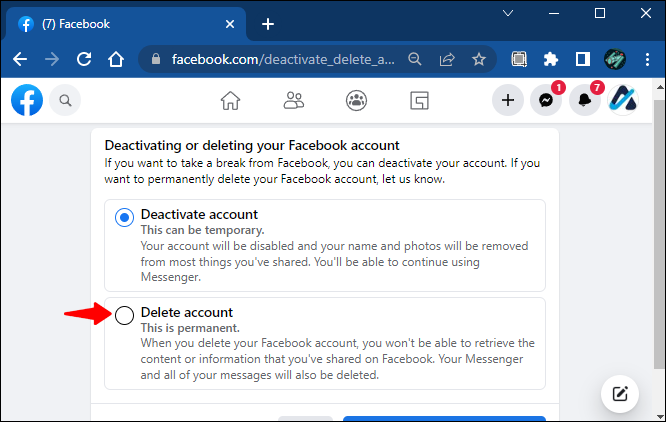
- Scroll down to the "Account Ownership and Control" section and click on the "Deactivation" option.
- Click on the "Deactivate Account" button and select a reason for deactivating your account.