Setting Up Your Twitch Channel: A Beginner's Guide
Are you ready to share your gaming passion with the world? Look no further thanTwitch, the ultimate platform for gamers, artists, and creators to connect with like-minded individuals and build a vibrant community. Before you start broadcasting your gameplay, art piece, or casual chat, you need to set up your Twitch channel. In this article, we'll walk you through the essential steps to establish a strong foundation for your stream.
Choosing the Right Platform and Creating Your Account
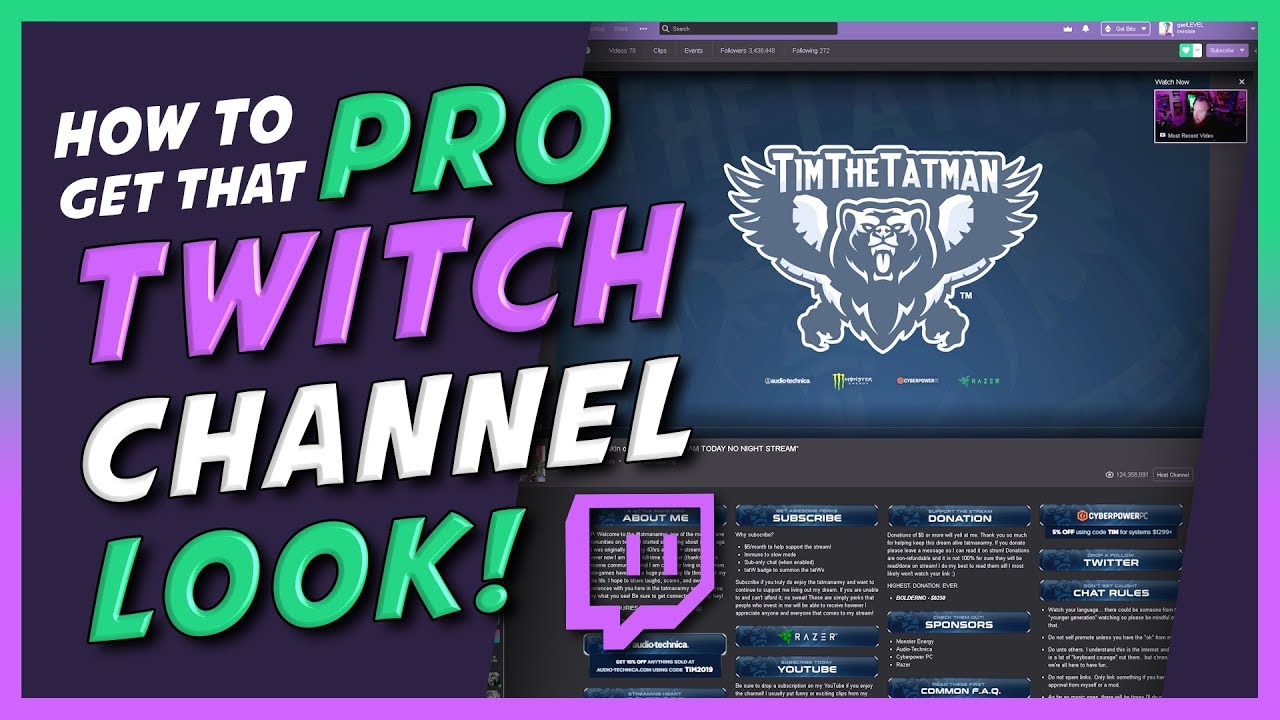
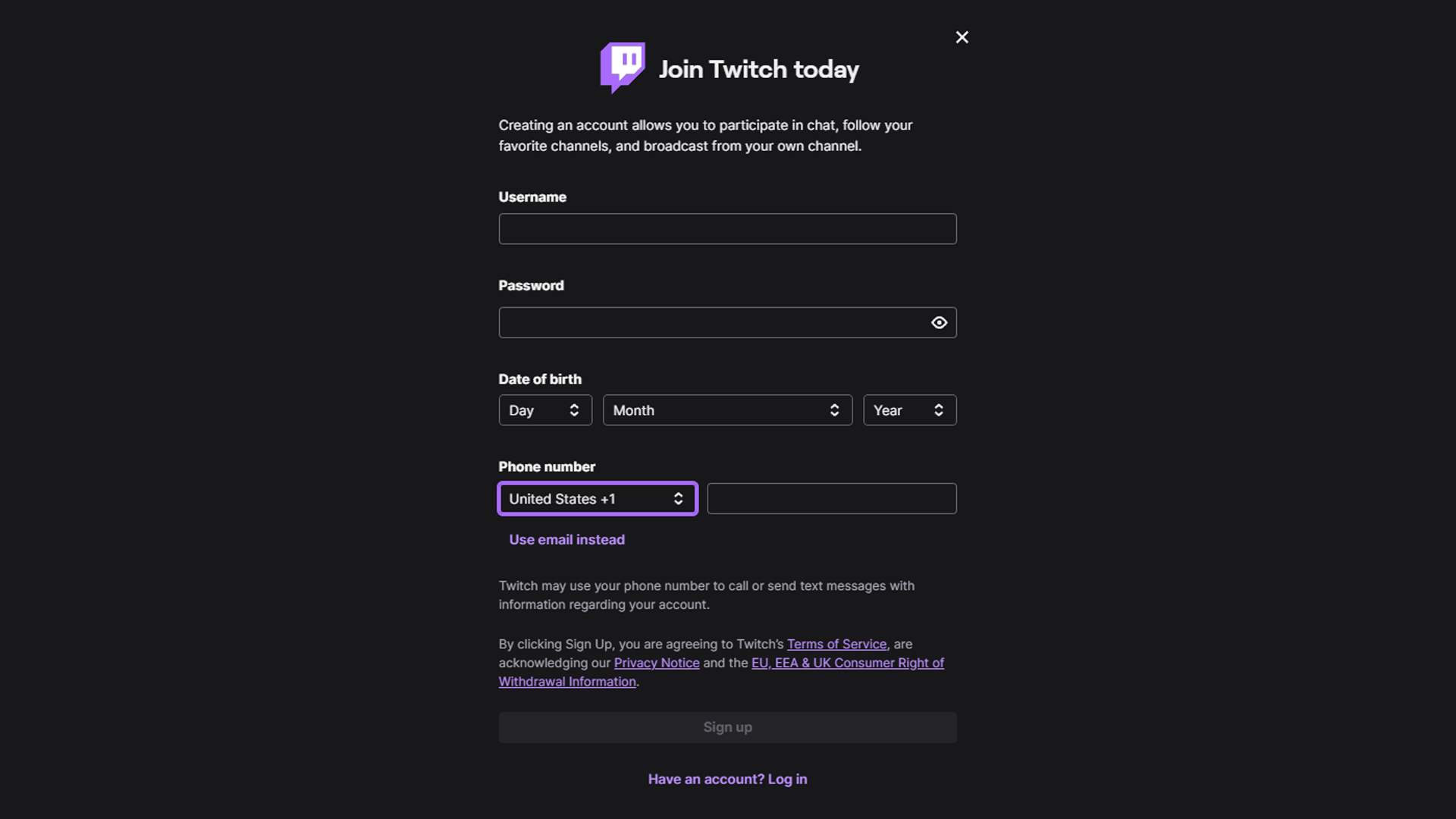
Starting a Twitch channel requires you to choose the platform and create your account. You can sign up for a free Twitch account by going toTwitch.tv and entering your details. Don't forget to personalize your profile image, banner, and description to make your channel stand out.
Setting Up Your Channel
After creating your account, it's time to set up your channel. Here are some key steps to follow:
- Create a unique and memorable username that reflects your brand.
- Upload a profile picture and banner that represent your personality.
- Write a compelling bio that highlights your streaming style and interests.
- Set up your channel's categories and tags to make it easier for viewers to find you.
Choosing the Right Equipment and Software
While a high-quality webcam and microphone are essential for a professional-looking stream, they can be expensive. If you're just starting out, you can use a decent web camera and microphone that meet your basic needs. Some popular options include:
- Logitech C920 webcam (£60)
- Blue Yeti microphone (£100)
- Elgato HD60S game capture card (£100)
When it comes to streaming software, you have two main options: OBS Studio and XSplit. Both are free and can be downloaded from the official websites.
Optimizing Your Stream Settings
Once you have the right equipment and software in place, it's time to optimize your stream settings. Here are some key tips to keep in mind:
- Set your video bitrate to 4500-5000 kbps for a smooth and stable stream.
- Choose the right audio settings to ensure clear and crisp audio.
- Use a frame rate of 60fps for a buttery smooth experience.

Setting Up OBS Studio
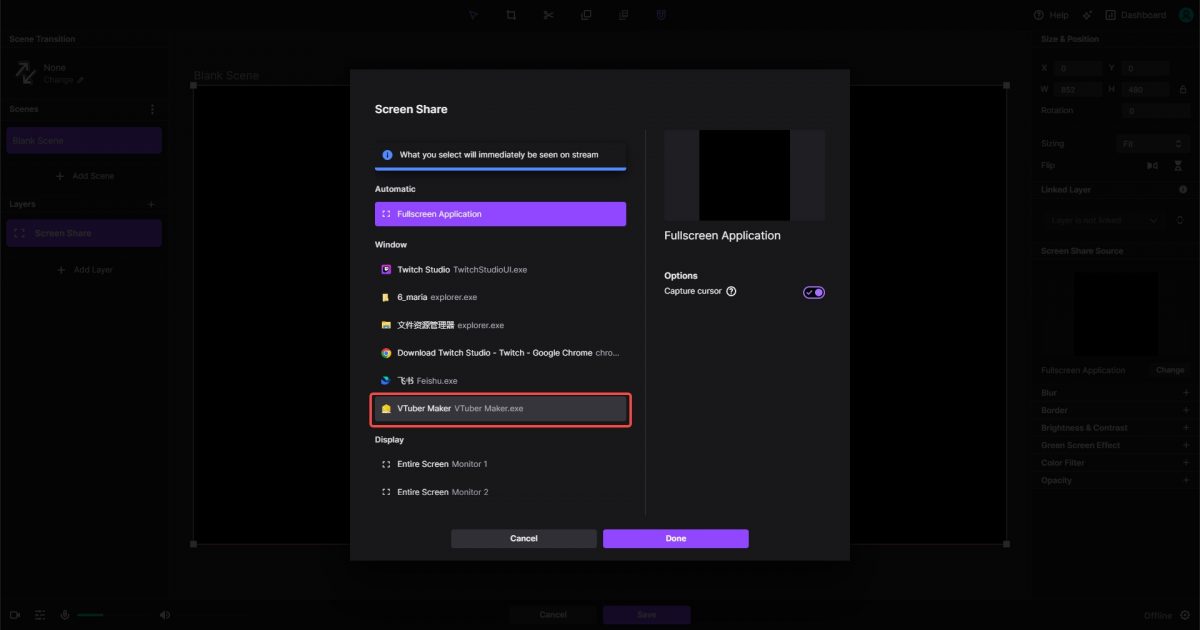
OBS Studio is the most popular streaming software for Twitch. Here's a step-by-step guide to set it up:
- Download and install OBS Studio from the official website.
- Launch OBS Studio and click on "Settings" in the bottom right corner.
- Go to "Stream" and select Twitch as your streaming service.
- Enter your Twitch channel name and stream key.
Adding Interactive Features
Interactive features such as chat, polls, and donations are essential for engaging with your audience. Here are some popular options to consider:
- Discord: Integrate your Discord server with your Twitch channel for real-time chat and community management.
- Streamlabs: Add features like alerts, notifications, and widgets to enhance the viewer experience.
Tips for Setting Up a Successful Twitch Channel
While the above steps provide a solid foundation, setting up a successful Twitch channel requires more than just technical expertise. Here are some valuable tips to keep in mind:
- Be authentic and consistent in your brand and content.
- Interact with your audience and respond to comments and questions.
- Be patient and persistent; building a loyal following takes time and effort.
By following these steps and tips, you'll be well on your way to setting up a successful Twitch channel. Don't forget to keep learning and experimenting with new features and software to stay ahead of the competition.
Conclusion
Setting up a Twitch channel is just the first step in your streaming journey. Whether you're a seasoned pro or a beginner, this guide has provided valuable insights into the technical and social aspects of building a successful channel. By following these tips and best practices, you'll be able to create a loyal following and build a thriving community around your passion for gaming, art, or radio.