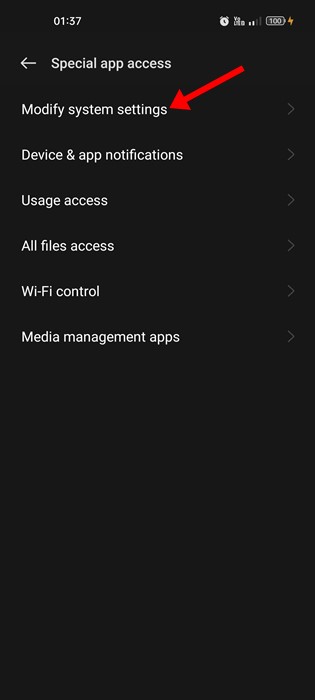
How to Stop Malware from Modifying System Settings
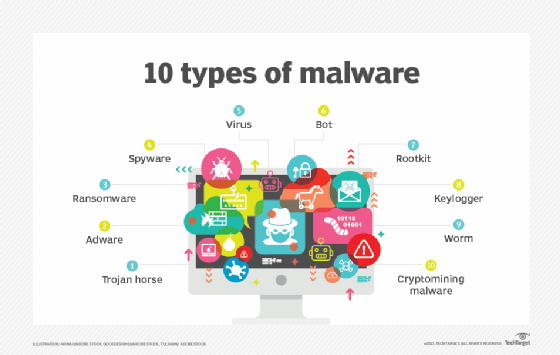
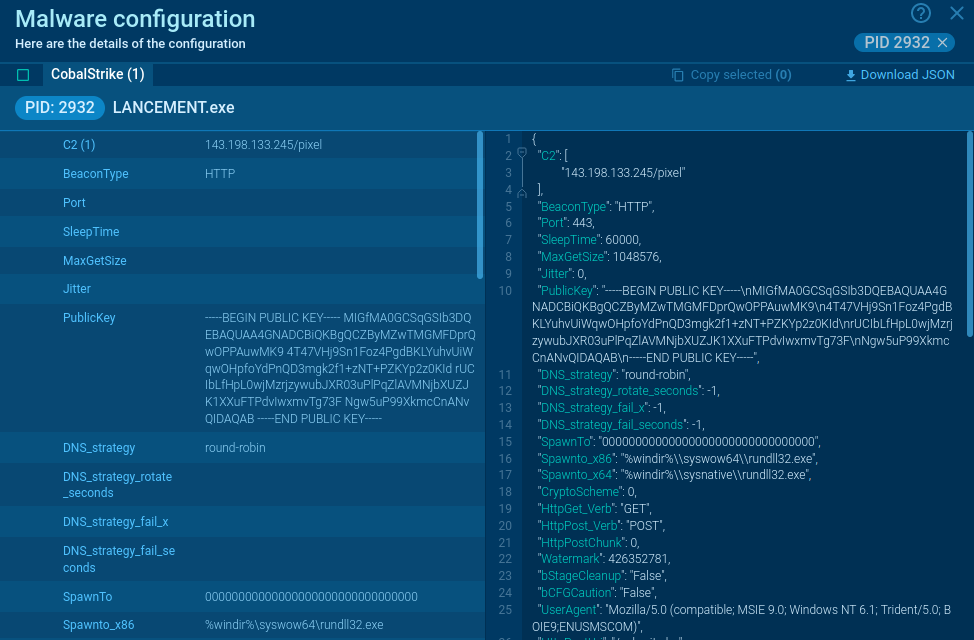
Malware has become a significant threat to computer security, and one of its most frustrating features is the ability to modify system settings. These malicious programs can silently infiltrate systems and alter critical configurations, leaving users struggling with altered desktops, changed browser settings, modified security preferences, and compromised system functionality.
Why Does Malware Modify System Settings?
Malware modifies system settings for various reasons, including:
- Stealing sensitive information
- Disabling security software
- Installing additional malware
- Creating backdoors for hackers
How to Prevent Malware from Modifying System Settings
To prevent malware from modifying system settings, follow these steps:
1. Keep Your System and Software Up to Date
Ensure your operating system and software are updated with the latest security patches and updates. This will help remove known vulnerabilities that attackers exploit.
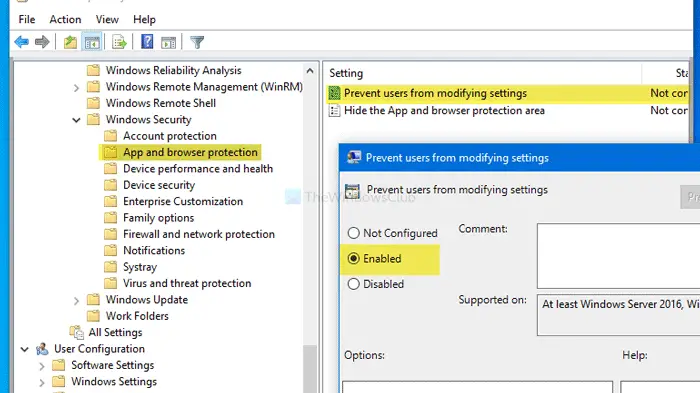
2. Enable Tamper Protection
Tamper Protection is a feature in Windows Security that prevents malware or scripts from changing Defender settings behind your back. Run a Quick Scan and occasionally a Full or Offline scan when you suspect stealthy malware.
3. Use a Reliable Antivirus Software
Install and regularly update antivirus software to detect and remove malware. Microsoft Defender Antivirus is a built-in option in Windows 10 and 11.
4. Use Strong Passwords and Enable Two-Factor Authentication
Use strong, unique passwords for all accounts, and enable two-factor authentication (2FA) whenever possible. This will make it more difficult for malware to gain access to your system.
5. Be Cautious When Opening Emails and Attachments
Be wary of suspicious emails and attachments, as they can be used to spread malware. Only open emails and attachments from trusted sources.

6. Use a Firewall
Enable the Windows Firewall to block unauthorized access to your system.
7. Monitor Your System for Suspicious Activity
Regularly monitor your system for suspicious activity, such as unusual login attempts or system settings changes.
How to Remove Malware from System Settings
If malware has already modified system settings, follow these steps to remove it:
1. Run a Malware Scan
Run a quick malware scan using Microsoft Defender to detect and remove malware.
2. Revert System Settings
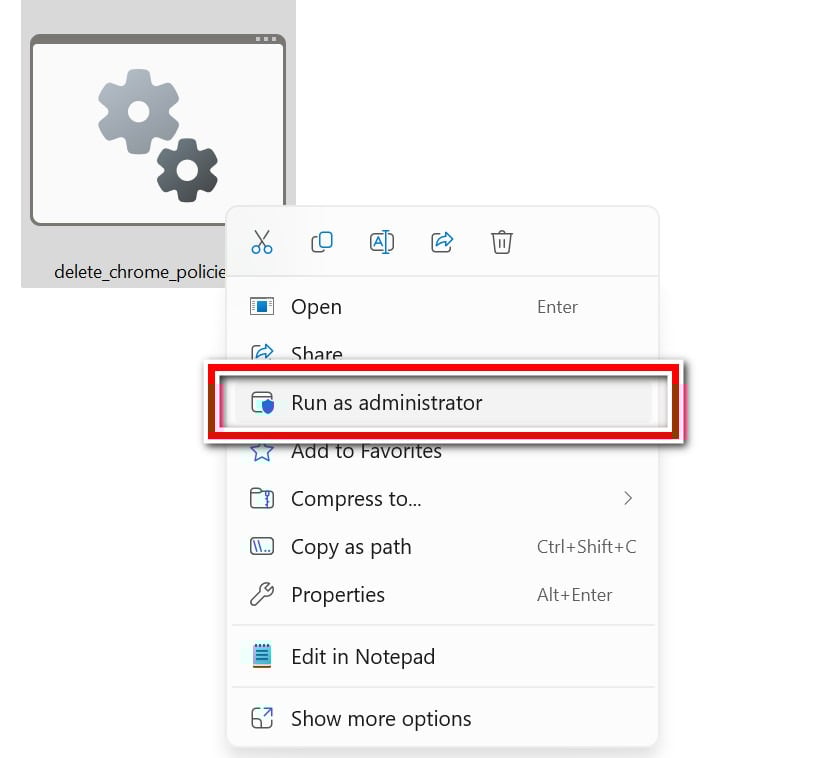
Revert any system settings that have been modified by malware to their original values.
3. Update System and Software
Update your system and software with the latest security patches and updates.
4. Disable Tamper Protection (Temporarily)
Temporarily disable Tamper Protection to allow Windows Security to make changes to Defender settings.
Conclusion
Preventing malware from modifying system settings requires a combination of proactive measures, including keeping your system and software up to date, enabling Tamper Protection, using a reliable antivirus software, and being cautious when opening emails and attachments. By following these steps, you can protect your system from malware and maintain its security and functionality.