Sound Card Setup for Twitch: Optimizing Audio for Maximum Engagement
Whether you're a seasoned Twitch streamer or just starting out, having a well-set-up sound card is crucial for delivering top-notch audio to your viewers. In this article, we'll take you through the best practices for setting up your sound card for Twitch streaming, ensuring your streams sound crisp and clear.
Choosing the Right Sound Card
The first step in setting up your sound card is to choose the right one for your needs. If you're just starting out, a basic sound card with decent quality will suffice. However, if you're looking to upgrade or want the best possible sound quality, consider investing in a high-end audio interface or a professional-grade sound card. For example, the Focusrite Scarlett series or the PreSonus AudioBox series are popular choices among Twitch streamers.
When selecting a sound card, also consider the following factors:
- Sound quality: Look for a sound card with high-fidelity audio and low latency.
- Connectivity: Ensure the sound card has the necessary ports to connect to your microphone, headphones, and other audio devices.
- Compatibility: Make sure the sound card is compatible with your operating system and streaming software.
- Price: Set a budget and choose a sound card that meets your needs within that range.
Setting Up Your Sound Card
Once you've chosen your sound card, it's time to set it up. Here's a step-by-step guide:
- Connect your sound card to your PC: Typically, you'll connect the sound card to your motherboard or sound card slot.
- Install the drivers: Download and install the sound card drivers from the manufacturer's website.
- Configure your sound settings: Open your operating system's sound settings and select your sound card as the default device.
- Calibrate your microphone: Use a microphone calibration tool to adjust the gain and sensitivity of your microphone for optimal sound quality.
Best Practices for Sound Card Settings

To ensure the best possible sound quality for your Twitch streams, follow these best practices for sound card settings:
- Set your sample rate to 44.1 kHz or 48 kHz: These sample rates are the standard for high-quality audio.
- Configure your buffer size: A smaller buffer size (e.g., 16 ms) can reduce latency, but may affect sound quality. Experiment to find the right balance.
- Set your gain and input level: Adjust the gain and input level of your microphone to optimal settings for clear and crisp audio.
- Use noise reduction and equalization tools: Many sound cards come with built-in noise reduction and equalization tools. Experiment with these to optimize your sound quality.
Additional Tips for Twitch Streamers
To take your Twitch streams to the next level, consider the following additional tips:
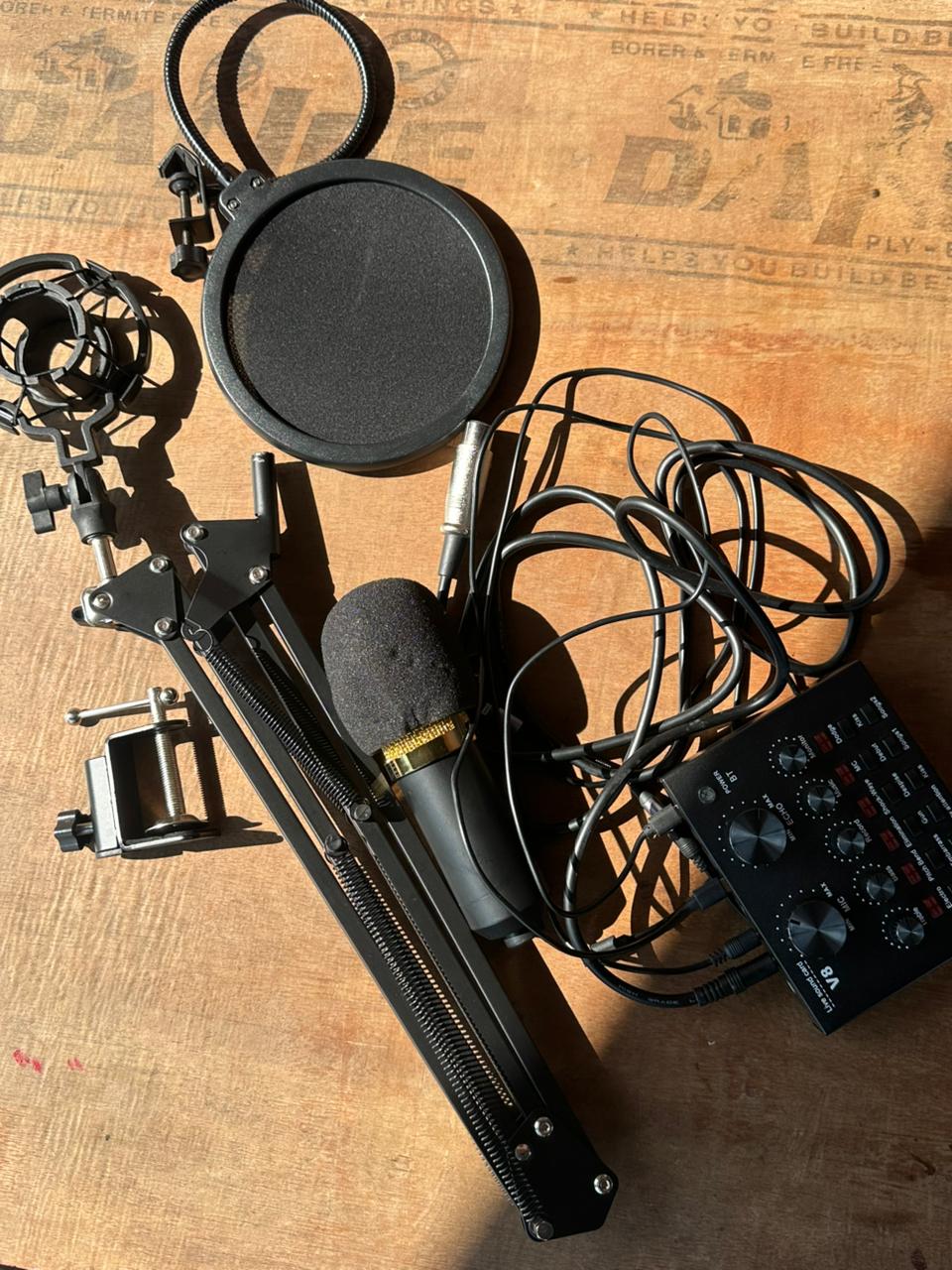
- Invest in a good microphone: A high-quality microphone can make a huge difference in sound quality.
- Use a pop filter: A pop filter can help reduce plosive sounds (e.g., "p" and "t") and improve overall sound quality.
- Monitor your audio levels: Keep an eye on your audio levels to ensure they're not too loud or too quiet.
Conclusion
In conclusion, setting up your sound card for Twitch streaming requires careful consideration of sound card quality, connectivity, and compatibility. By following the best practices outlined in this article, you can optimize your sound card settings for maximum engagement and deliver high-quality audio to your viewers.
Don't forget to invest in a good microphone, use a pop filter, and monitor your audio levels to take your Twitch streams to the next level. Happy streaming!



![[Guide] Super flexible audio setup for single PC streaming](https://sc04.alicdn.com/kf/Hc2dc33e12fd54288a22257e572d6640fp/243772721/Hc2dc33e12fd54288a22257e572d6640fp.jpg "[Guide] Super flexible audio setup for single PC streaming")