Setting up Windows 11 on Multiple Monitors: A Comprehensive Guide
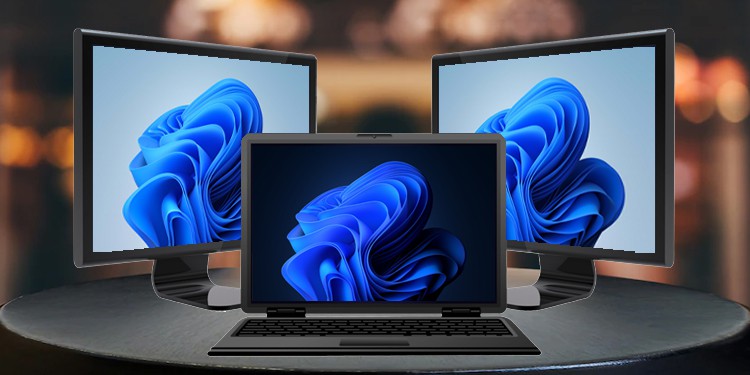
Are you tired of switching between windows and applications on a single screen? Look no further! Setting up Windows 11 on multiple monitors is a straightforward process that can greatly enhance productivity, multitasking, and overall user experience.
Why Use Multiple Monitors?
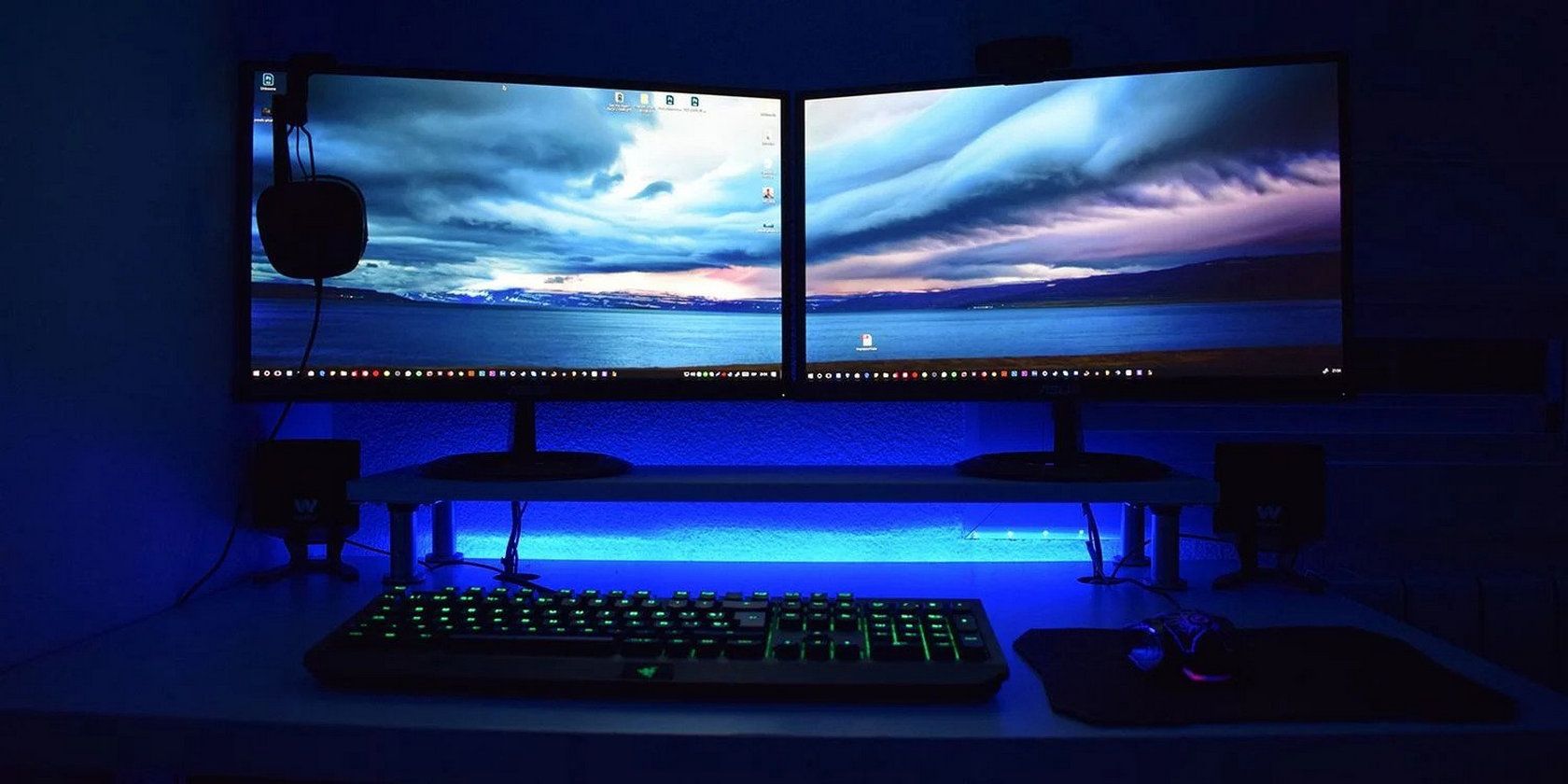
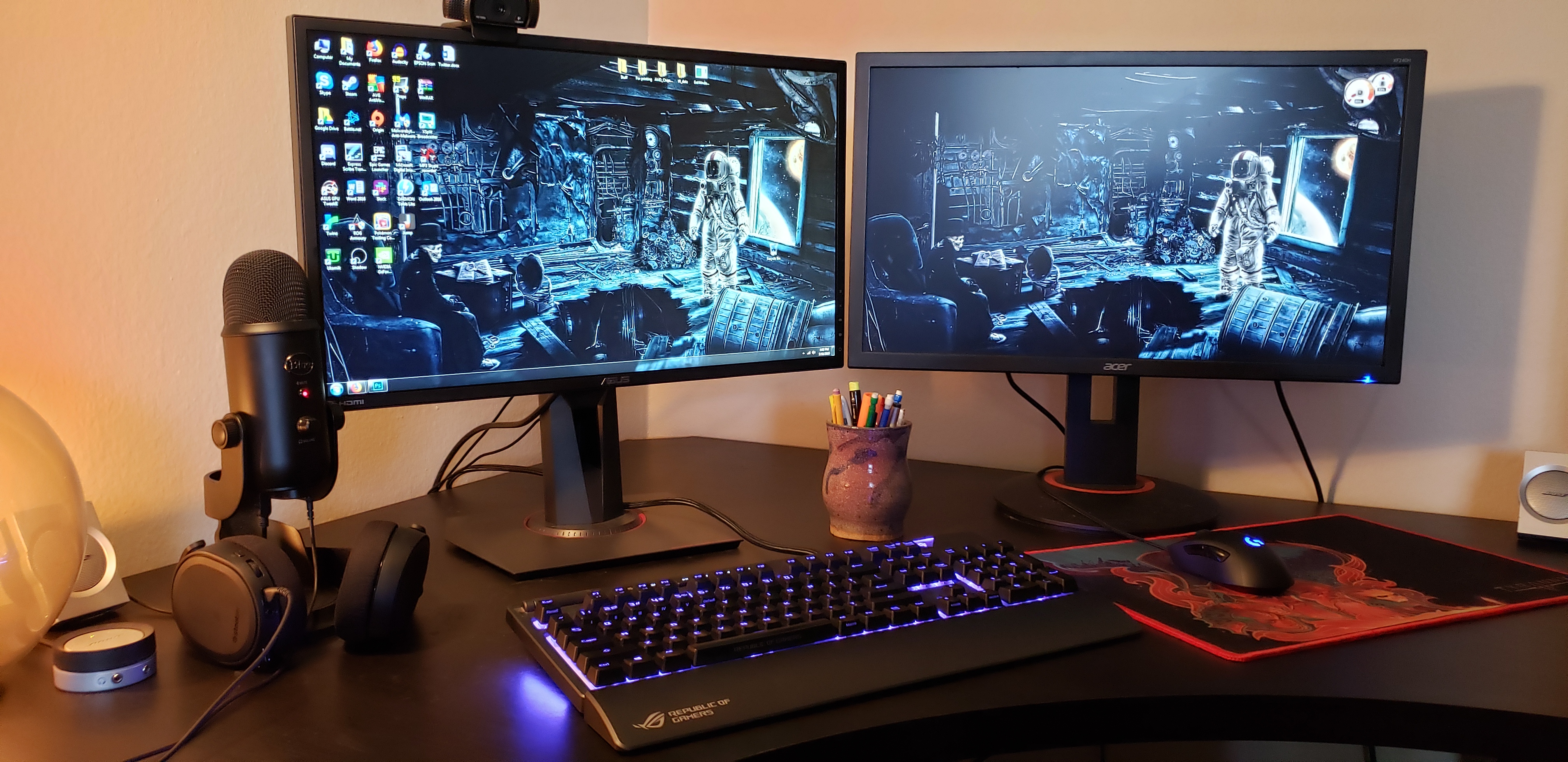
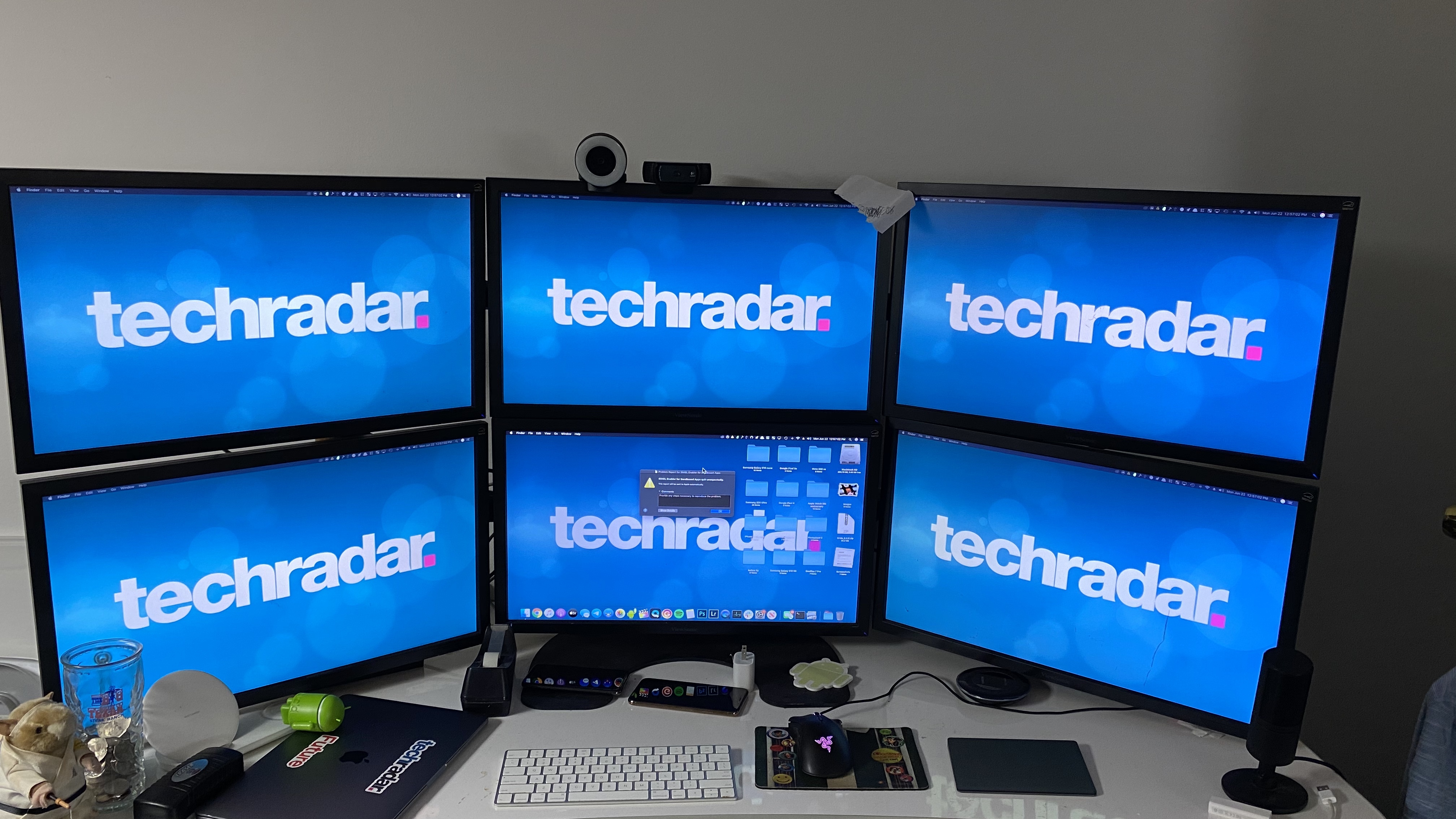
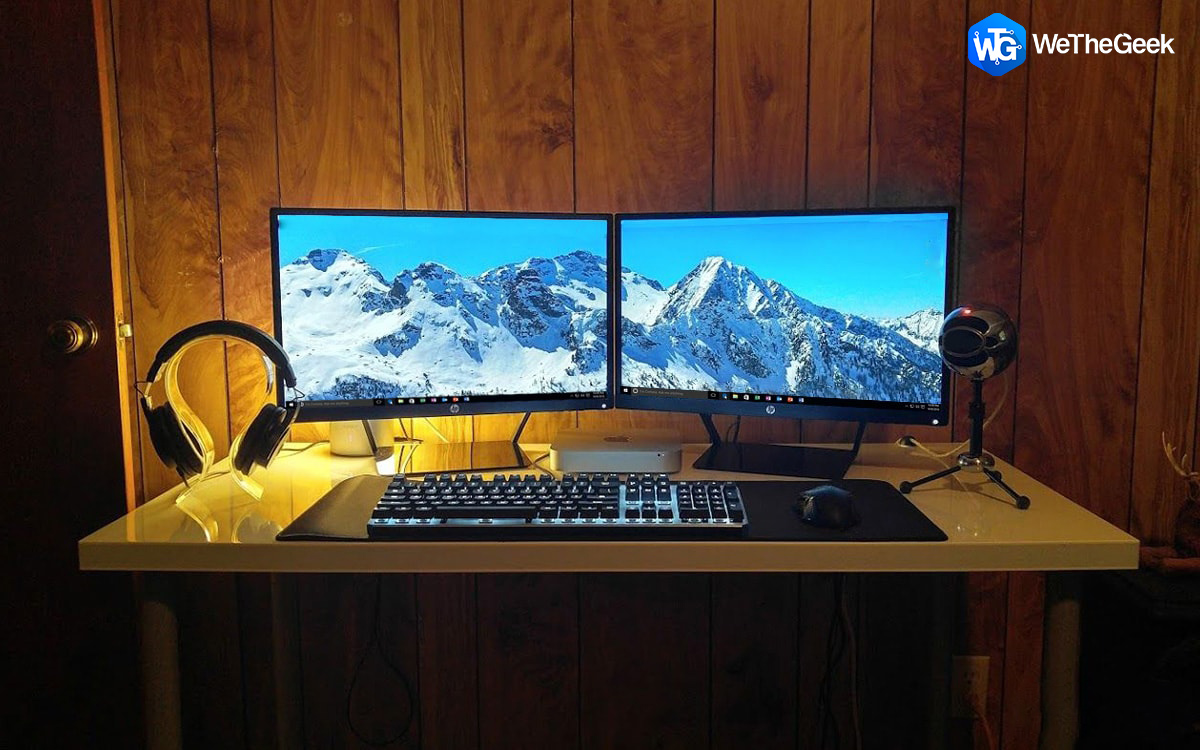
The reason to use multiple monitors is simple: more screen space. More room allows you to have more programs running at the same time without switching between windows via Alt+Tab or endless mouse clicks. Whether you're a professional requiring extra screen real estate for work applications, a gamer wanting immersive viewing, or a general user seeking better organization, understanding how to configure multiple displays is essential.
Connecting Your Monitors
To get started with multiple monitors, you'll need to connect your external monitors to your Windows 11 PC. Most modern computer monitors and virtually all TVs have multiple inputs. If you've got your PC plugged into HDMI 1, but the monitor is set to HDMI 2, for example, then you won't see anything on-screen. Refer to your display's manual on changing sources, and then switch to the source your computer is actually connected to.
Display Settings
Once you've connected your monitors, it's time to configure your display settings. To access display settings in Windows 11, follow these steps:
- Click on the Start button and select "Settings."
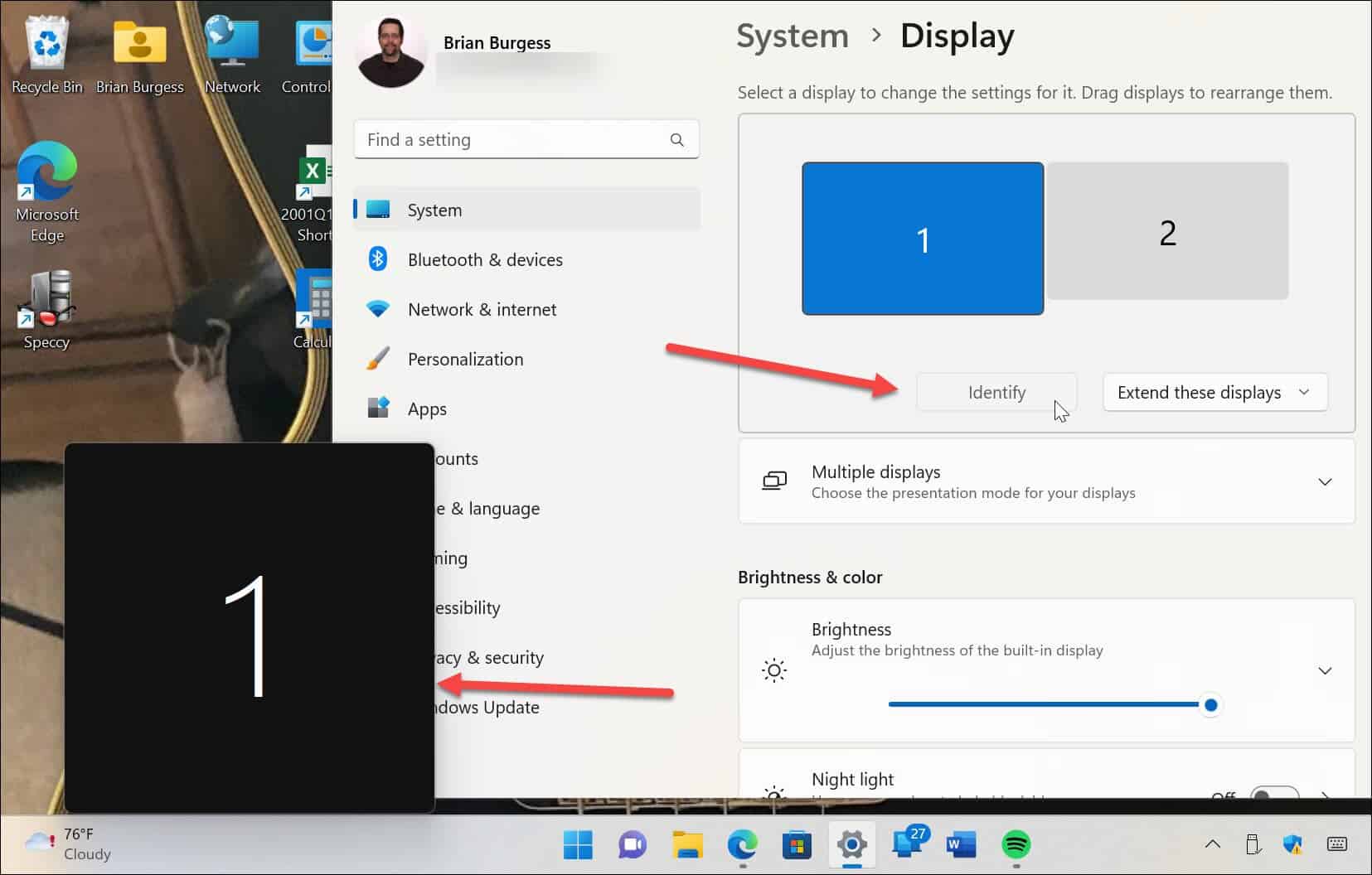
- Click on the "System" tab and select "Display."
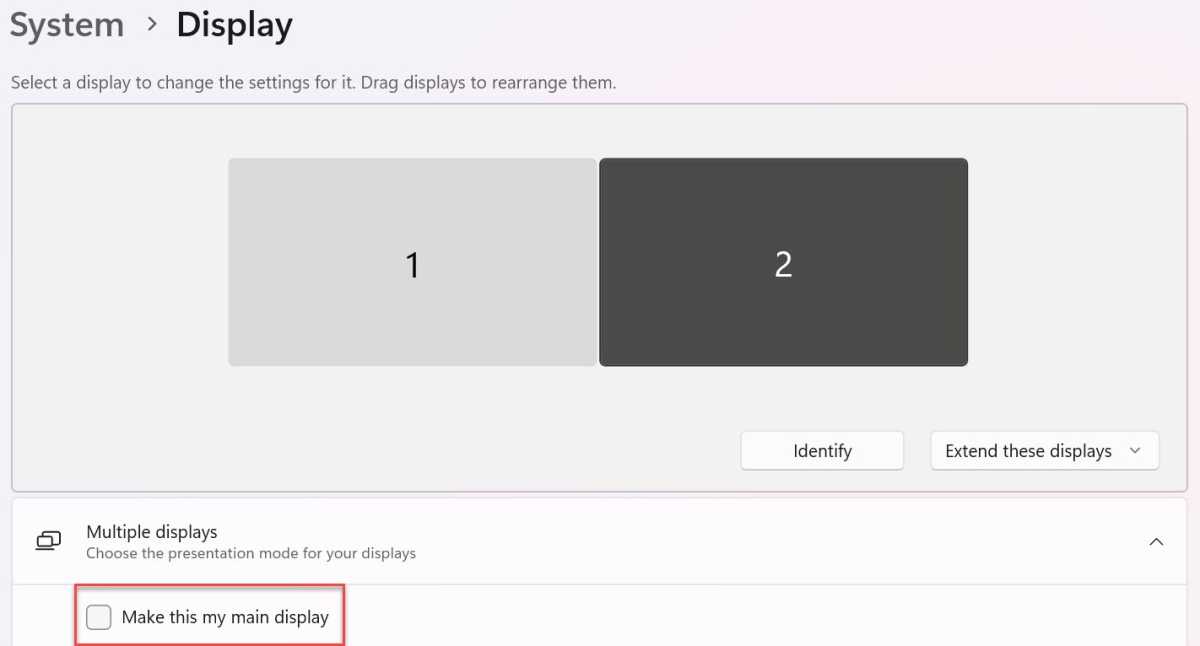
- In the "Display" tab, you'll see options to adjust brightness, color, and scaling.
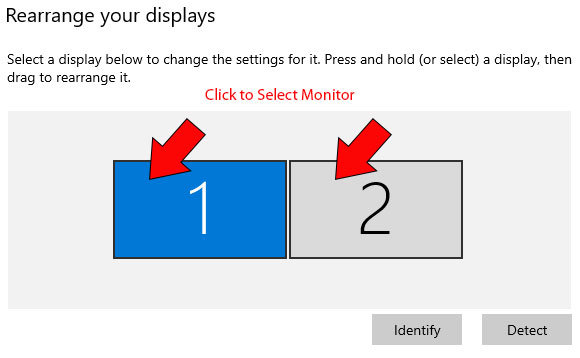
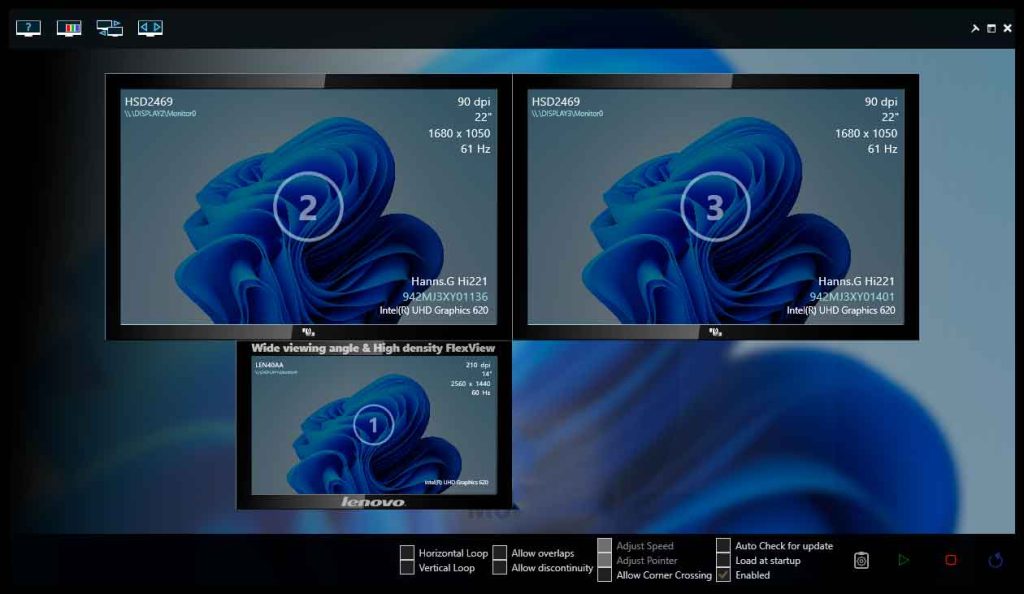
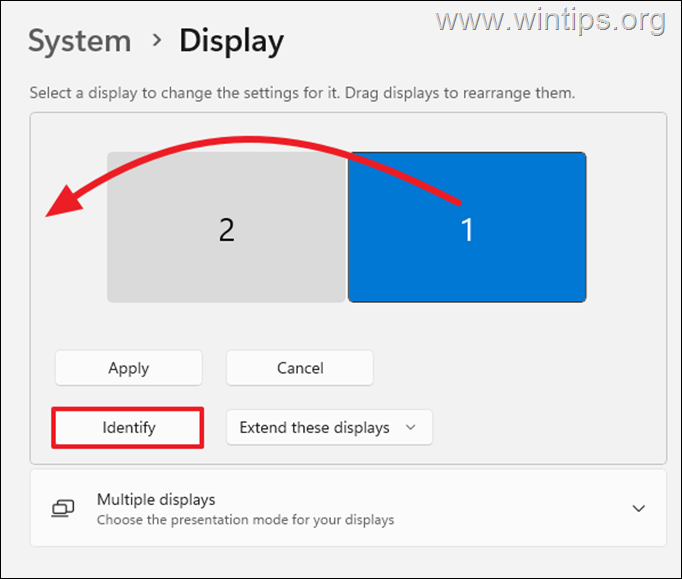
- You can also use this tab to set up multiple monitors and arrange their layout.
Setting Up Multiple Monitors in Windows 11
Setting up multiple monitors in Windows 11 is a straightforward process. Here's a step-by-step guide:
Step 1: Connect Your Monitors
Connect your external monitors to your PC using the necessary cables and adapters. Most modern monitors have HDMI, DisplayPort, or USB-C ports.
Step 2: Configure Display Settings
As mentioned earlier, configure your display settings to ensure that your monitors are properly detected and connected. You can also use this tab to set up multiple monitors and arrange their layout.

Step 3: Arrange Your Monitors
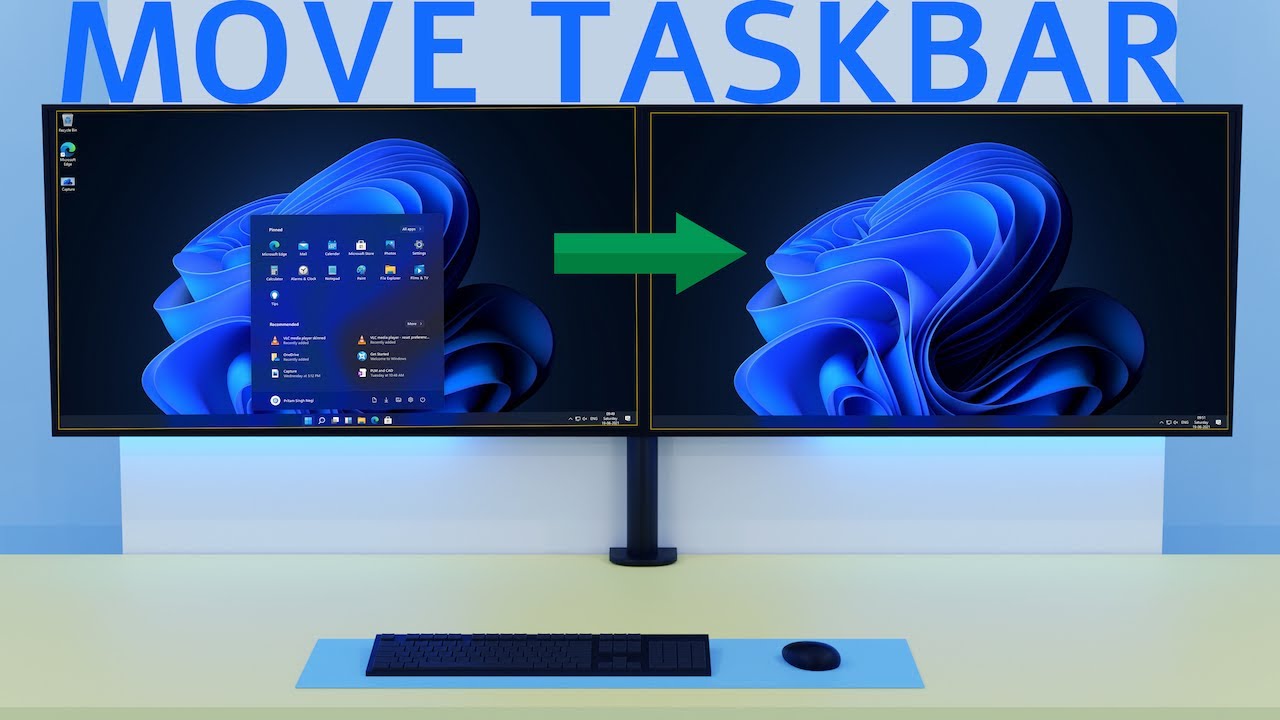
Once you've configured your display settings, it's time to arrange your monitors. You can use the "Display" tab to set up multiple monitors and arrange their layout. You can also use the "Span" option to extend your desktop across multiple monitors.
Troubleshooting Common Issues
Even with the latest operating system and hardware, you may encounter common display issues in multiple-monitor setups. Here are some troubleshooting tips:
- Check your display settings to ensure that your monitors are properly detected and connected.
- Try restarting your PC or updating your drivers.
- Check for any conflicts with other graphics devices or peripherals.
Best Practices for Using Multiple Monitors
Here are some best practices for using multiple monitors:
- Use a consistent layout and arrangement for all your monitors.
- Keep frequently used applications and windows on your primary monitor.
- Use the "Span" option to extend your desktop across multiple monitors.
- Experiment with different display settings to find what works best for you.
Conclusion
Setting up Windows 11 on multiple monitors is a straightforward process that can greatly enhance productivity, multitasking, and overall user experience. By following these steps and tips, you can create a customized setup that meets your needs and preferences. Whether you're a professional, gamer, or general user, multiple monitors can help you work smarter and more efficiently.
Additional Resources
For more information on using multiple monitors in Windows 11, see the following resources:
- How to use multiple monitors in Windows.
- Troubleshoot connecting Surface to an external display.
- Connect Surface to a TV, monitor, or projector.
By following these resources and tips, you can create a customized multiple-monitor setup that meets your needs and preferences.