Computer Hardware Troubleshooting: A Comprehensive Guide
Are you tired of dealing with frustrating computer issues? Do you want to learn how to diagnose and fix common hardware problems without relying on professionals? Look no further! In this article, we'll provide you with a step-by-step guide to computer hardware troubleshooting, covering the most common issues and their solutions.
Understanding Computer Hardware Troubleshooting
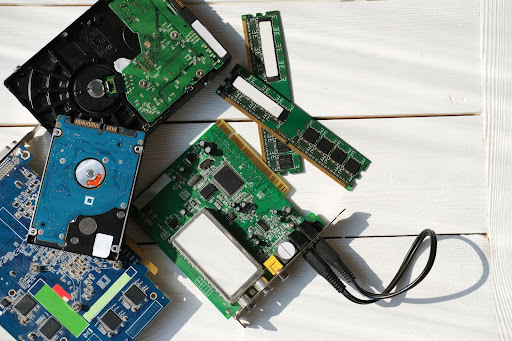
Computer hardware troubleshooting is the process of identifying and resolving problems with a computer's physical components, such as the hard drive, graphics card, or motherboard. By following a systematic approach, you can diagnose and fix hardware issues, saving you time and money in the long run.
Common Computer Hardware Issues and Their Symptoms
- Overheating: Computer crashes, slow performance, or strange noises
- USB Port Dysfunction: Devices not recognized or not functioning properly
- Wi-Fi Disconnection: Unstable internet connection or dropped Wi-Fi signal
- Power Failure: Computer won't turn on or suddenly shuts down
- Graphics Card Issues: Distorted or missing graphics, slow performance
- Hard Drive Failure: Data loss, slow performance, or failure to boot
Step-by-Step Computer Hardware Troubleshooting Process
- Identify the Problem**: Describe the issue you're experiencing and try to replicate it.
- Gather Information**: Collect data about the computer's specifications, operating system, and hardware components.
- Run Diagnostic Tools**: Use built-in diagnostic tools, such as the Windows Event Viewer or the System File Checker, to identify potential issues.
- Isolate the Issue**: Try to isolate the problem by disconnecting peripherals and external devices.
- Check for Updates**: Ensure all drivers, BIOS, and firmware are up-to-date.
- Perform a System Restore**: Restore the system to a previous point when it was working properly.
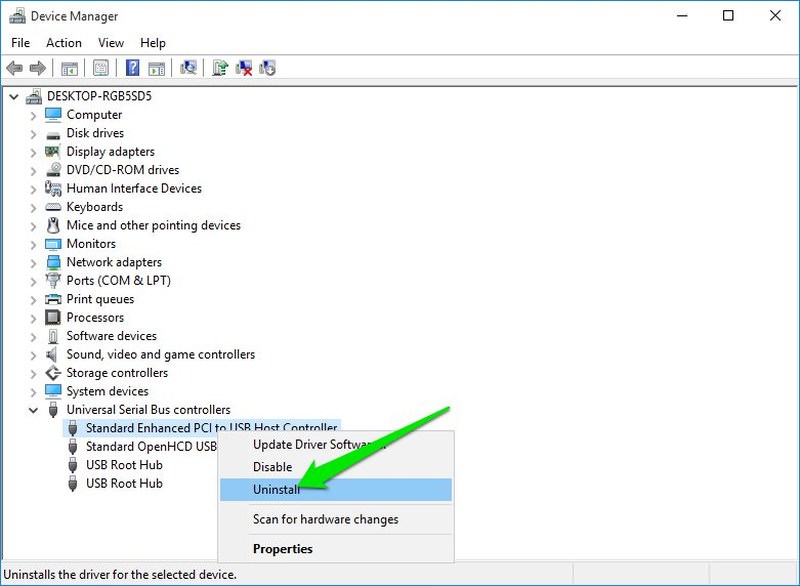
- Reinstall Drivers**: Reinstall drivers for suspect hardware components.
- Run a Virus Scan**: Scan the system for malware or viruses.
- Replace Faulty Components**: Replace faulty or damaged hardware components, such as a failing hard drive or graphics card.
- Test the System**: Test the system to ensure the issue is resolved.
Advanced Computer Hardware Troubleshooting Techniques
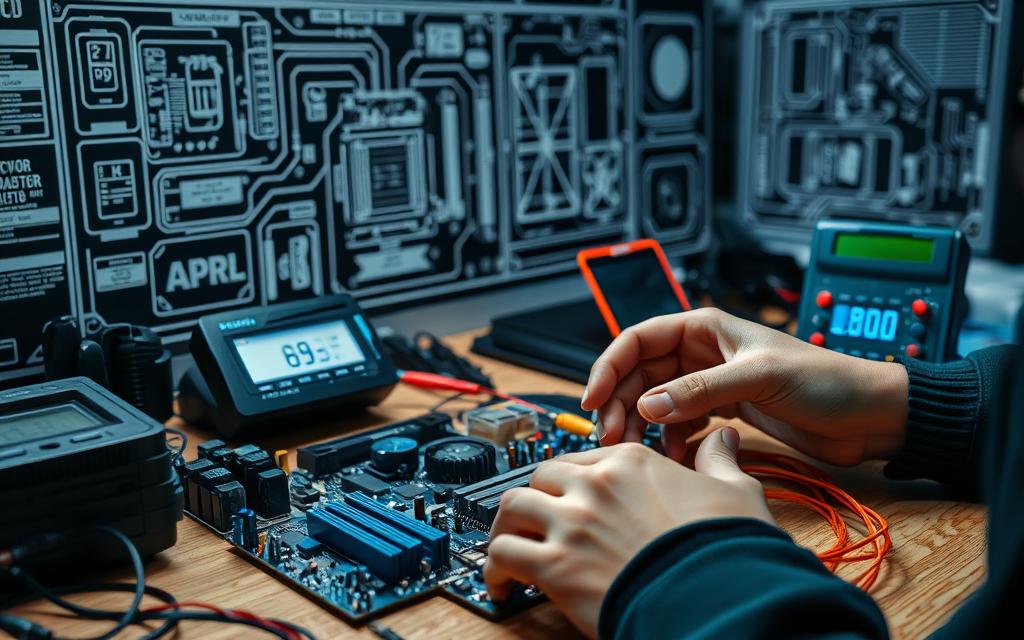
For more complex issues, you may need to use advanced troubleshooting techniques, such as:
- Using a multimeter to diagnose electrical issues
- Running a hardware stress test to identify component weaknesses
- Using a debugger to diagnose software issues
Preventing Computer Hardware Issues
Preventing computer hardware issues requires regular maintenance and monitoring. Here are some tips to keep your computer running smoothly:
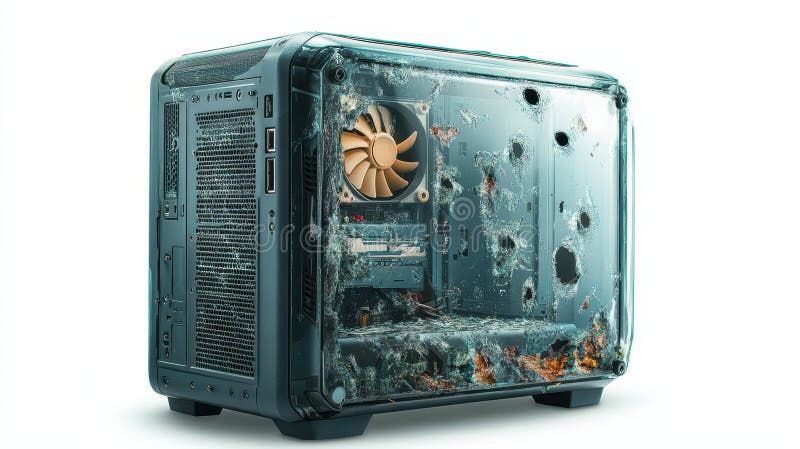
- Regularly clean dust from the computer's interior
- Update drivers and BIOS regularly
- Run virus scans regularly
- Use a surge protector to protect against power surges
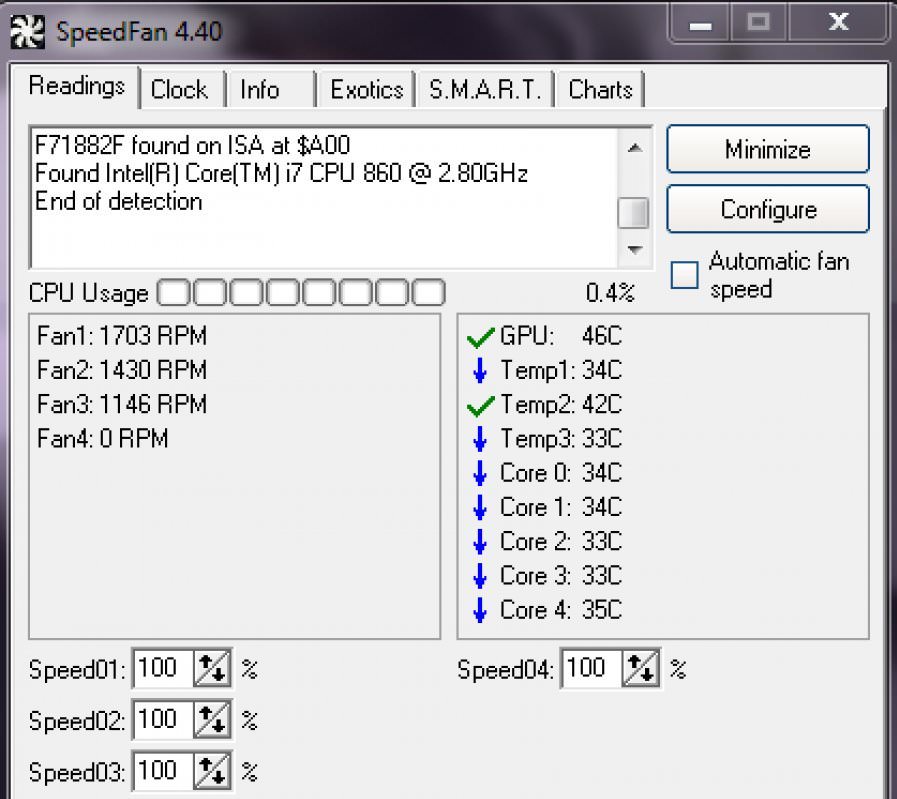
- Monitor system temperatures and adjust cooling settings as needed
Conclusion
Computer hardware troubleshooting is a critical skill for anyone who uses a computer regularly. By following the steps outlined in this guide, you can diagnose and fix common hardware issues, saving you time and money in the long run. Remember to always start with the simplest solutions and work your way up, and don't hesitate to seek professional help if the issue is too complex.