Change Wi-Fi Router Password: A Step-by-Step Guide to Boost Network Security
Wi-Fi has become an essential part of our daily lives, allowing us to stay connected to the internet from anywhere in our homes and offices. However, a poorly secured Wi-Fi network can put our personal information at risk. Changing the Wi-Fi router password regularly is essential to maintain network security and protect our communications and data from unauthorized access.
Why Change Your Wi-Fi Router Password?
- Prevent unauthorized access to your network and devices
- Protect your personal data and online activities from hackers
- Boost your network's overall security and performance
- Prevent data breaches and cyber attacks
How to Change Your Wi-Fi Router Password
Changing your Wi-Fi router password is a relatively straightforward process that can be completed in a few easy steps. The process may vary depending on your router's manufacturer and model, but here's a general guide to get you started:

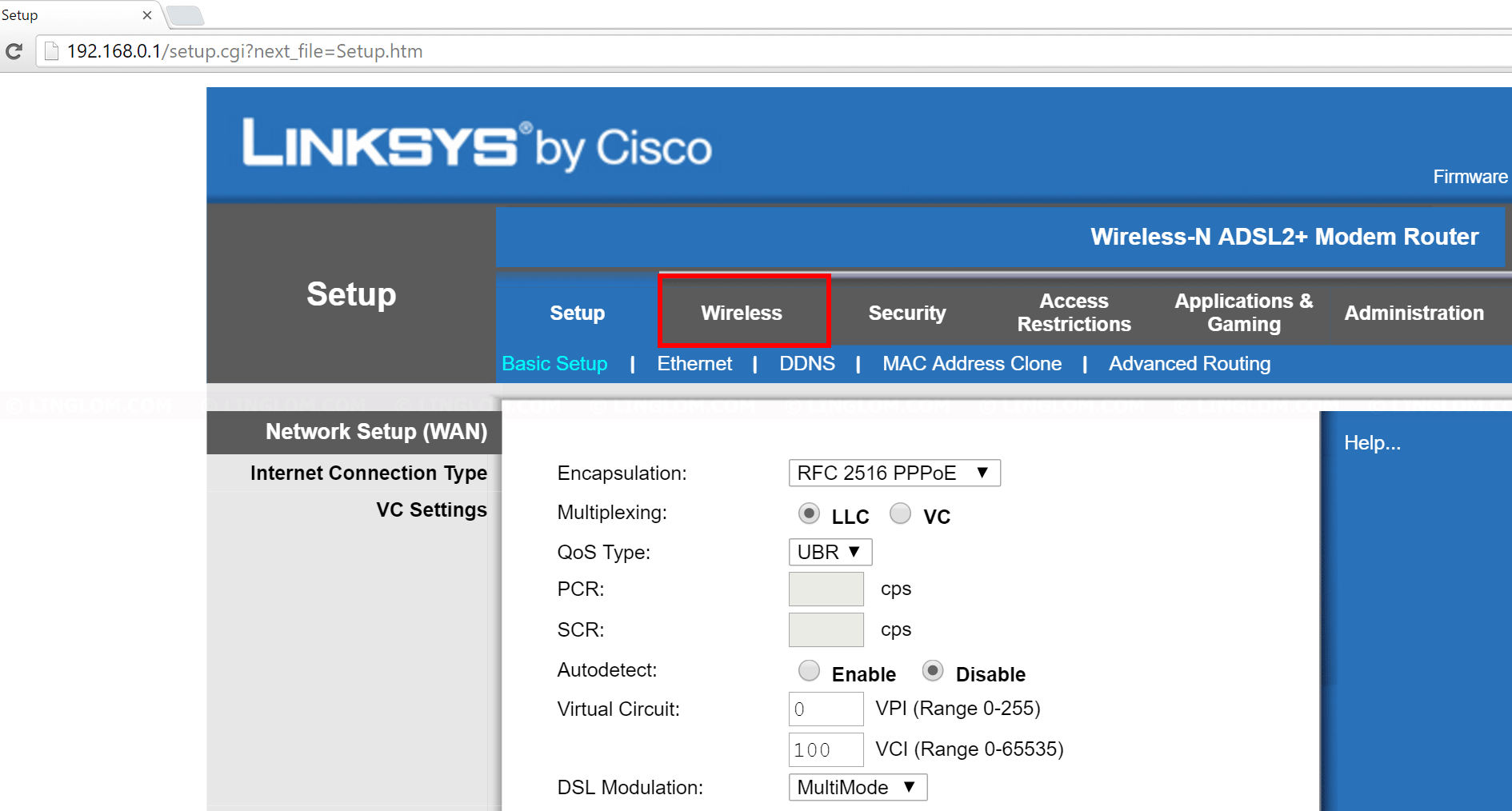
- Access your router's admin panel: Open a web browser and type the IP address of your router (usually 192.168.1.1). Enter the default username and password to access the admin panel.
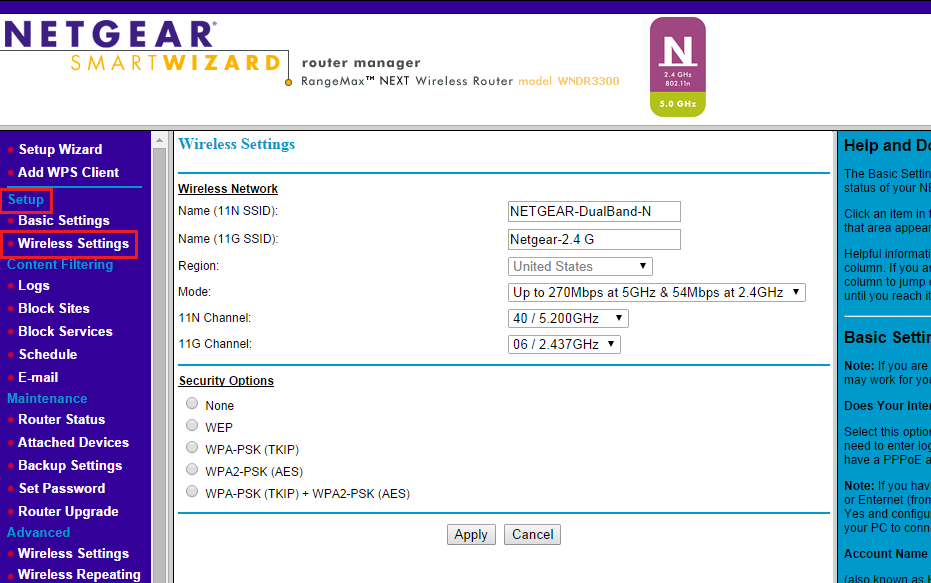
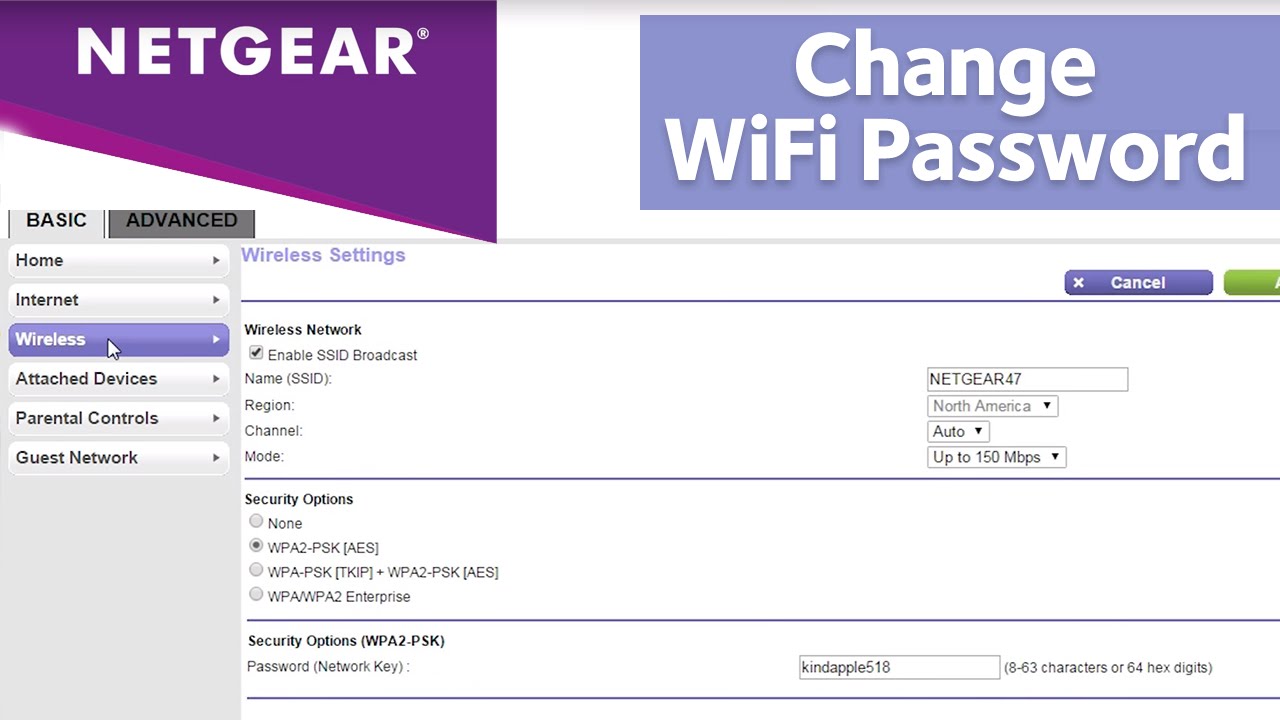
- Navigate to the Wi-Fi settings: Look for the Wi-Fi or Wireless section on your router's admin page. This is where you'll find the settings to change your Wi-Fi network name and password.
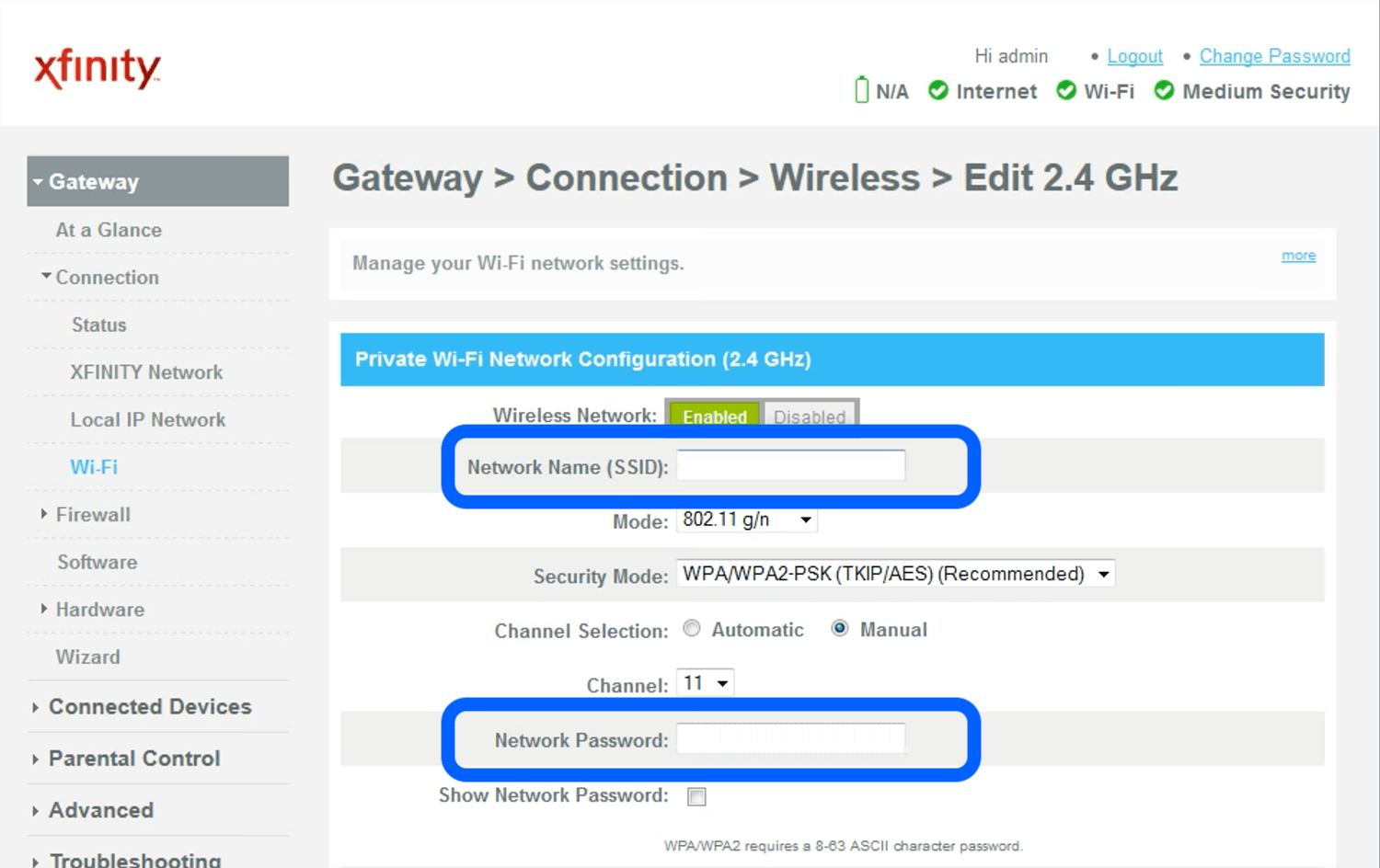
- Change the Wi-Fi network name (SSID): Enter a new name for your Wi-Fi network that's easy to remember but hard for others to guess.
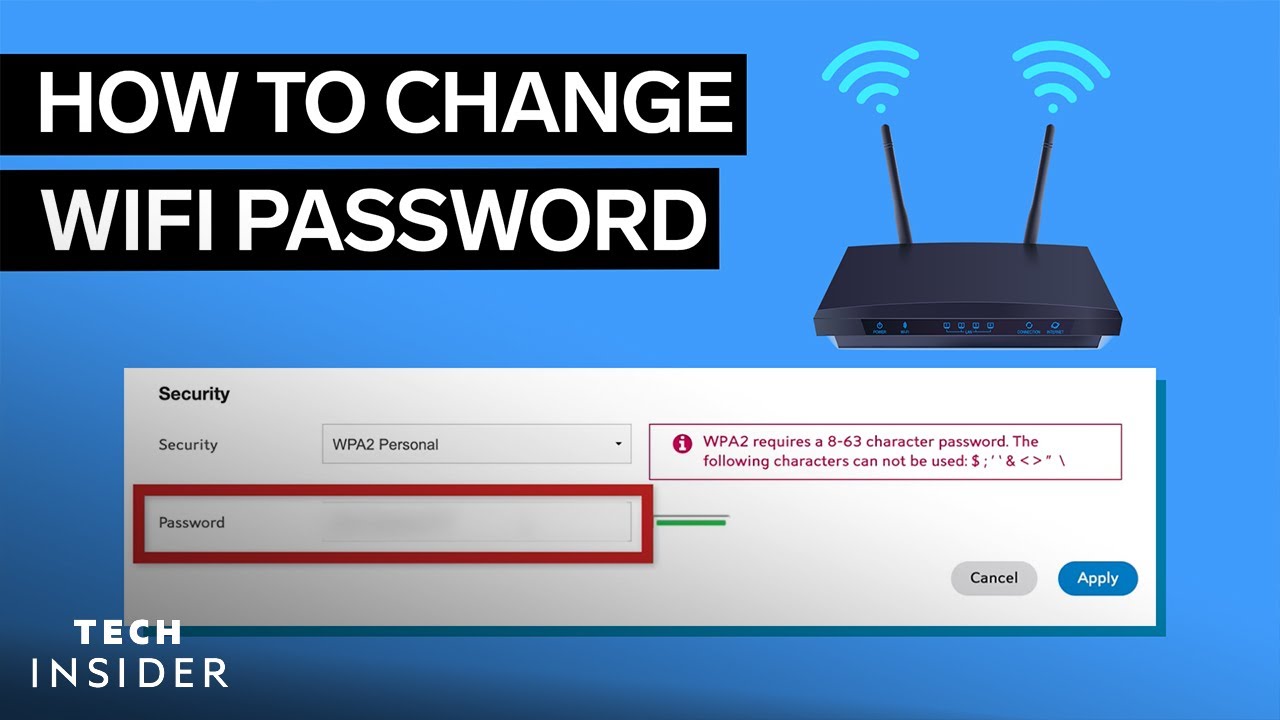
- Change the Wi-Fi password: Enter a strong and unique password that includes a mix of uppercase and lowercase letters, numbers, and special characters.
- Save and apply the changes: Click the "Save" or "Apply" button to update your router's settings.
Tips and Tricks to Keep Your Wi-Fi Network Secure
- Use a strong and unique password: Avoid using easily guessable passwords like your name, birthdate, or common words.
- Change your password regularly: Update your password every 60-90 days to maintain network security.
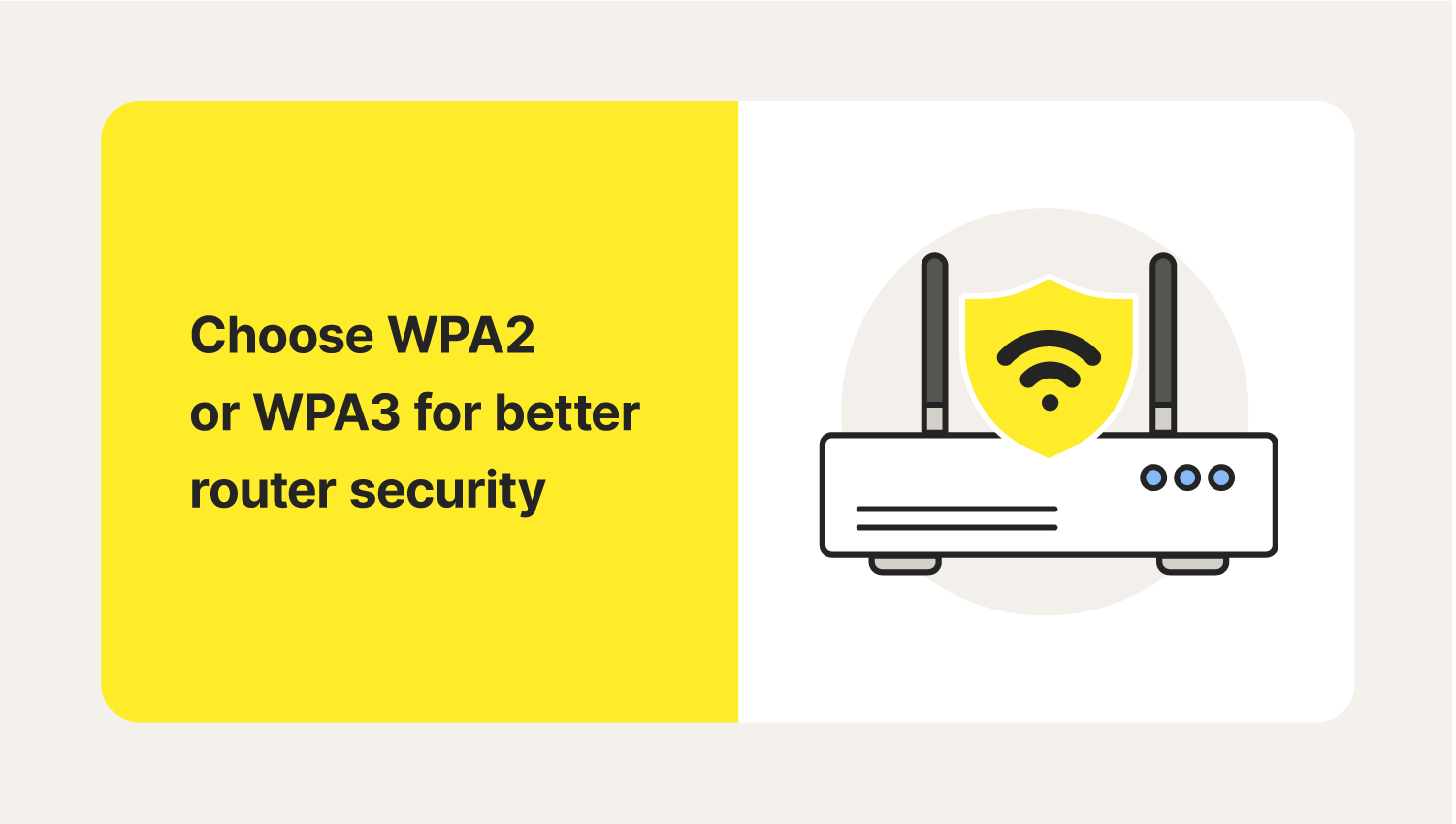
- Use WPA2 encryption: Ensure your router uses WPA2 encryption, which is the most secure encryption standard available.
- Use a guest network: Create a separate guest network for visitors to prevent them from accessing your main network.
- Update your router's firmware: Regularly update your router's firmware to ensure you have the latest security patches and features.
Conclusion
Changing your Wi-Fi router password is an essential step in maintaining network security and protecting your personal information. By following the steps outlined in this guide, you can boost your network's security and performance while preventing unauthorized access to your devices and data. Remember to use a strong and unique password, change your password regularly, and use WPA2 encryption to keep your Wi-Fi network secure.


![How to Change the Password on a Comcast (Xfinity) WiFi Router? [Easy Steps]](https://2.bp.blogspot.com/-HEV24fWQLos/WHnAit3OrvI/AAAAAAAAKZ8/WE19b88aO2IFgOrnZENMqtIKOfaTP_ITACLcB/s1600/PLDT%2BWiFi%2BPassword.jpg "How to Change the Password on a Comcast (Xfinity) WiFi Router? [Easy Steps]")