Screen Cap on Mac: A Comprehensive Guide
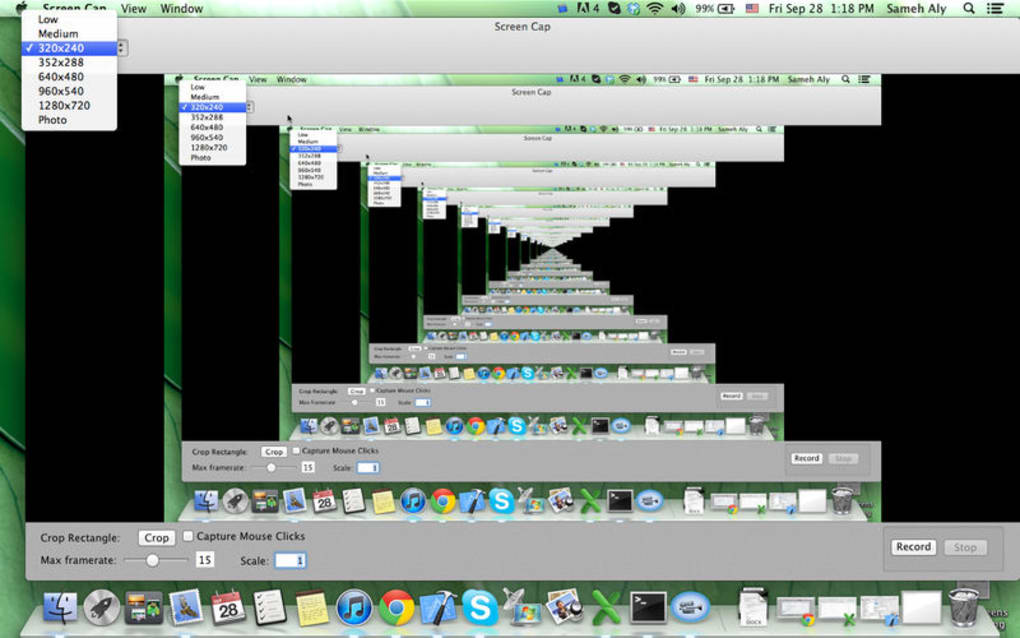
Are you looking for a way to capture the screen on your Mac? Whether you need to take a screenshot of your entire desktop, a portion of the screen, or a specific window, we've got you covered. In this article, we'll walk you through the various methods for taking screenshots on Mac, including using keyboard shortcuts, the Screenshot app, and third-party tools.
Method 1: Using Keyboard Shortcuts
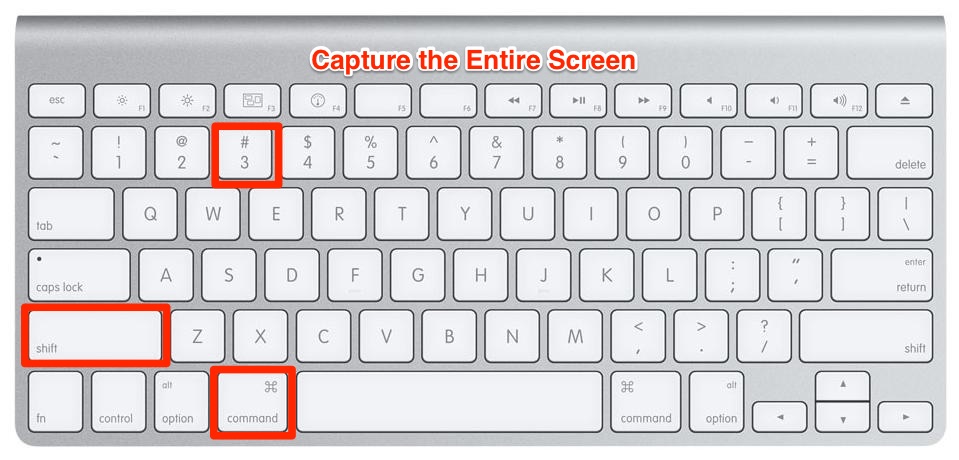
The quickest way to take a screenshot on Mac is by using keyboard shortcuts. Here are the default keyboard shortcuts for capturing the screen:
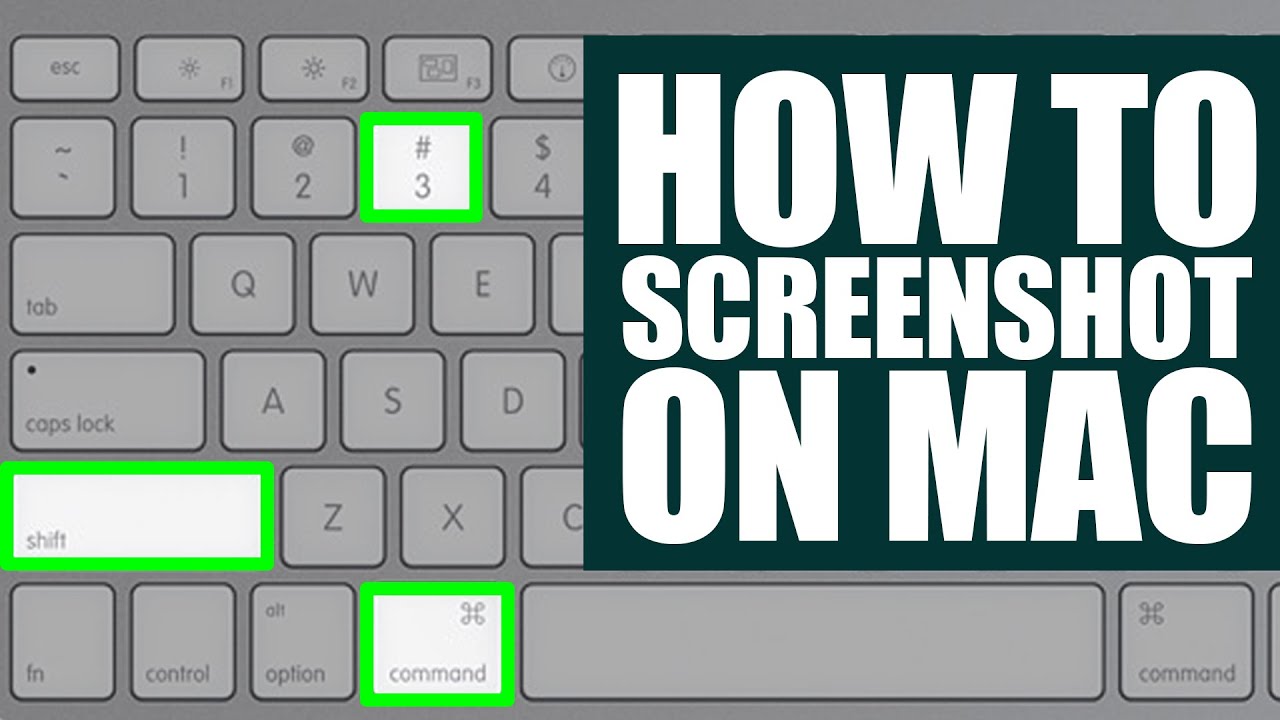
- Save full-screen screenshot: Command + Shift + 3
- Save screenshot of single window: Command + Shift + 4 (then select the window)
- Save screenshot of selected portion of the screen: Command + Shift + 4 (then select the area)
When you press the keyboard shortcut, you'll hear a camera shutter sound effect, and a thumbnail will pop up in the bottom-right corner of the screen. If you ignore the thumbnail, it will disappear in a moment, and the screenshot image will be saved to your desktop.
Method 2: Using the Screenshot App
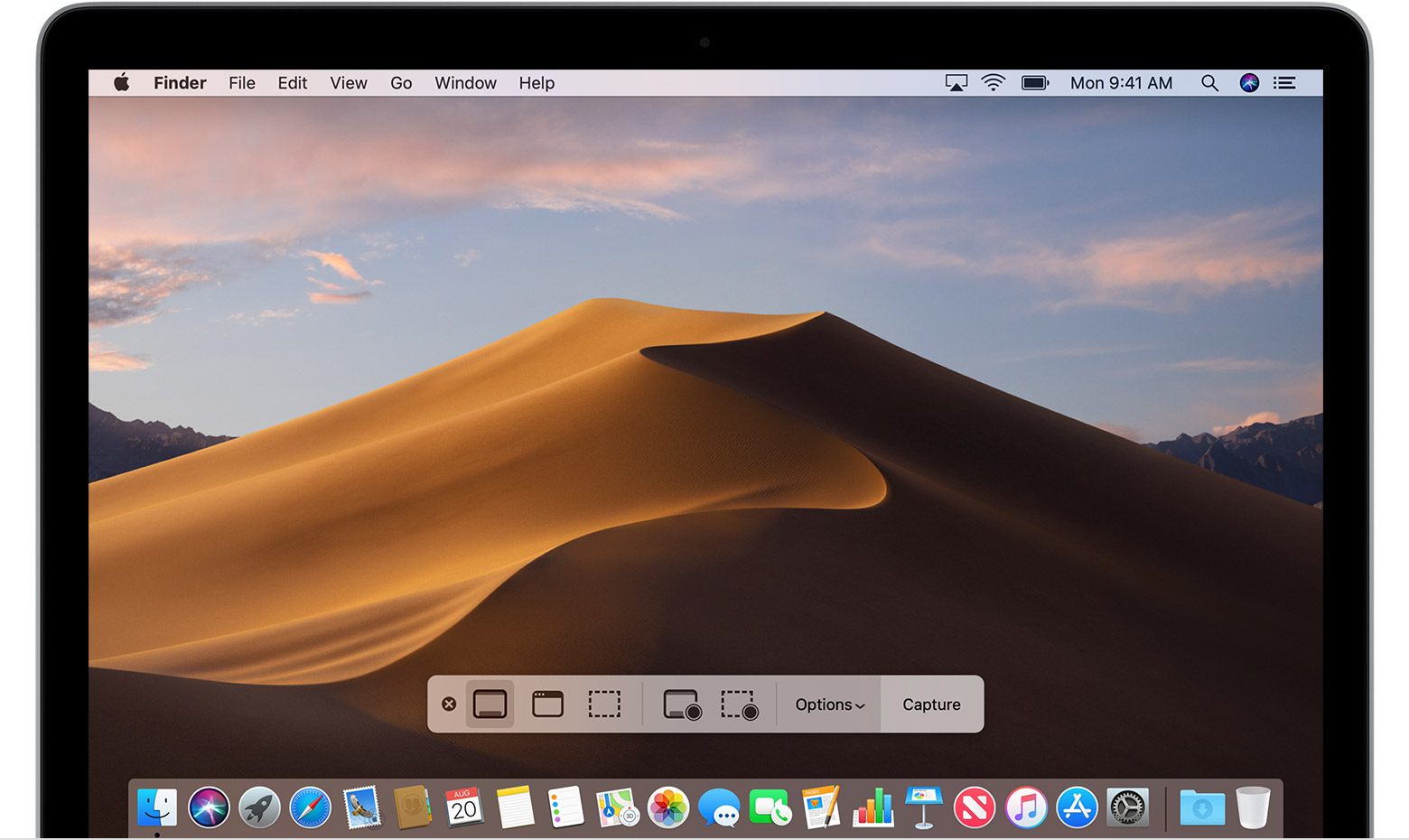
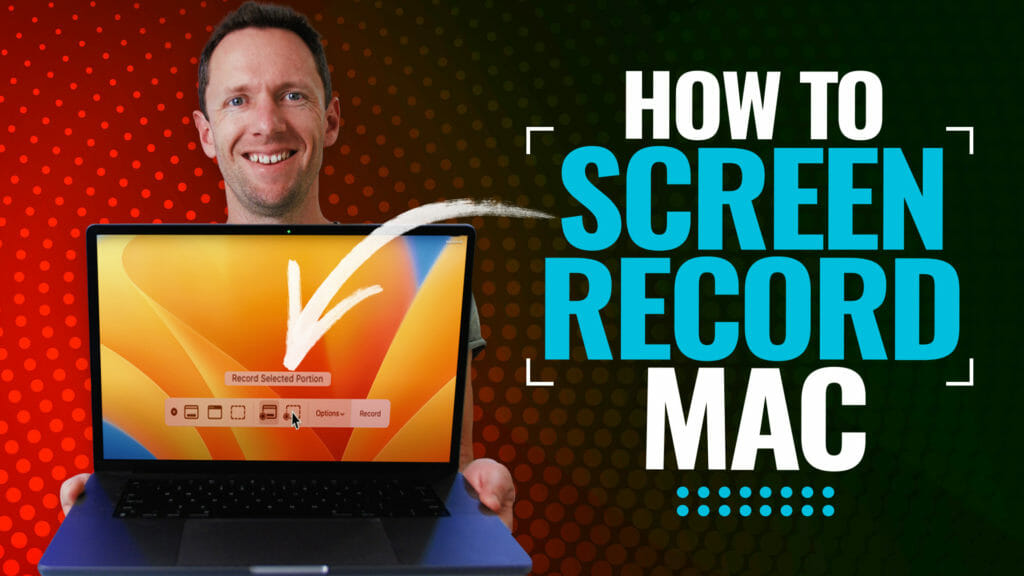
Introduced in macOS Mojave, the Screenshot app provides a panel of tools that let you easily take screenshots and screen recordings. To access the Screenshot app, press Command + Shift + 5 on your keyboard. From here, you can:
- Take a screenshot of the entire screen
- Take a screenshot of a selected portion of the screen
- Take a screenshot of a specific window or menu
- Record your screen
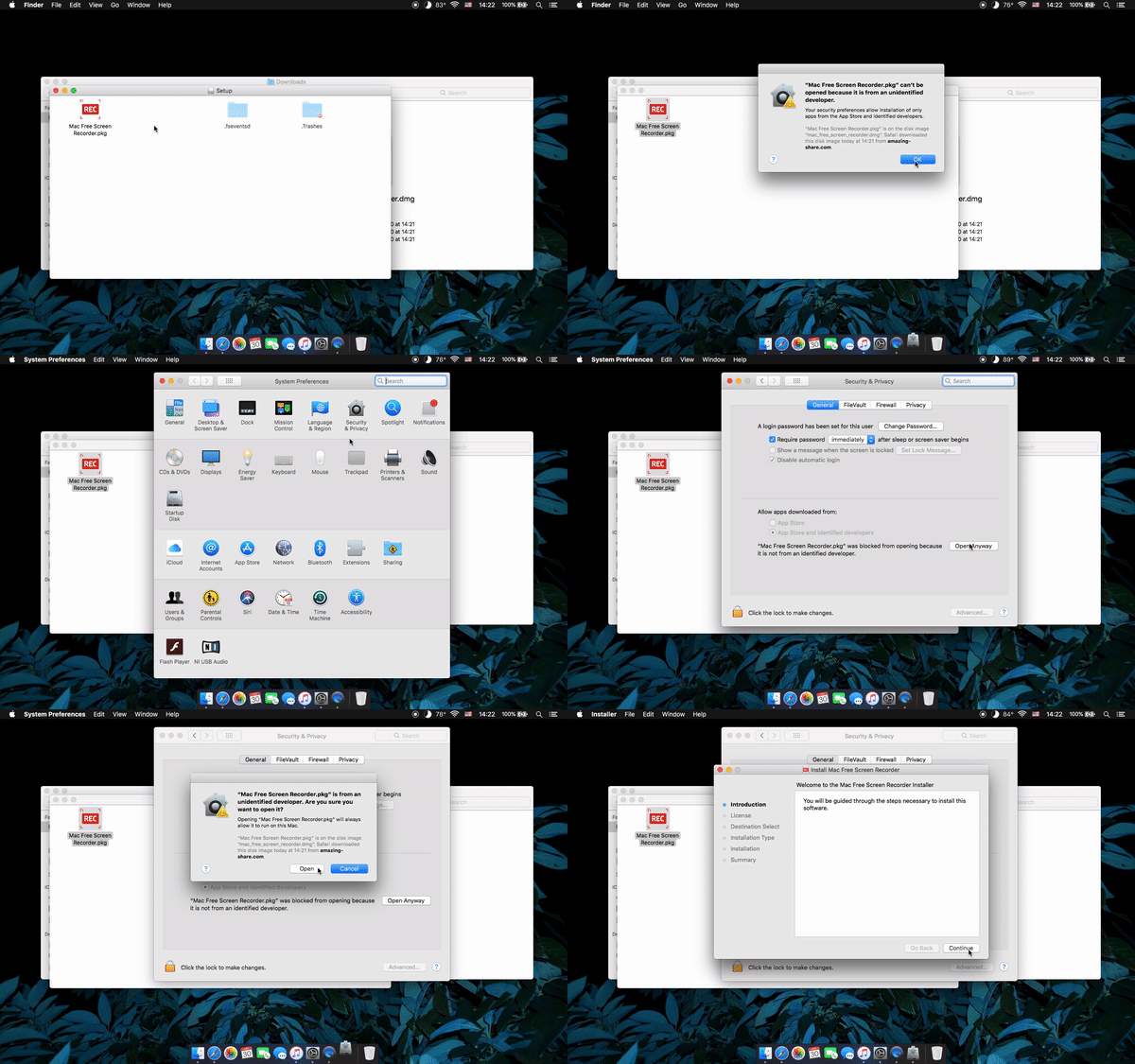
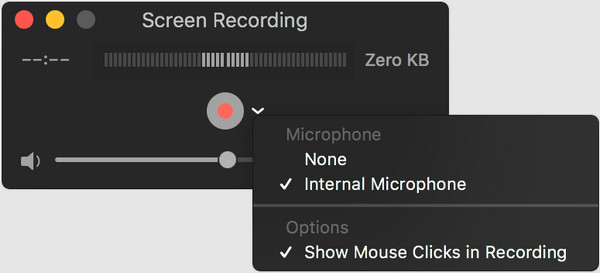
Additionally, the Screenshot app allows you to control what you capture, such as setting a timer delay or including the pointer or clicks. You can also capture your voice during a screen recording.
Method 3: Using Third-Party Tools
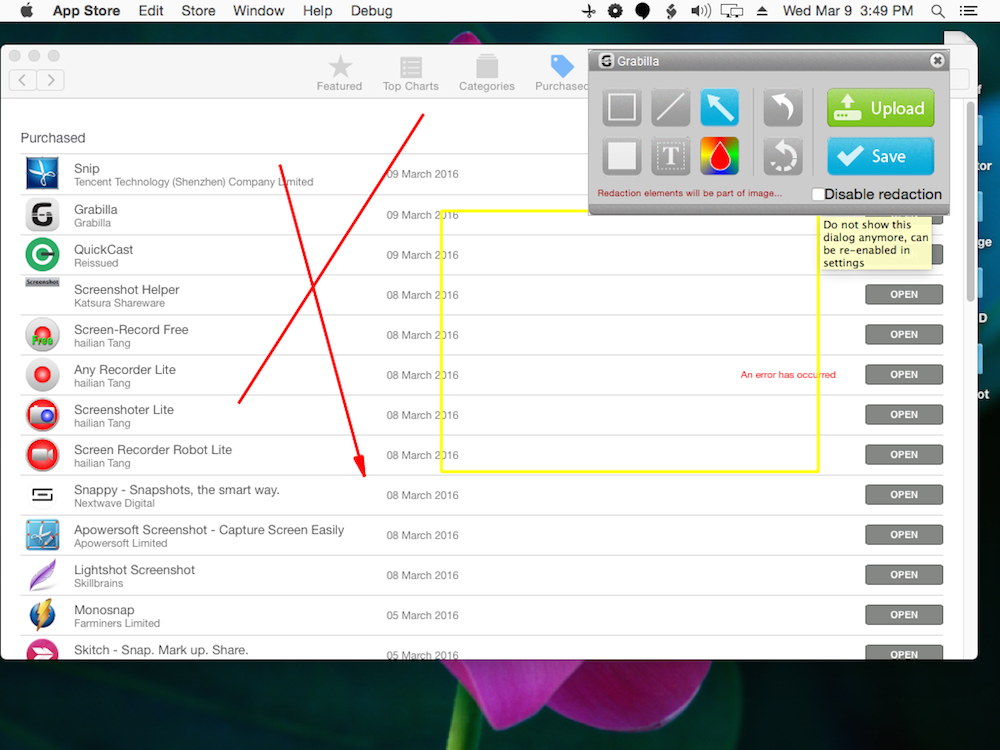
While the built-in Screenshot app provides a robust set of features, there are also third-party tools available that can enhance your screen capture experience. Some popular options include:
- Skitch: A popular screenshot tool that allows you to annotate and share screenshots
- Snagit: A powerful screen capture tool that offers advanced features like video capture and editing
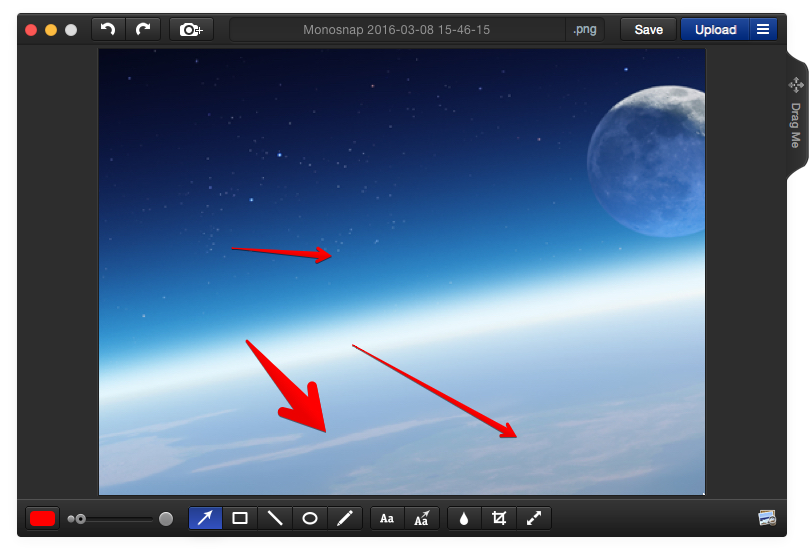
- Monosnap: A user-friendly screenshot tool that allows you to capture and annotate screenshots
These tools offer additional features and capabilities beyond what's available in the Screenshot app, so it's worth exploring them if you need more advanced functionality.
Conclusion
As you can see, taking a screenshot on Mac is a straightforward process that can be accomplished using various methods. Whether you prefer using keyboard shortcuts, the Screenshot app, or third-party tools, there's an option to suit your needs. By mastering these techniques, you'll be able to capture and share your screen content with ease.