How to Set Up Two-Factor Authentication: A Step-by-Step Guide
Two-factor authentication (2FA) is a vital security protocol that adds an extra layer of protection to your online accounts, preventing unauthorized access even if your password is compromised. In this comprehensive guide, we'll walk you through the process of setting up 2FA on various platforms, including Google, Apple, Microsoft, and social media platforms.
Why Do You Need Two-Factor Authentication?
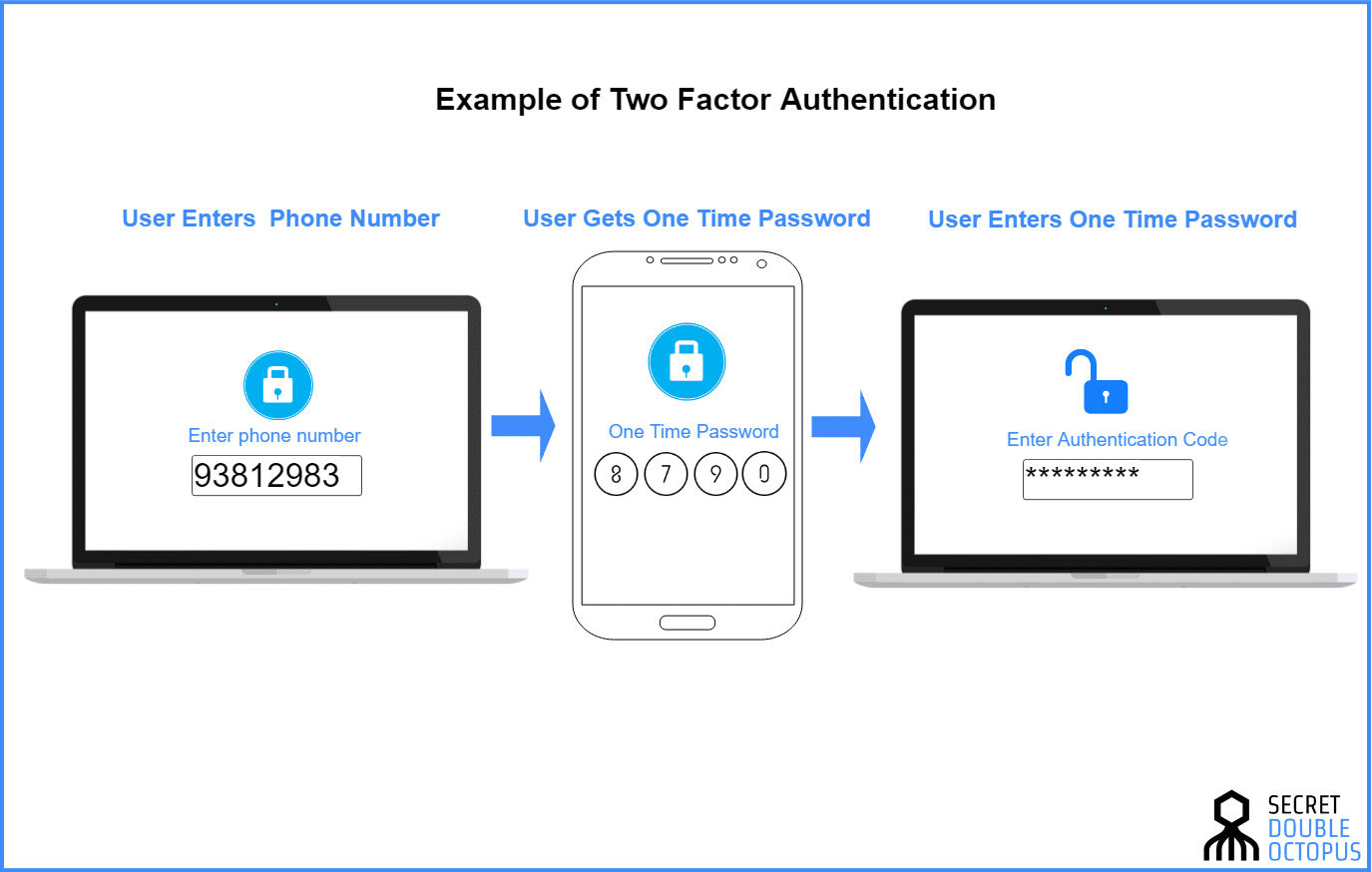
With the increasing number of data breaches and cyber attacks, it's essential to secure your online presence with 2FA. This security protocol involves two key inputs, which can be in the form of a password and a verification code sent to your phone or generated by an authenticator app. 2FA provides an additional layer of protection, making it much harder for hackers to gain unauthorized access to your accounts.
Choosing the Right 2FA Method
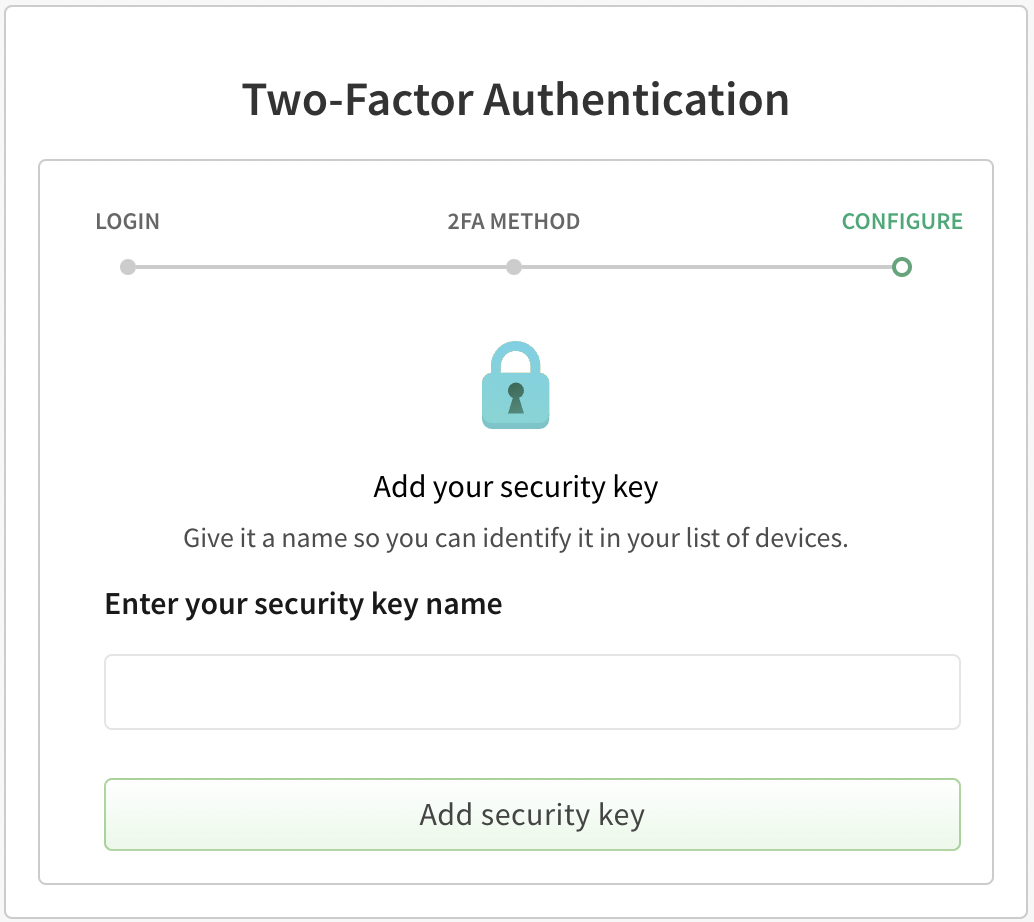
There are several 2FA methods to choose from, including Google prompts, passkeys, hardware security keys, verification codes, and authenticator apps. When selecting a 2FA method, consider your personal preferences and the level of security you require. For example, if you're concerned about losing access to your phone, you may prefer to use a hardware security key or a backup code.
Setting Up 2FA on Google
To set up 2FA on Google, follow these steps:
- Go to your Google account security page and click on the "Add more second steps to verify it's you" section.
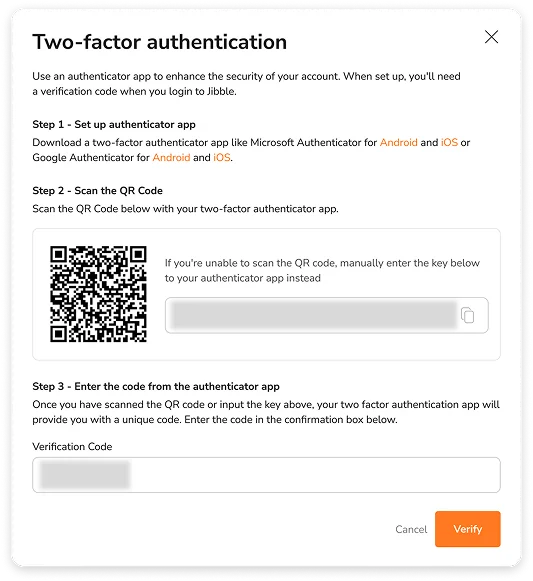
- Select the "Setup from the Authenticator app" option.
- On the Get codes from Authenticator page, select either Android or iPhone based on your phone type, and then select Next.
Setting Up 2FA on Apple
To set up 2FA on Apple, follow these steps:
- Go to your Apple ID account settings and click on the "Two-Factor Authentication" option.
- Select the "Turn On" button to enable 2FA.
- Choose a verification method, such as a verification code sent to your phone or a prompt on your device.
Setting Up 2FA on Microsoft
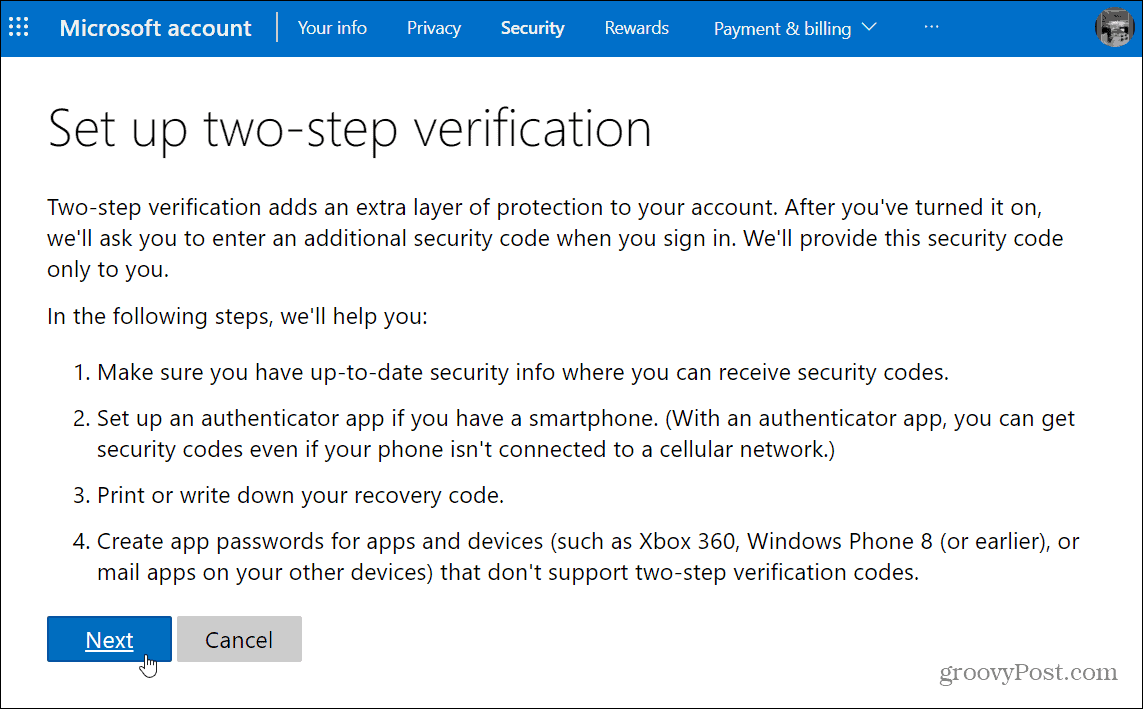
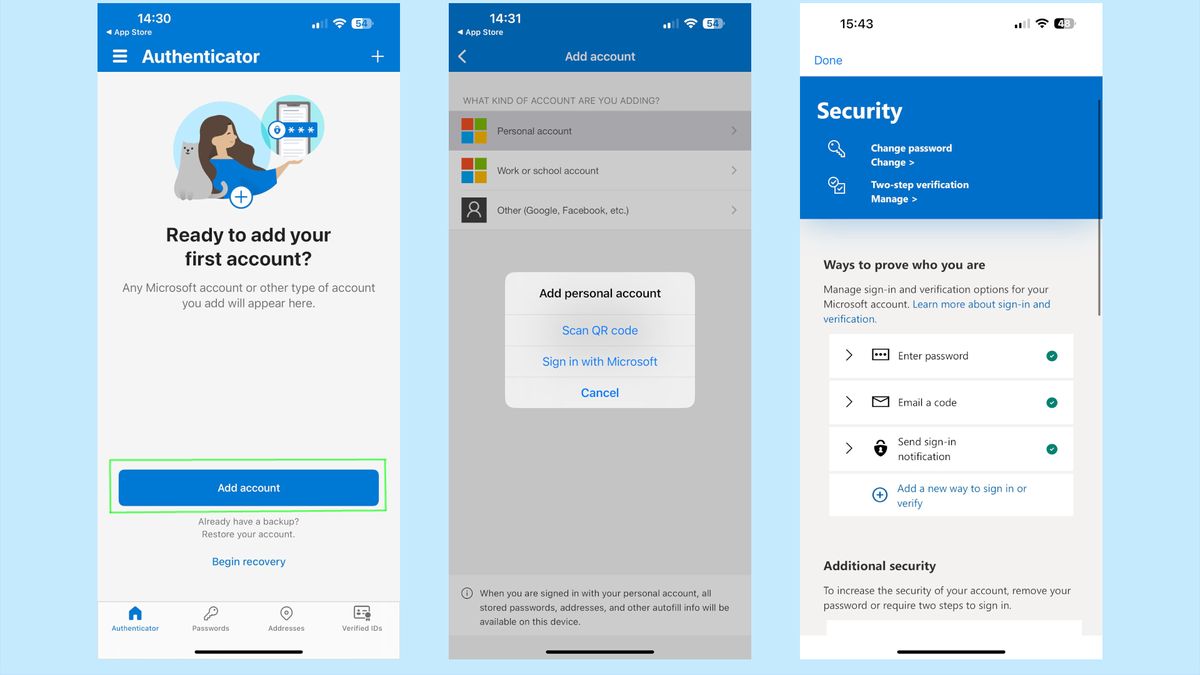
To set up 2FA on Microsoft, follow these steps:

- Go to your Microsoft account settings and click on the "Security" section.
- Click on the "Two-Factor Authentication" option and select the "Turn On" button.
- Choose a verification method, such as a verification code sent to your phone or a prompt on your device.
Setting Up 2FA on Social Media Platforms
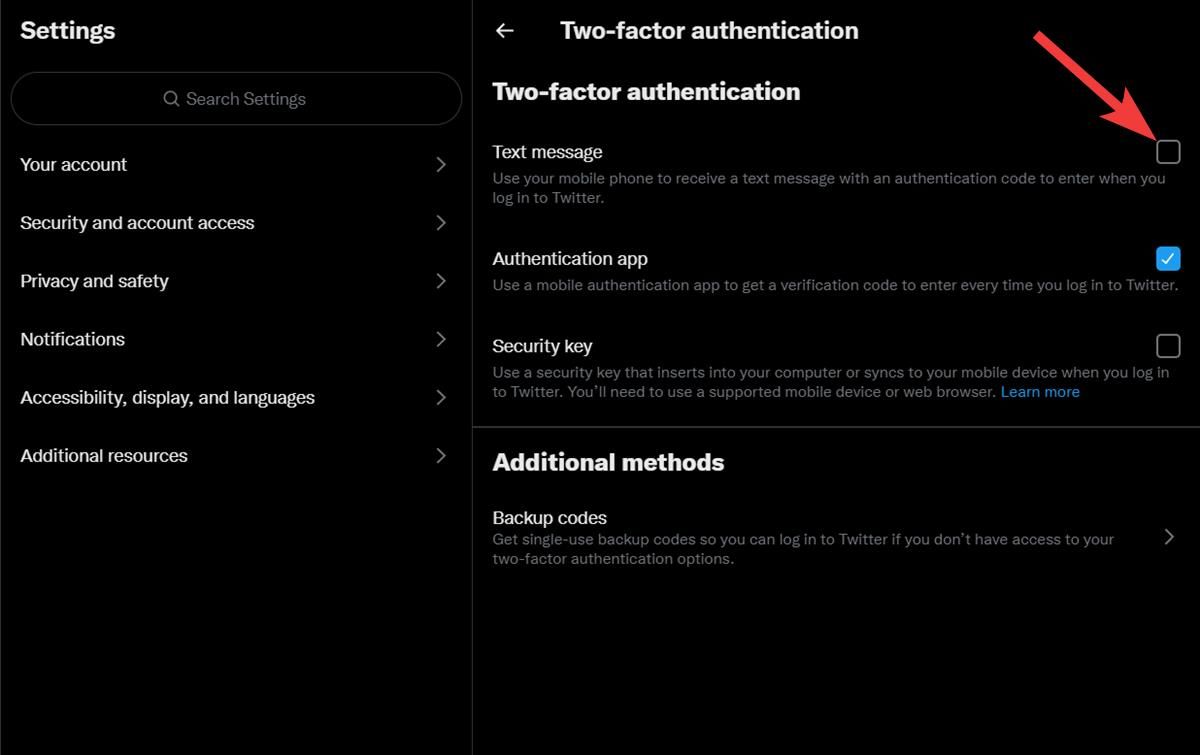
To set up 2FA on social media platforms, such as Facebook, Instagram, and Twitter, follow these steps:
- Go to your account settings and click on the "Security" or "Account Security" option.
- Look for the 2FA or Two-Step Verification option and select the "Turn On" button.
- Choose a verification method, such as a verification code sent to your phone or a prompt on your device.
Testing and Troubleshooting 2FA
After setting up 2FA, it's essential to test and troubleshoot the process to ensure it's working correctly. If you encounter any issues, refer to the platform's help documentation or contact their support team for assistance.
Conclusion
Setting up two-factor authentication is a simple and effective way to enhance the security of your online accounts. By following the steps outlined in this guide, you can protect your sensitive information from unauthorized access. Remember to choose a 2FA method that suits your needs and preferences, and don't hesitate to seek help if you encounter any issues during the setup process.
Additional Resources
For more information on two-factor authentication and how to set it up on various platforms, refer to the following resources:
- Google's 2-Step Verification guide
- Apple's Two-Factor Authentication guide
- Microsoft's Two-Factor Authentication guide
- Social media platforms' 2FA guides (e.g., Facebook, Instagram, Twitter)
Remember, securing your online presence is an ongoing process. Stay informed about the latest security threats and best practices to protect your digital identity.