How to Set Up a New iPhone Data Transfer Successfully
Are you excited to get your hands on a brand-new iPhone? Setting up a new device can be a thrilling experience, but it can also be overwhelming, especially when it comes to transferring data from your old phone. In this article, we'll guide you through the process of setting up a new iPhone data transfer successfully, ensuring that all your essential data, settings, and apps are transferred seamlessly.
Choosing the Right Data Transfer Method
When it comes to transferring data from your old iPhone to your new one, you have several options. The most common methods include:
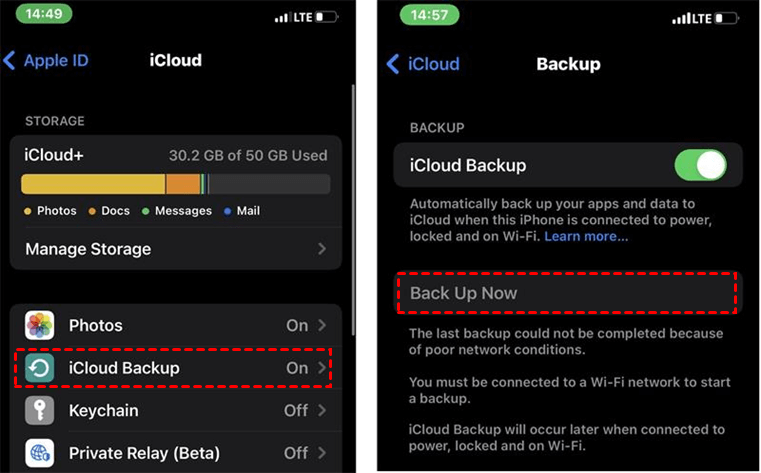
- Using iCloud backup: This method allows you to transfer data from your old iPhone to your new one using your iCloud account.
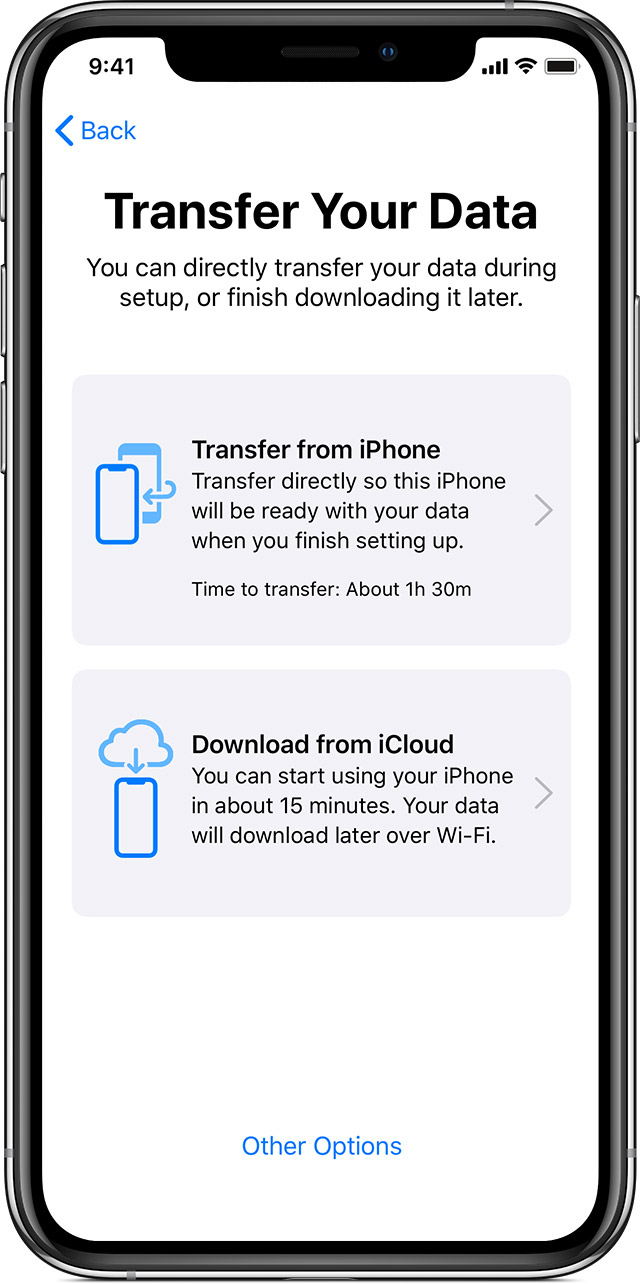
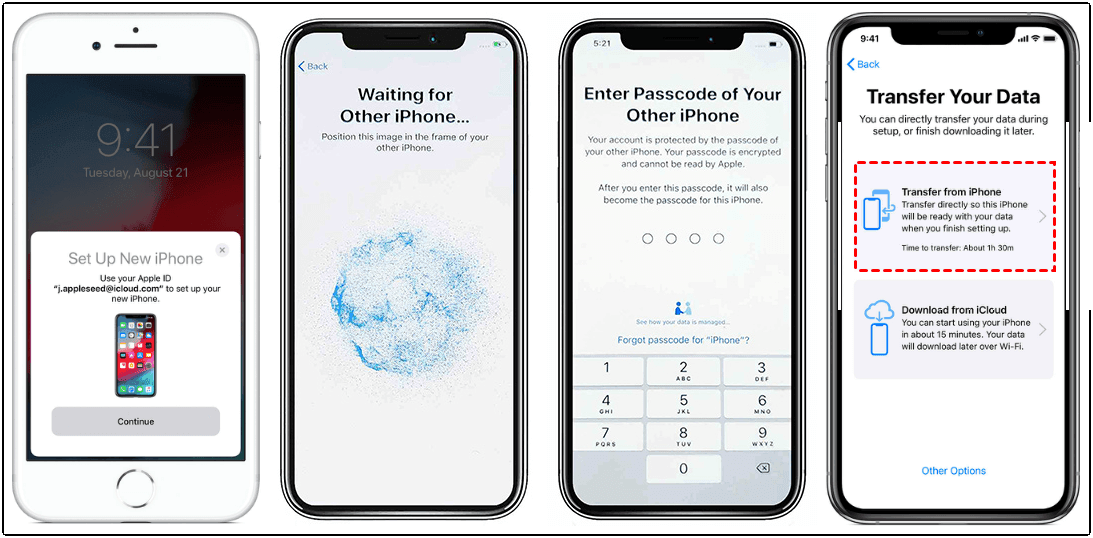
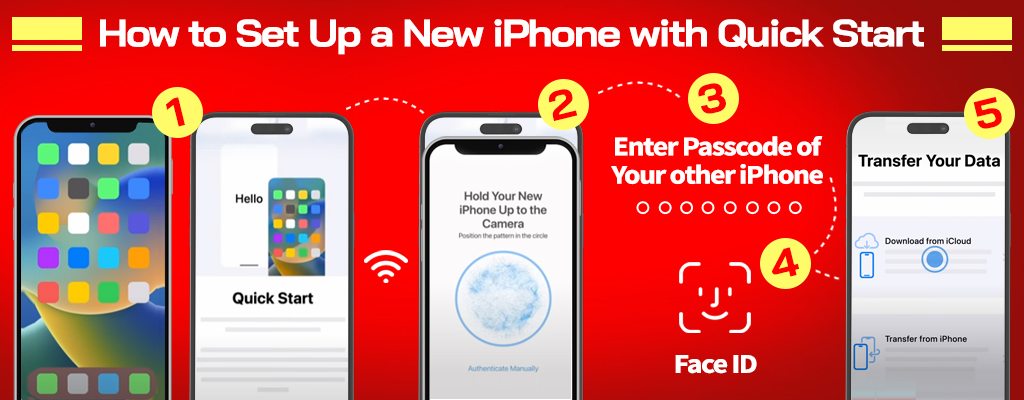
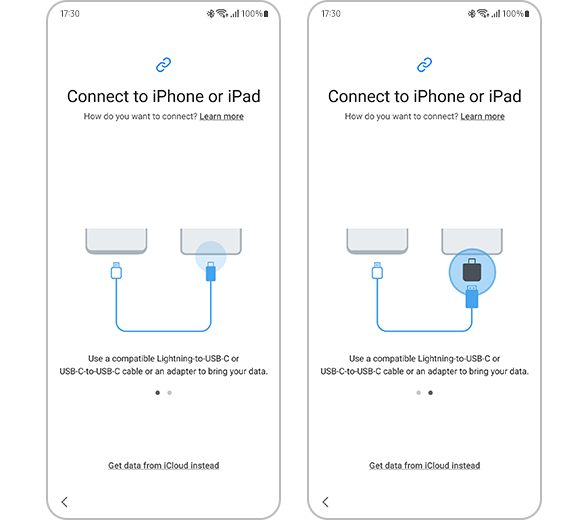
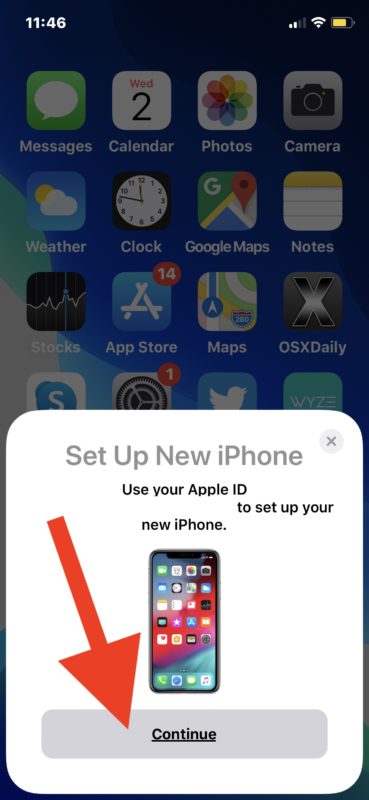
- Quick Start: This feature enables you to transfer data directly from your old iPhone to your new one using a wired connection or Wi-Fi.
- Restoring from a computer backup: If you've previously backed up your iPhone to your computer, you can restore the data to your new device.
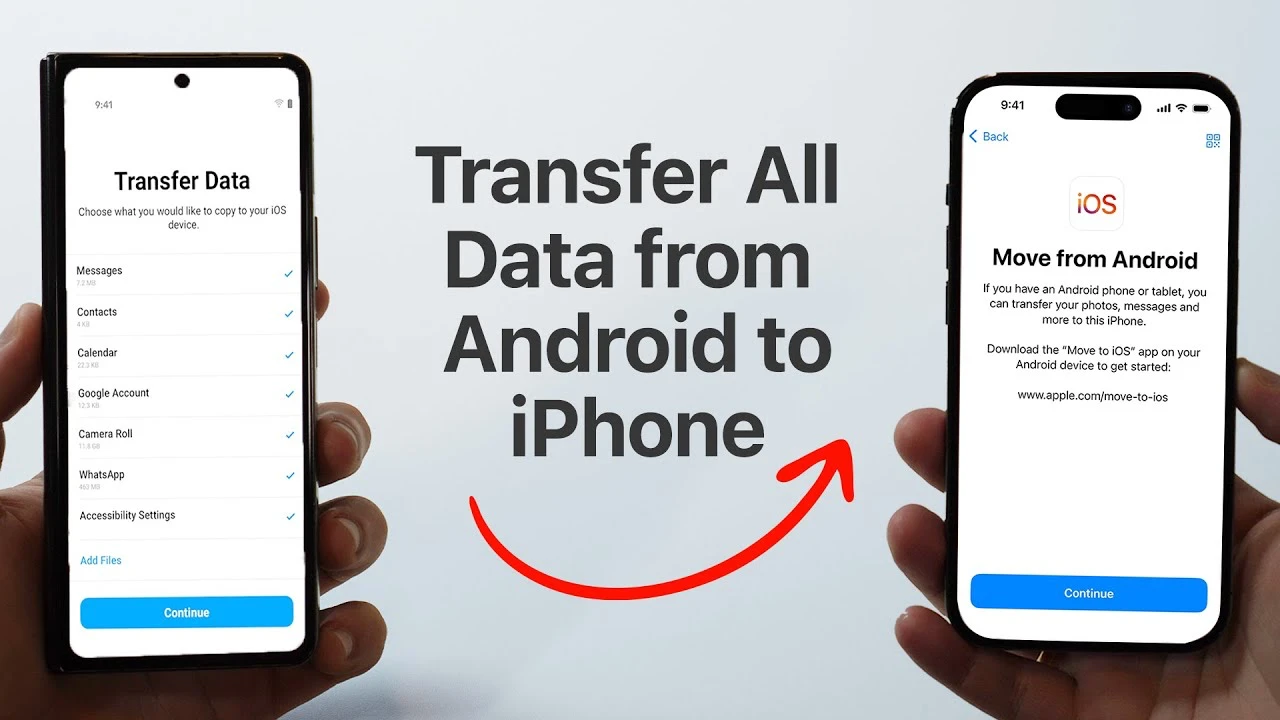
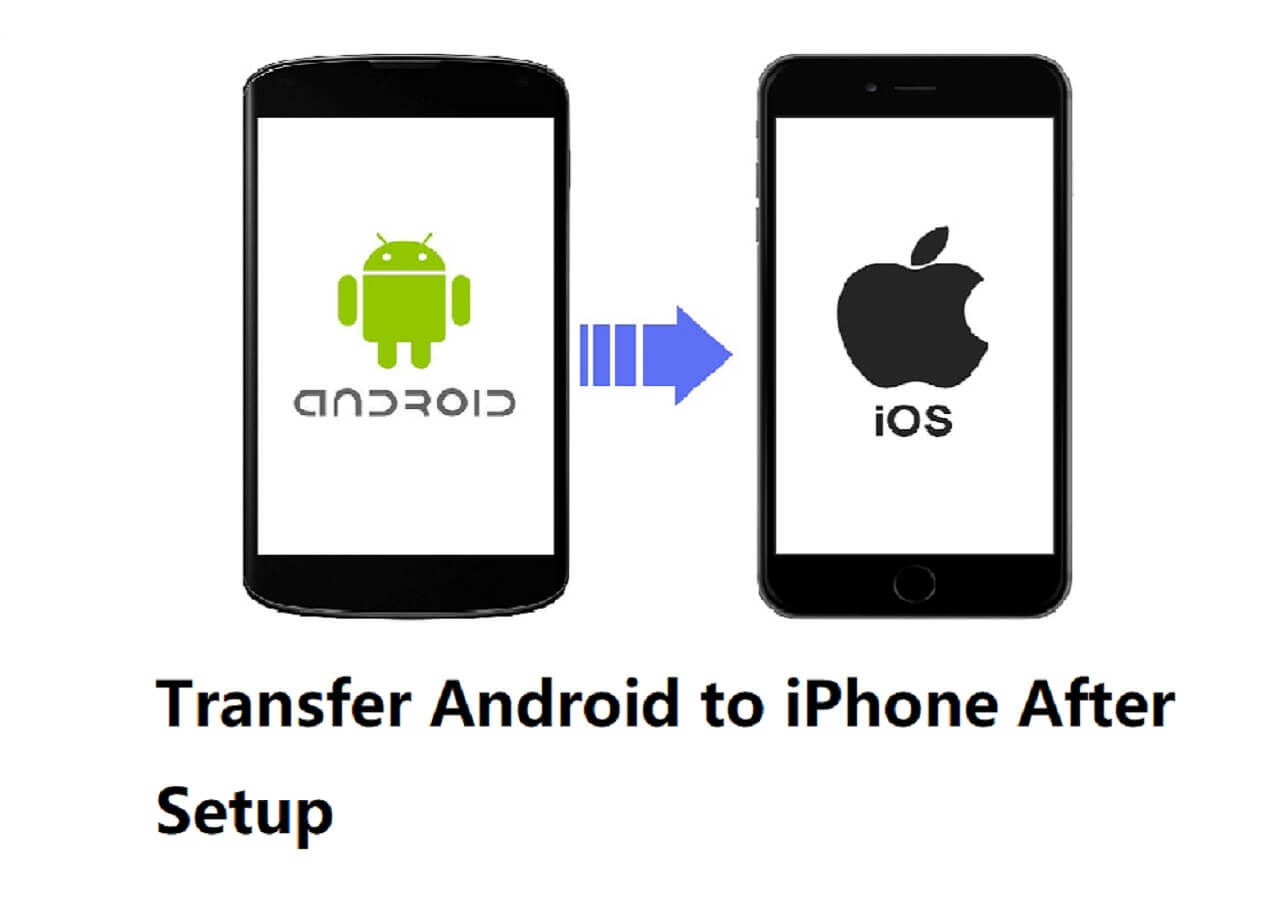
- Transferring data from an Android device using the Move to iOS app: This method is ideal for those switching from an Android device to an iPhone.
What You Need to Get Started
Before you begin the data transfer process, make sure you have the following:
- Both devices: Your new iPhone and your old iPhone (if you're transferring data directly from the old device).
- Chargers and cables: To connect both devices, you'll need a USB-C cable and a power source.
- iCloud account: If you're using iCloud backup or Quick Start, ensure that your iCloud account is up-to-date and has sufficient storage.
- Attentive patience: The data transfer process may take several minutes or even longer, depending on the method and data volume.
Step-by-Step Guide to Transferring Data
Now that you have the necessary requirements, let's move on to the step-by-step guide on how to set up your new iPhone data transfer successfully:
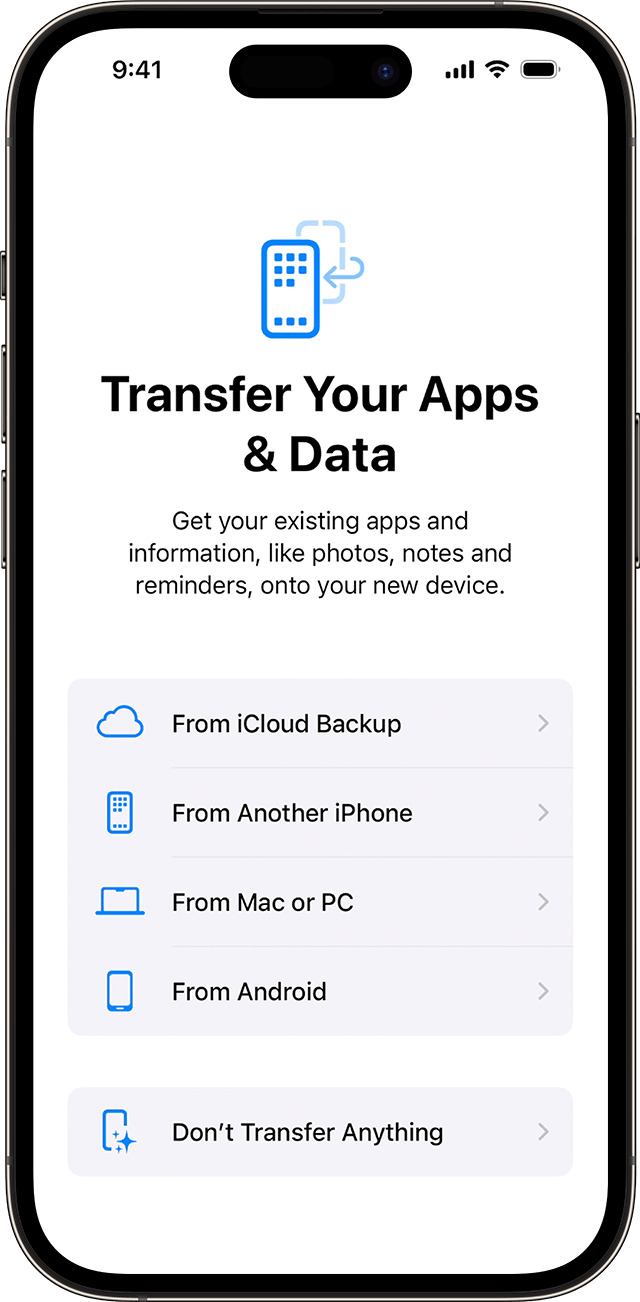
Method 1: Using iCloud Backup
1. Back up your old iPhone using iCloud by going to Settings > [Your Name] > iCloud > iCloud Backup > Back Up Now. 2. Wait for the backup to complete. 3. Activate your new iPhone and select "Restore from iCloud Backup" during the setup process. 4. Enter your Apple ID and password, and select the most recent backup date to transfer data to your new iPhone.
Method 2: Using Quick Start
1. Ensure both devices are connected to the same Wi-Fi network. 2. On your new iPhone, go to Settings > General > Transfer or Reset iPhone and select "Quick Start." 3. On your old iPhone, open the Quick Start app, and follow the on-screen instructions. 4. Your old iPhone will detect your new iPhone, and the data transfer will begin.
Method 3: Restoring from a Computer Backup
1. Connect your old iPhone to your computer using a USB cable. 2. Open iTunes and select your iPhone under the "Summary" tab. 3. Select "Restore Backup" and choose the most recent backup date to transfer data to your new iPhone. 4. Wait for the restore process to complete, and then follow the on-screen instructions to set up your new iPhone.
What to Do If the Transfer Fails
Don't worry if the data transfer fails or gets stuck. Follow these troubleshooting steps:
- Restart both devices: Sometimes, a simple reboot can resolve the issue.
- Check for software updates: Ensure that both devices are running the latest versions of iOS and iTunes.
- Use a different method: If one method fails, try using a different one, such as switching to iCloud backup or Quick Start.
- Seek professional help: If none of the above steps resolve the issue, contact Apple Support or visit an Apple Store for assistance.