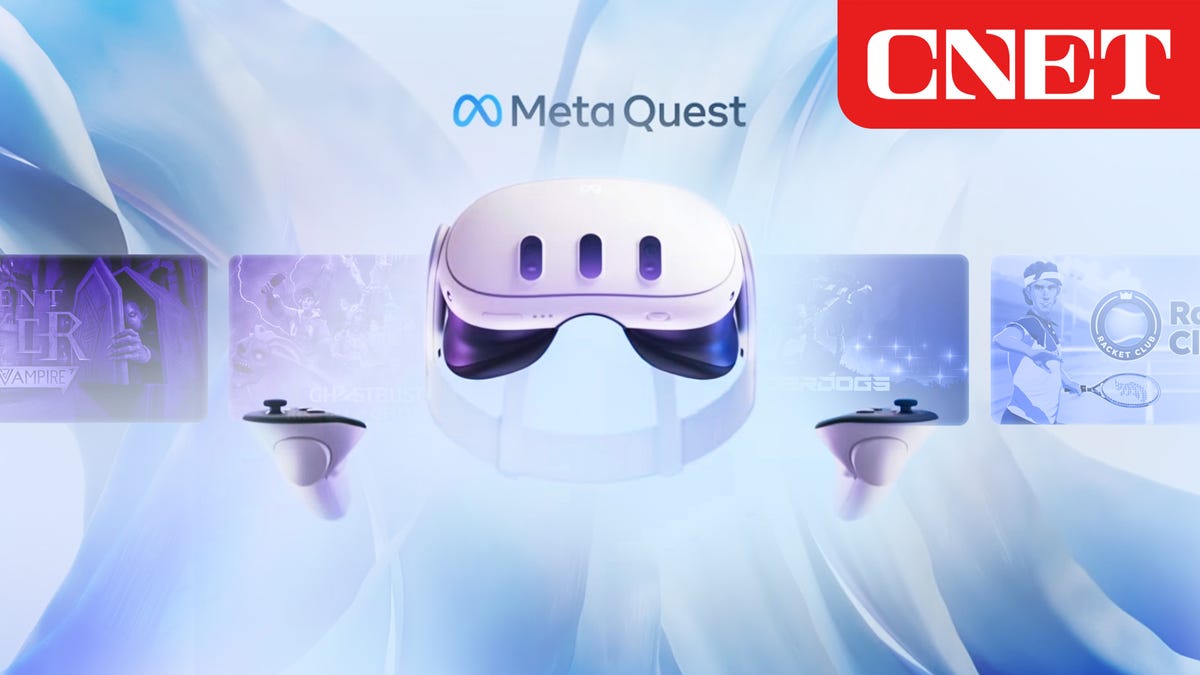
How to Set up Meta Quest 3: A Comprehensive Guide
Are you excited to dive into the world of virtual reality with the Meta Quest 3? Setting up your new headset can seem daunting, but don't worry, we've got you covered. In this article, we'll walk you through the step-by-step process of how to set up your Meta Quest 3, from unboxing to getting started with your VR experiences.Unboxing and Initial Setup
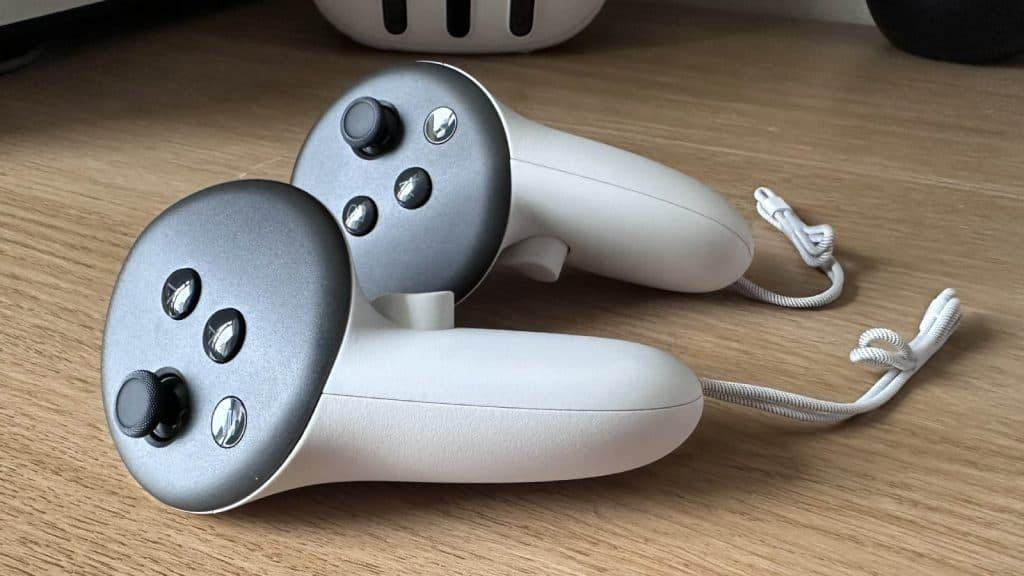
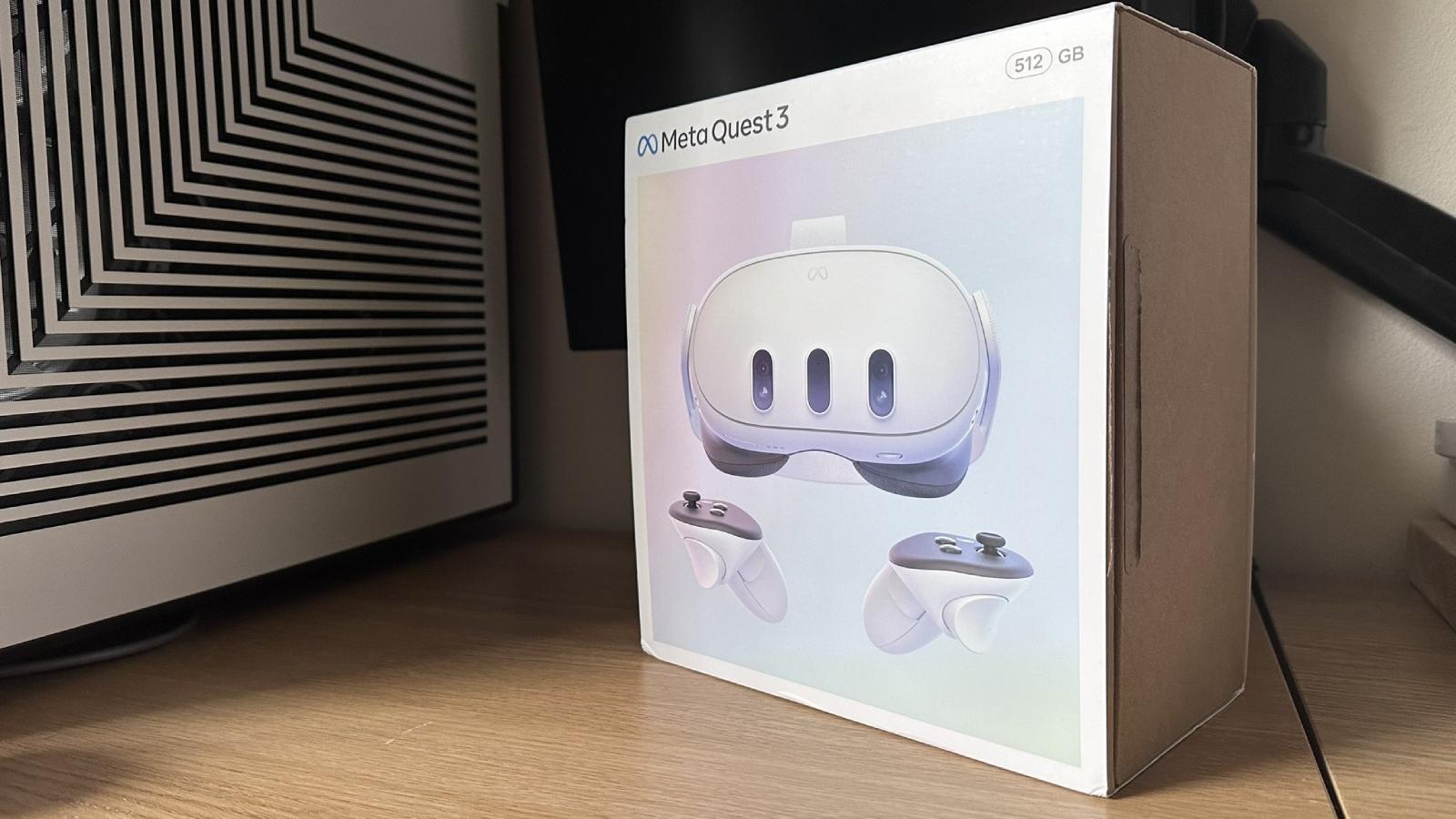
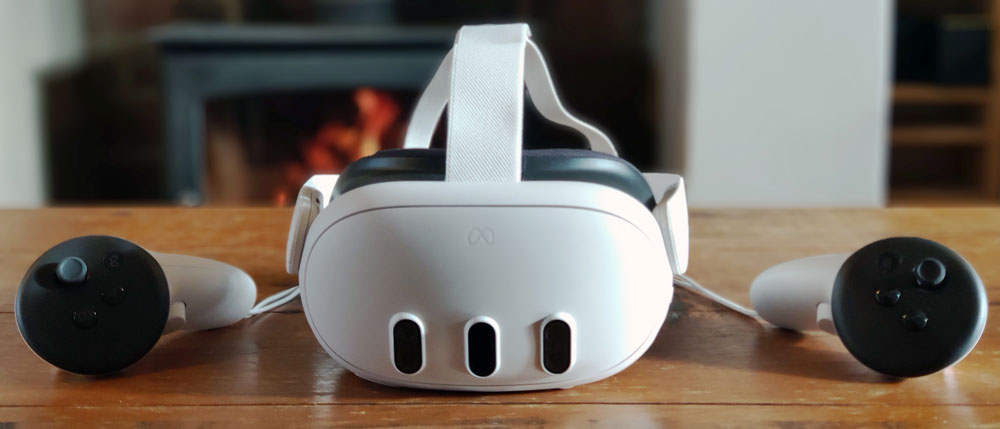
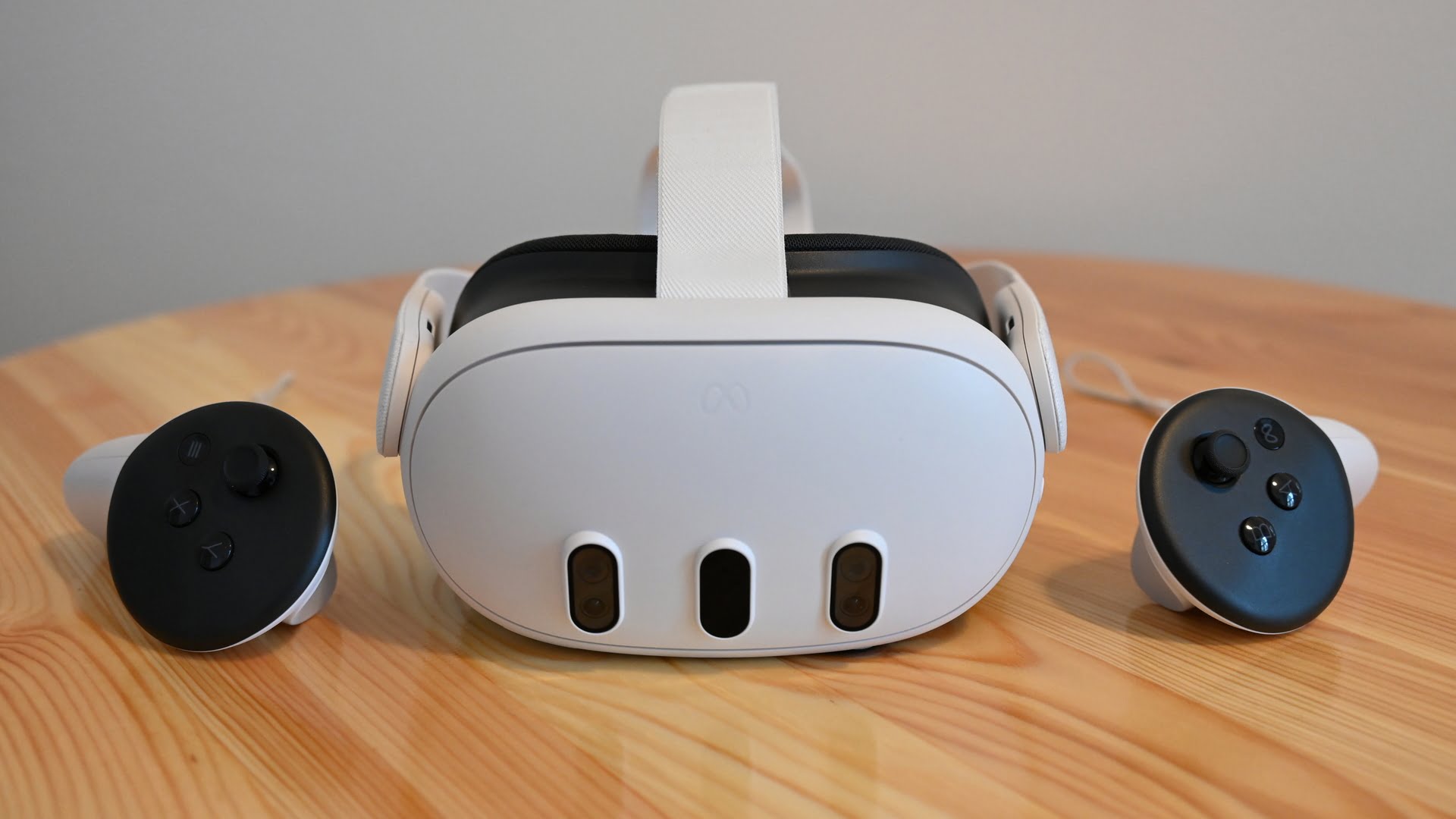
When you take your Meta Quest 3 out of the box, use the power adapter and charging cable provided to fully charge your headset before use. After your headset is fully charged, follow the directions below for additional guidance. Here's what you'll find in the box: * Meta Quest 3 headset * Controllers (x2) * Power adapter and charging cable * Controllers clip * CaseCharging Your Headset
To charge your headset, simply plug the charging cable into the power adapter and attach the other end to the headset charging port. The light on the side of the headset will turn blue when it's properly connected.Turning On Your Headset
Place the headset on your head and turn it on by pressing the power button located on the right side. The light on the side of the headset will turn white, and you'll hear a gentle chime to signal that it's turned on.Pairing Your Headset with Your Mobile Device
Download the Meta Quest app on your mobile device and follow the in-app instructions to pair your headset with your device. This will allow you to control your headset's settings and access a wide range of VR experiences.Navigating the Meta Quest Home
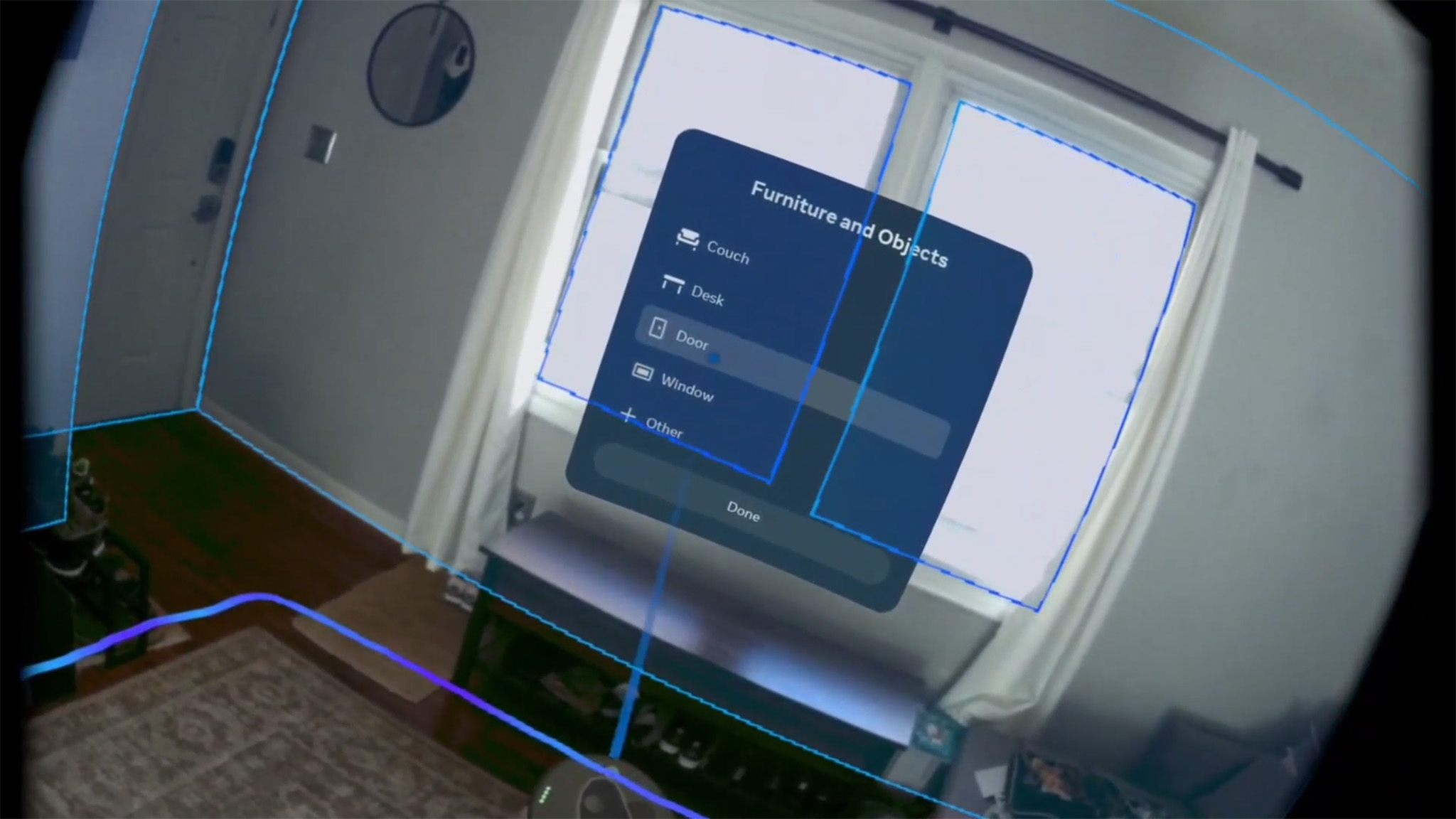
Once you've paired your headset, you'll be taken to the Meta Quest home screen. Here, you'll find a variety of icons and apps to explore. Take some time to familiarize yourself with the layout and settings before diving into your first VR experience.Using Your Controllers