Step-by-Step Guide: How to Set Up an Audio Interface
Are you looking to improve the sound quality of your recordings and achieve less latency? Look no further than setting up an audio interface. In this article, we'll walk you through the process step-by-step, showing you how to configure your inputs and outputs for a smooth recording experience.
What is an Audio Interface?
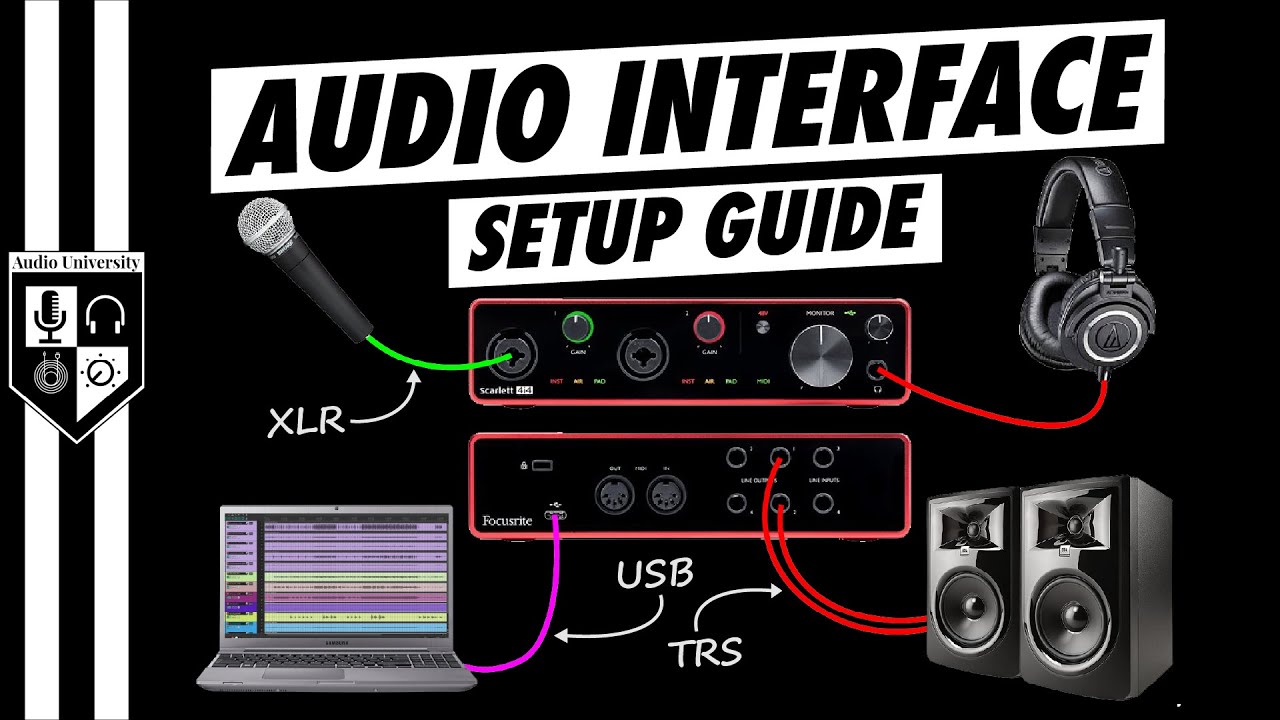
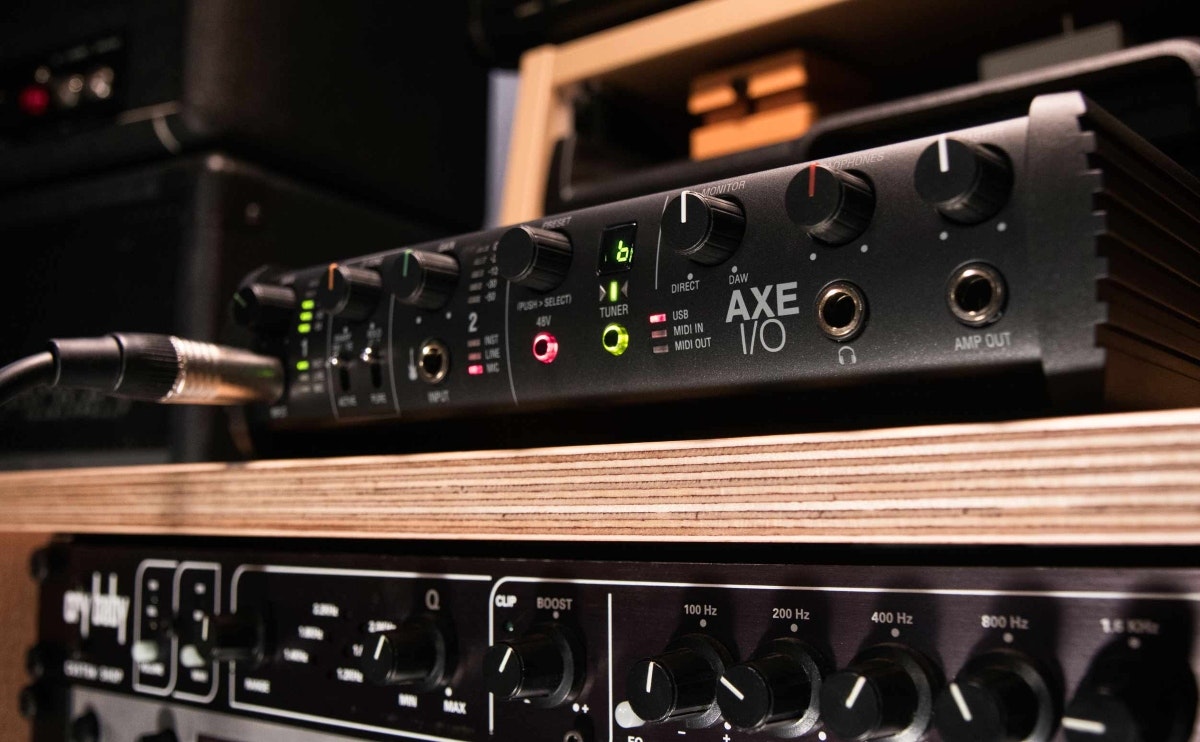
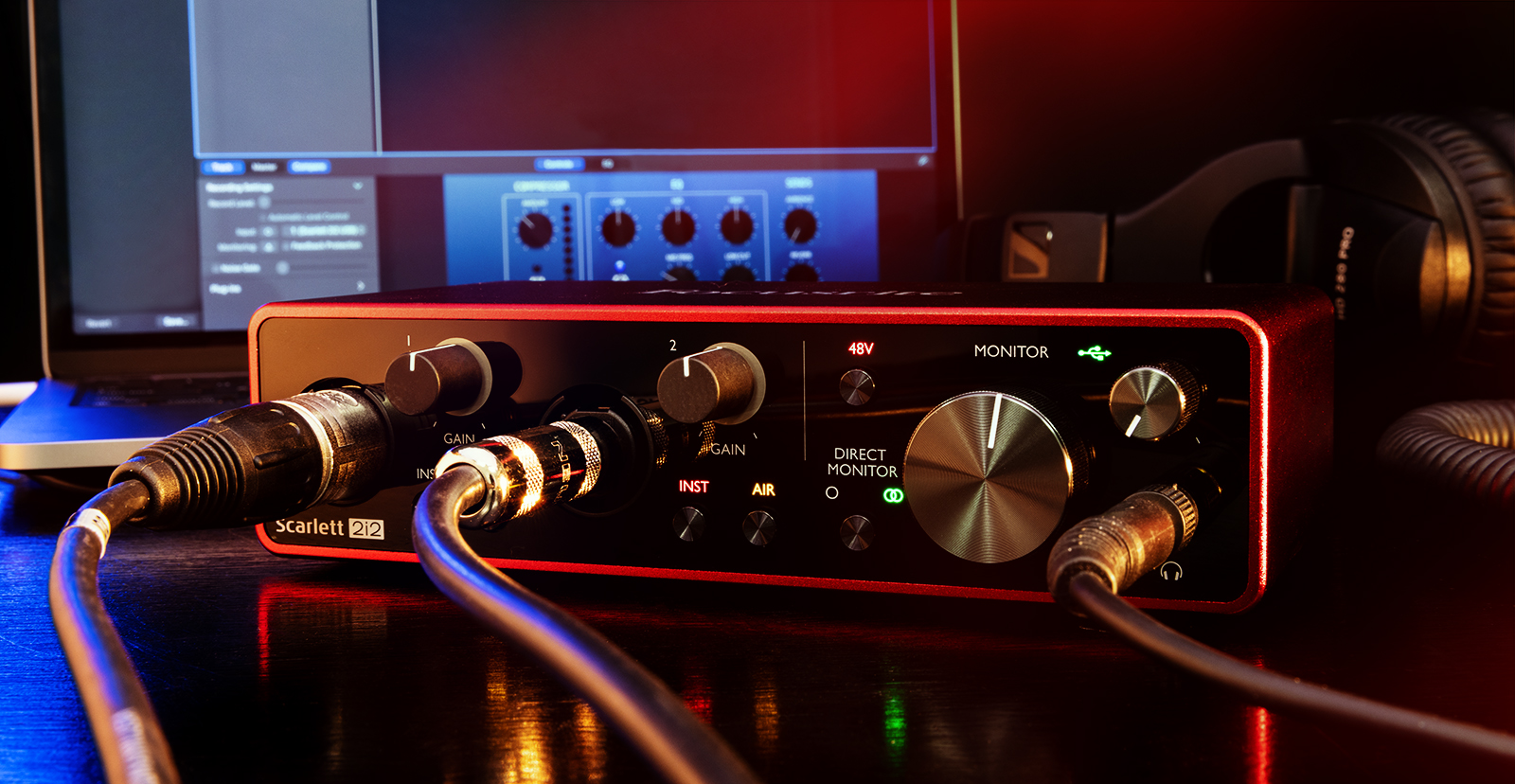
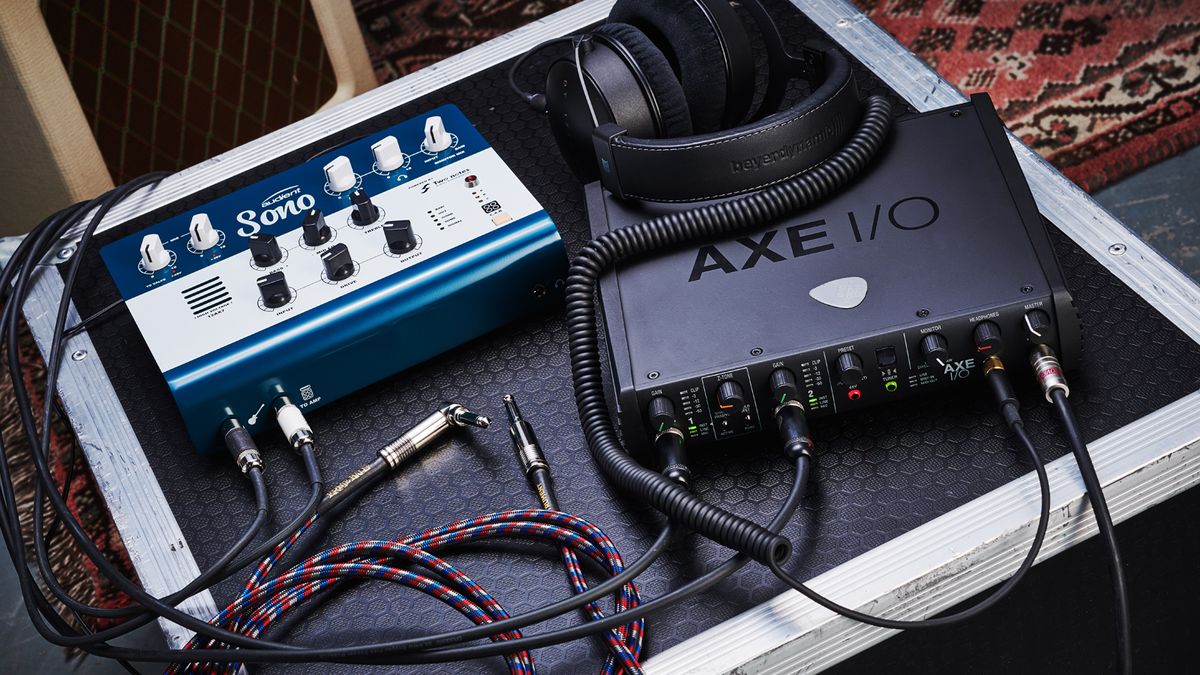
An audio interface is a small device that allows you to connect microphones, instruments, and other audio gear to your computer. It takes the sound (which is analog) and turns it into digital so your computer can work with it, and it does this way better than your computer's built-in sound system.
Connecting Your Audio Interface
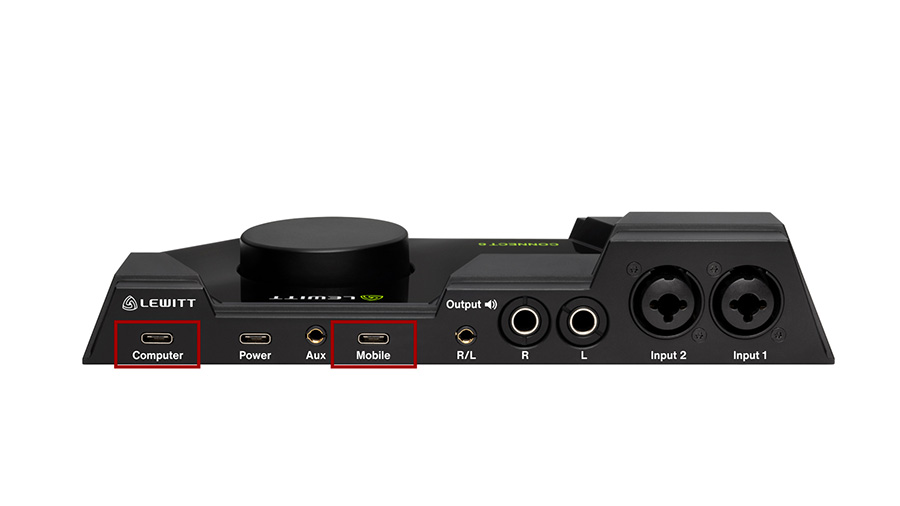
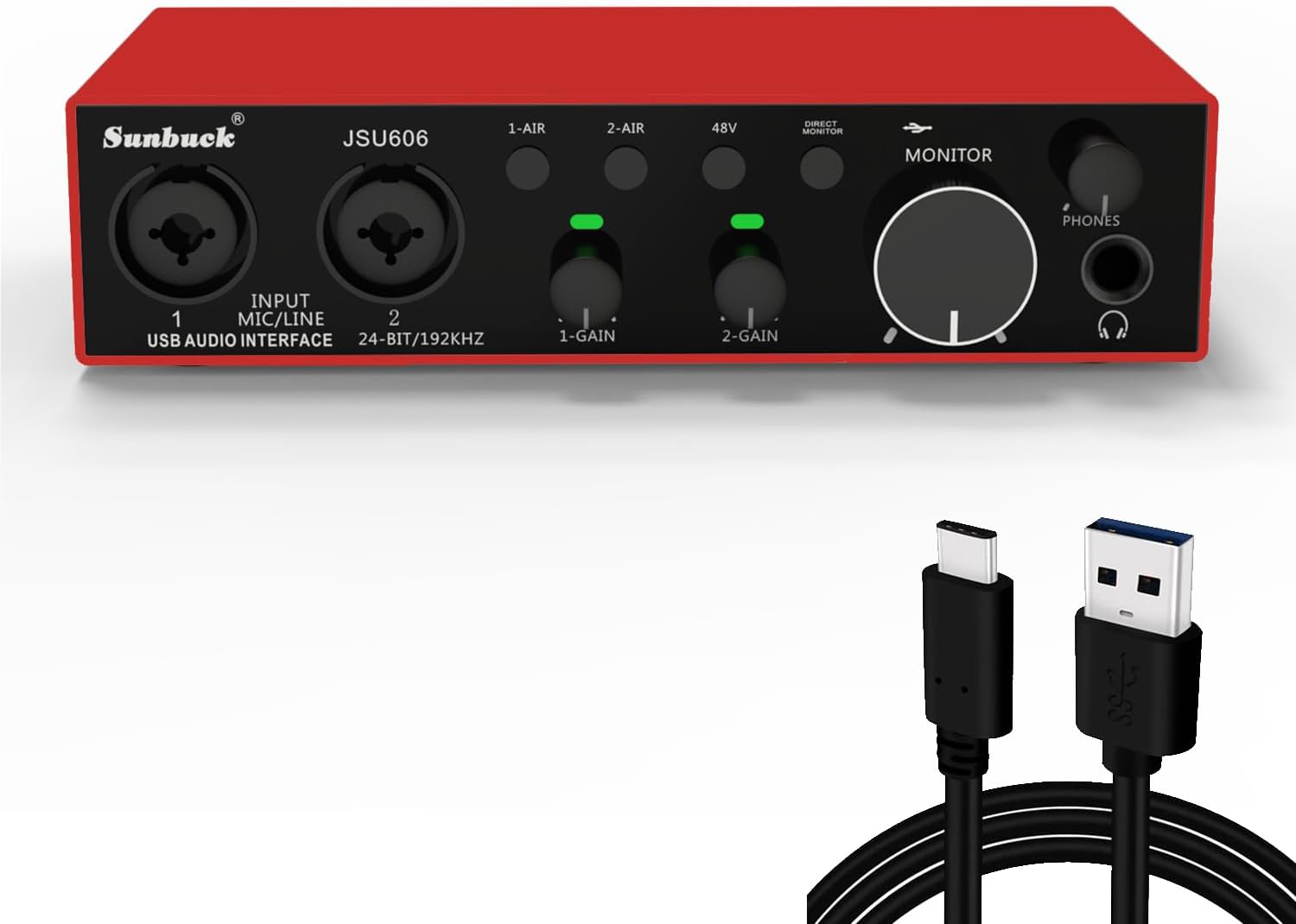
First, you'll need to connect your audio interface to your computer. This typically involves plugging the interface into a USB port. Next, you'll need to install the drivers for your audio interface. You can usually find these drivers on the manufacturer's website or on a CD that comes with the interface.
- Connect your audio interface to your computer using a USB cable.
- Install the drivers for your audio interface.
- Restart your computer to ensure the drivers are loaded properly.
Configuring Your Audio Interface
Once you've connected and installed your audio interface, it's time to configure it. This typically involves setting up the inputs and outputs for your interface. You'll need to select which inputs and outputs you want to use, and then configure the buffer size and latency settings.
- Launch your digital audio workstation (DAW) and select the audio interface as the default input and output device.
- Configure the inputs and outputs for your audio interface. This may involve selecting which microphone or instrument you want to use.
- Adjust the buffer size and latency settings to optimize your recording experience.
Advanced Topics

Once you've configured your audio interface, you may want to explore some advanced topics, such as DAW mapping and making connections.
- Learn about DAW mapping and how to set up your audio interface in your DAW of choice.
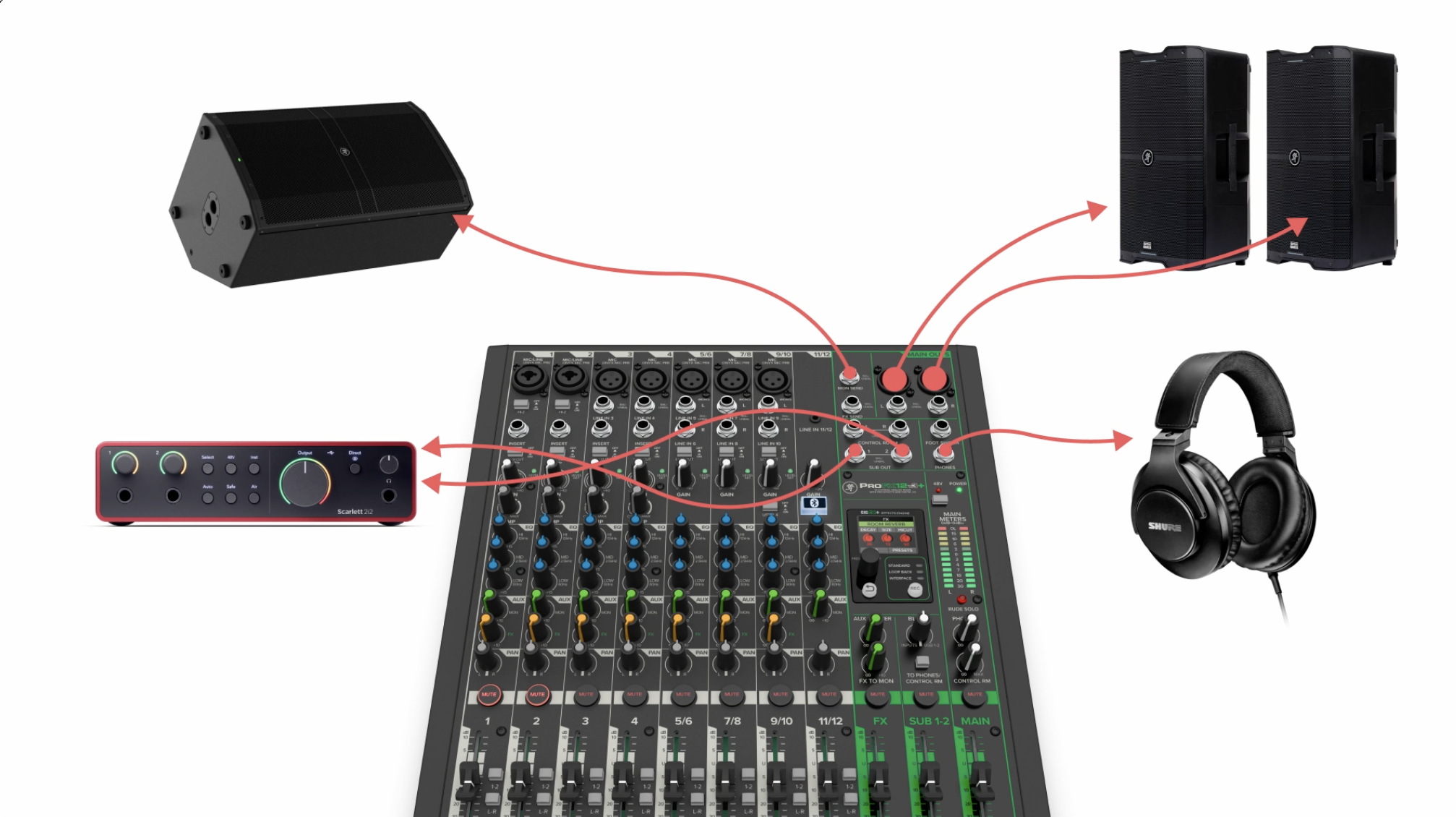
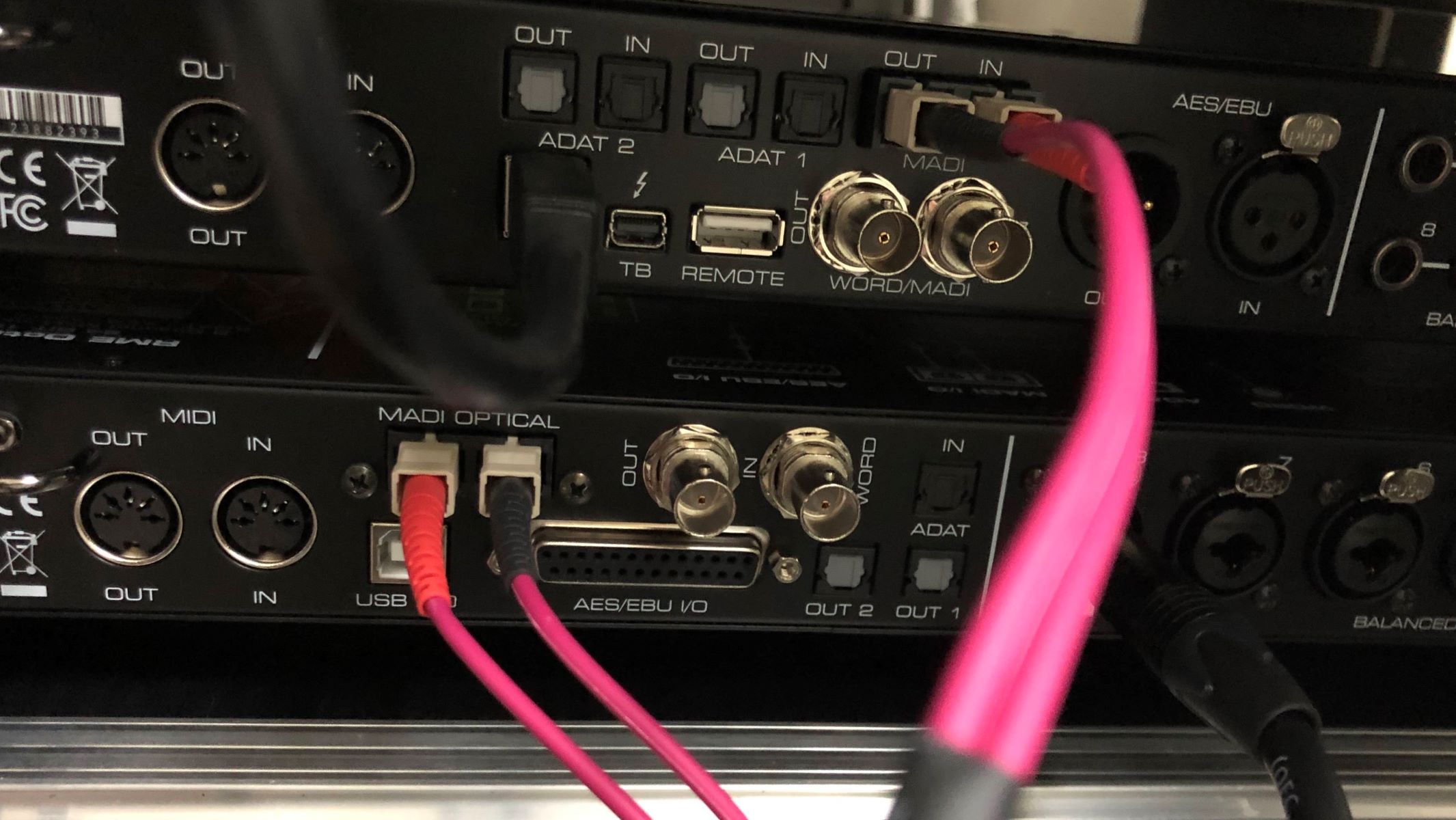
- Explore the different types of connections you can make with your audio interface, such as using MIDI cables or network connections.
Troubleshooting
If you're experiencing issues with your audio interface, there are several troubleshooting steps you can take.
- Check that the interface is properly connected to the computer.
- Ensure that the drivers are installed and up to date.
- Restart the computer and try again.
Conclusion
By following these steps, you'll have your audio interface set up and ready to use in no time. Remember to experiment with different settings and configurations to find the optimal setup for your recording needs.
Additional Resources
For more information on setting up an audio interface, be sure to check out our guide to audio interfaces and our article on how to set up a guitar audio interface.