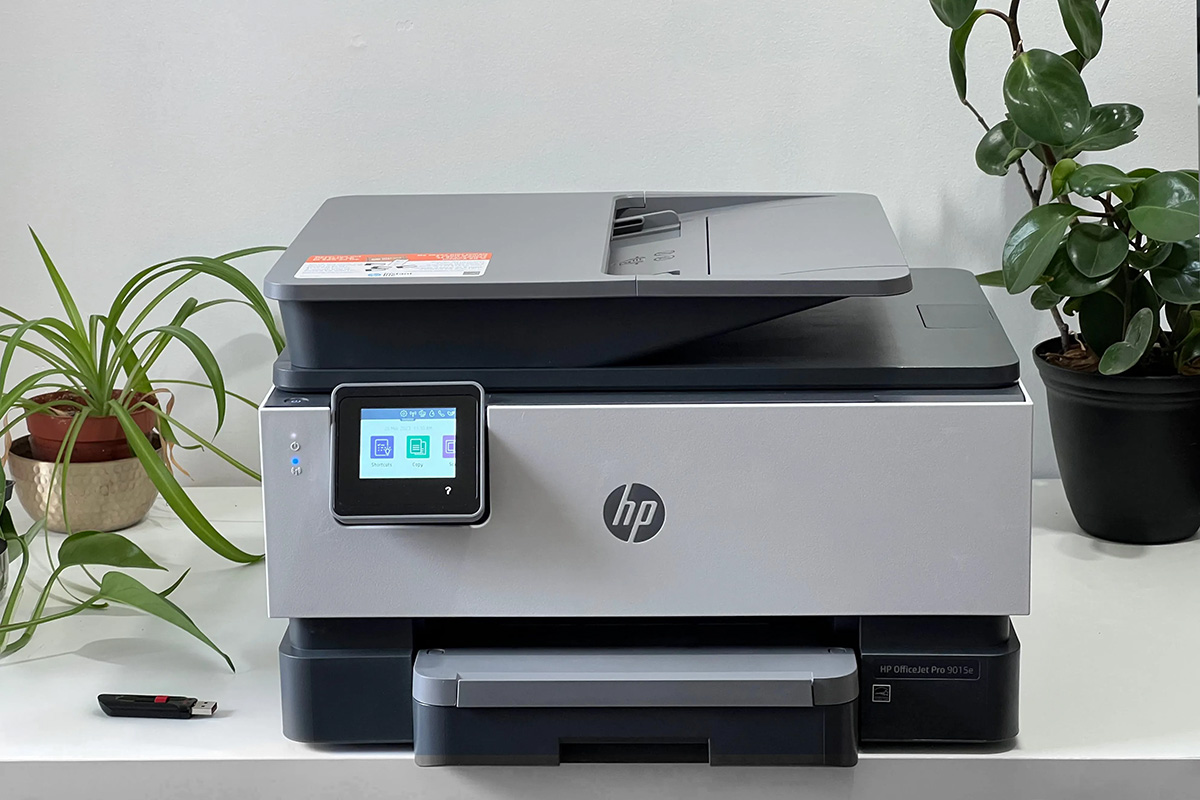
How to Set Up a Printer: A Step-by-Step Guide
Setting up a printer can be a relatively simple process, especially with the variety of printer models available that come with their own installation software or websites for downloading printer software. In this article, we will guide you through the different methods available for setting up a printer.
Method 1: Automatic Installation using Windows
When a printer or all-in-one device is connected directly to a Windows device, the printer normally installs automatically, and printing can be started right away. Windows supports most printers out of the box, so in most cases, special printer drivers or software don't need to be installed. However, additional or updated drivers might be available via Windows Update.
Method 2: Installing Printer Software
There are various printer models that come with their own installation software or have websites for downloading printer software. To set up a printer using this method, follow these steps:
- Download the printer software from the manufacturer's website.
- Install the software on your computer.
- Follow the on-screen instructions to connect the printer to your computer and complete the setup.
Method 3: Wi-Fi Setup
Many printers come with Wi-Fi connectivity, making it easy to set them up wirelessly. To connect a wireless printer to your Wi-Fi network, follow these steps:
- Make sure your printer is turned on and connected to the same network as your computer.
- Open the settings app on your computer and select the Wi-Fi option.
- Choose the printer's name from the list of available networks and enter the password if prompted.
Method 4: Manual Setup using USB
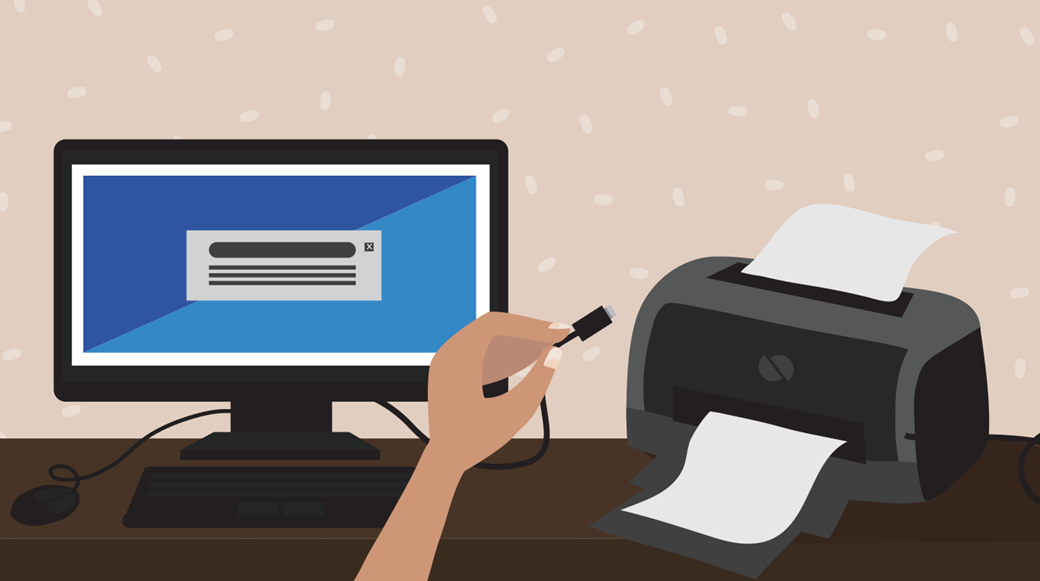
If you prefer to set up your printer manually using a USB connection, follow these steps:

- Connect the printer to your computer using a USB cable.
- Open the printer settings on your computer and select the USB option.
- Follow the on-screen instructions to complete the setup.
Troubleshooting Common Issues
If you encounter any issues during the setup process, such as a "Printer not found" or "Printer not recognized" error, try the following troubleshooting steps:
- Check that the printer is turned on and connected to the same network as your computer.
- Make sure the printer software is installed correctly and update the drivers if necessary.
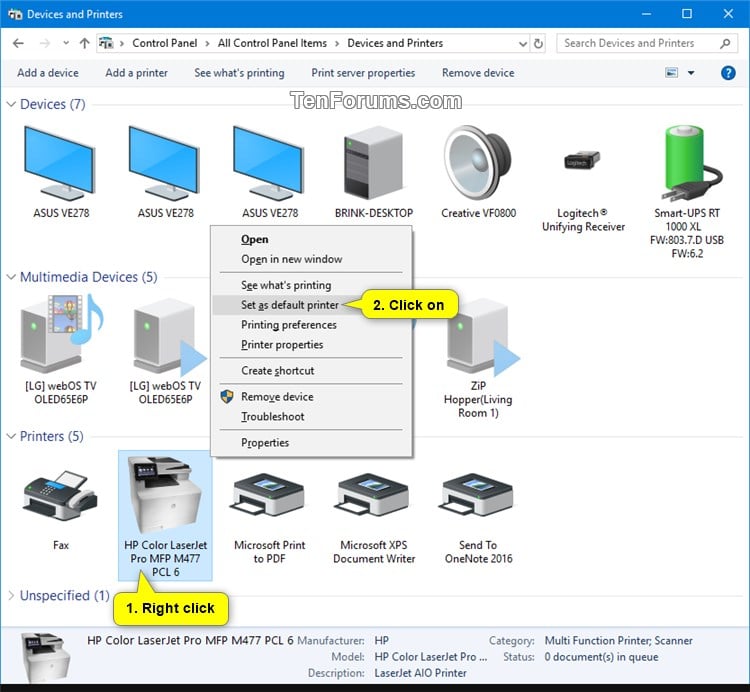
- Check the printer settings on your computer and ensure that the printer is correctly selected.
Conclusion
Setting up a printer can be a straightforward process, but it's essential to follow the correct steps to ensure that your printer is installed and functioning correctly. By choosing the right method for your printer, you can easily set up your printer and start printing right away.
Additional Tips and Resources
Here are some additional tips and resources to help you set up your printer successfully:
- Make sure to read the user manual for your printer to understand its specific setup requirements.
- Update your printer drivers regularly to ensure optimal performance.
- Check the manufacturer's website for any additional setup instructions or troubleshooting guides.
By following these steps and tips, you can easily set up your printer and start enjoying the convenience of printing from your computer or mobile device.