How to Screenshot on Windows: A Comprehensive Guide
Are you looking to take a screenshot on your Windows PC but not sure how? With the numerous ways to capture your screen, it can be overwhelming to decide which method is best for you. Whether you want to capture the entire screen, a specific window, or a selected area, this article will guide you through the different ways to take a screenshot on Windows.Method 1: Using the Print Screen Key
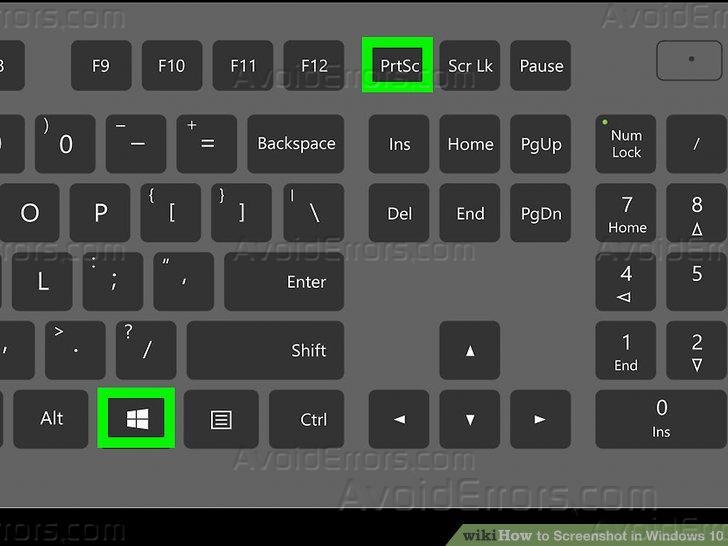
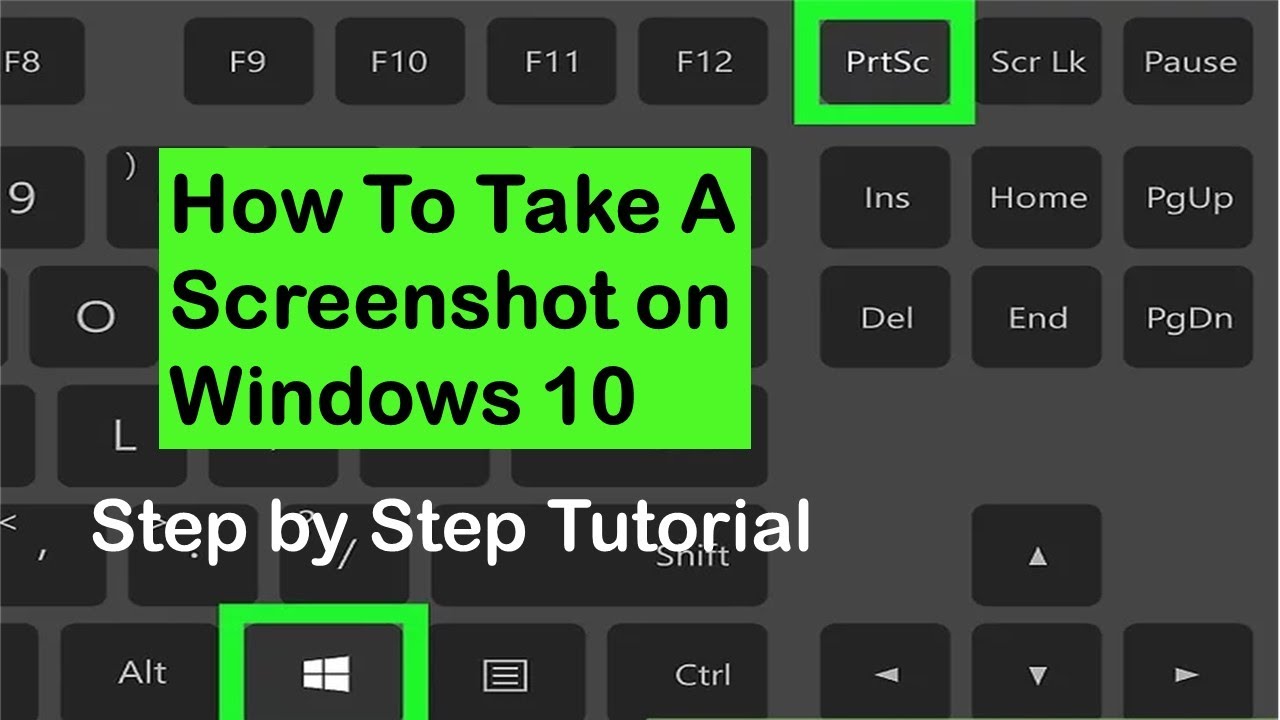
The Print Screen key, also known as PrtScn, is a simple and straightforward way to take a screenshot on Windows. This key can be found on most keyboards and is usually located on the top row. To use the Print Screen key: 1. Press the Windows key + Print Screen key simultaneously. 2. Open the Start menu and select the "Paint" app or any image editing software. 3. Press Ctrl + V to paste the screenshot into the software. 4. Save the screenshot as a file. Alternatively, if you have a Windows 10 or later laptop, you can also press the Windows key + PrtScn button for a screenshot.Method 2: Using the Snipping Tool
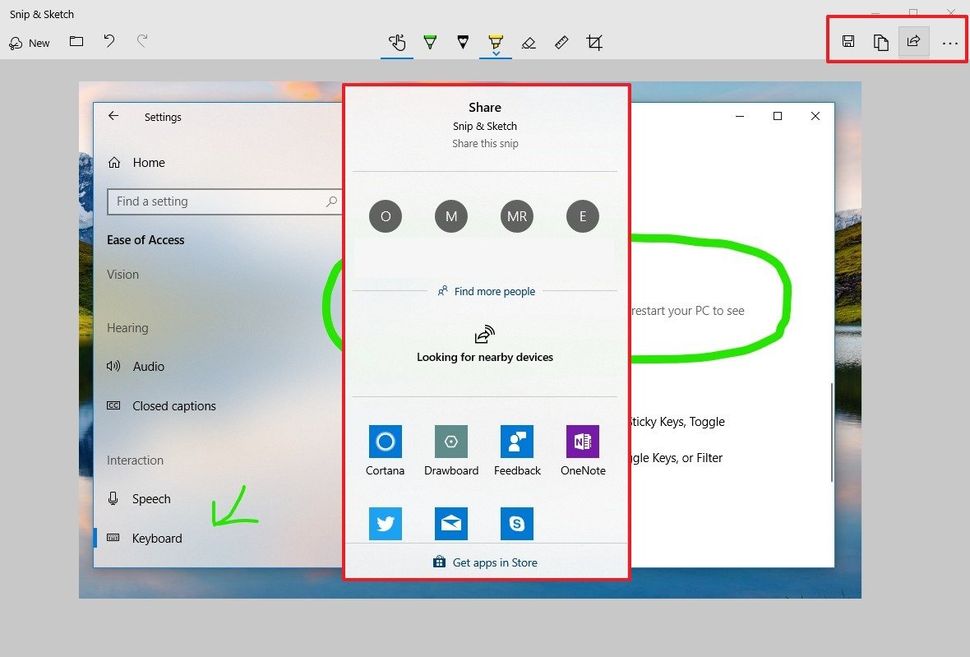
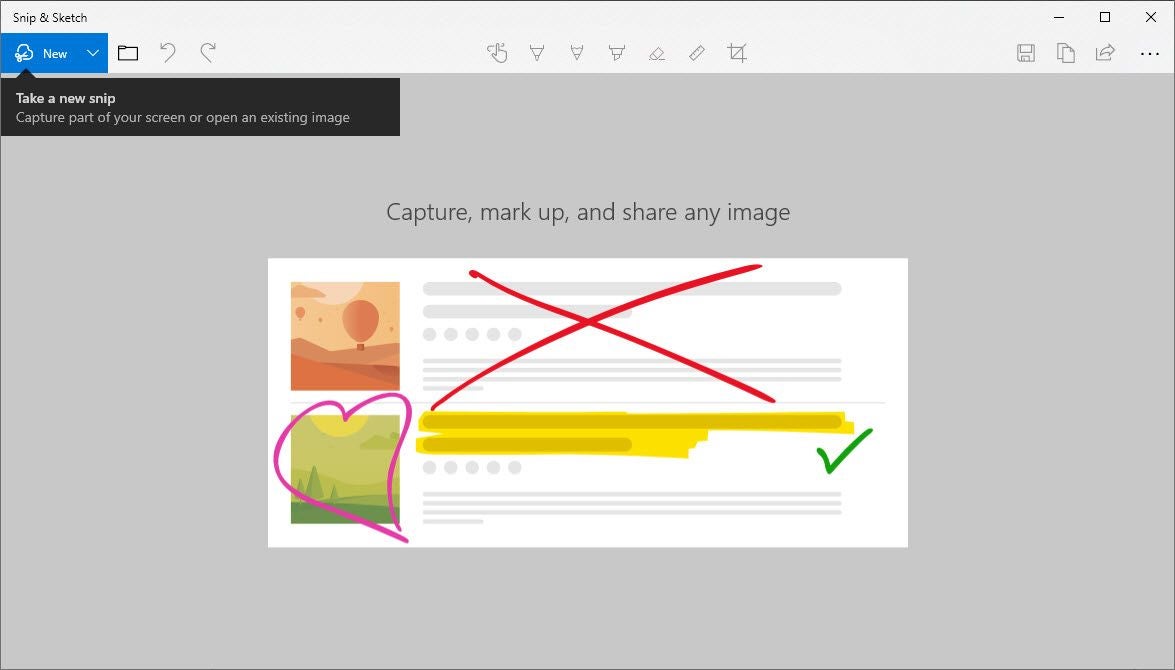
The Snipping Tool is a free and easy-to-use application that comes pre-installed on Windows operating systems. It offers various tools to capture the screen, including the whole screen, a selected window, or a specified area. To use the Snipping Tool: 1. Open the Start menu and search for "Snipping Tool". 2. Select the Snipping Tool app and tap on "New" to capture the screen. 3. Choose the type of snip you want to capture: * Full Screen * Rectangular Snip * Window Snip * Free-form Snip 4. Use the mouse to select the area you want to capture. 5. The captured screenshot will be saved to your clipboard, and you can paste it into any image editing software.Method 3: Using the Snip & Sketch App