Fast and Easy OBS Setup: A Step-by-Step Guide for Beginners
Are you eager to start streaming or recording like a pro, but don't know where to begin? With the popularity of live streaming and screen recording on the rise, it's essential to have the right tools and software to create high-quality content. In this article, we'll show you how to set up OBS Studio quickly and easily, perfect for beginners.Why Choose OBS Studio?
OBS Studio (Open Broadcaster Software) is a free and open-source software for video recording and live streaming. It's widely used by professionals and beginners alike, and for good reason. OBS Studio offers a user-friendly interface, advanced features, and compatibility with multiple platforms, including Twitch, YouTube, and Facebook.Downloading and Installing OBS Studio
Before you start setting up OBS Studio, you'll need to download and install the software. Here's a step-by-step guide:- Visit the OBS Studio website and download the software for your operating system (Windows or macOS).
- Follow the installation instructions to install OBS Studio on your computer.
- Launch OBS Studio and create a new project by clicking on the "Create a new project" button.
Setting Up Your First Stream
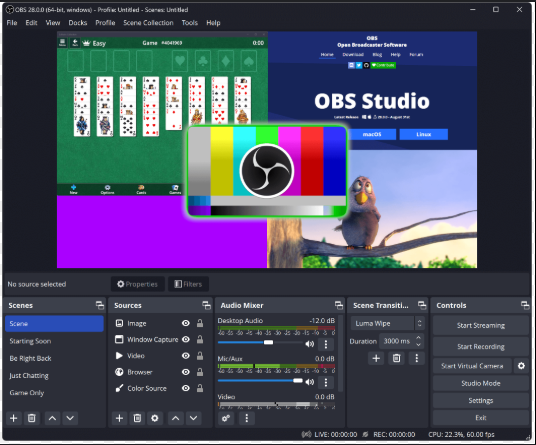
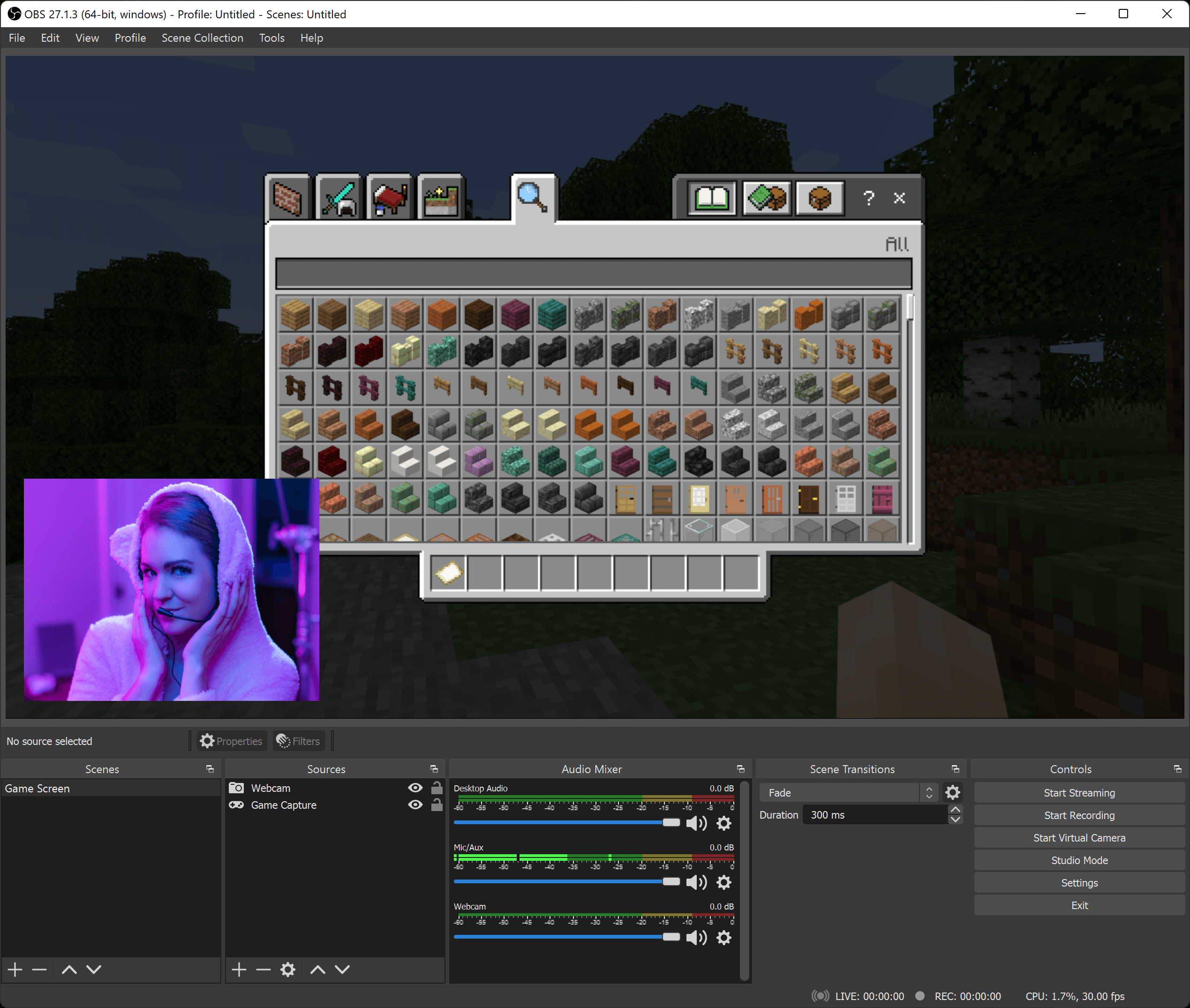
Now that you have OBS Studio installed, it's time to set up your first stream. Follow these simple steps:- Choose your source: Select the video and audio devices you want to use for your stream. This can include your webcam, microphone, and screen capture.
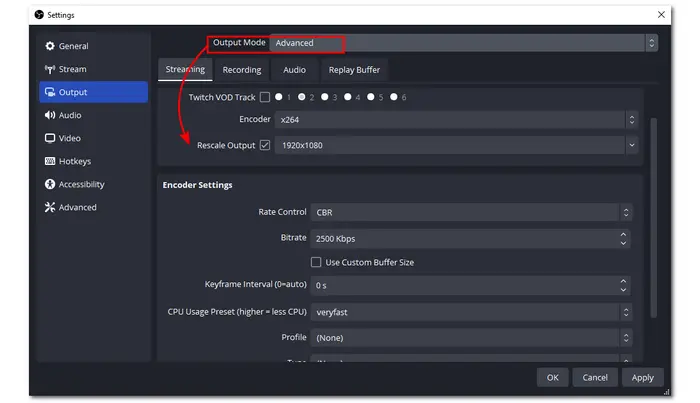
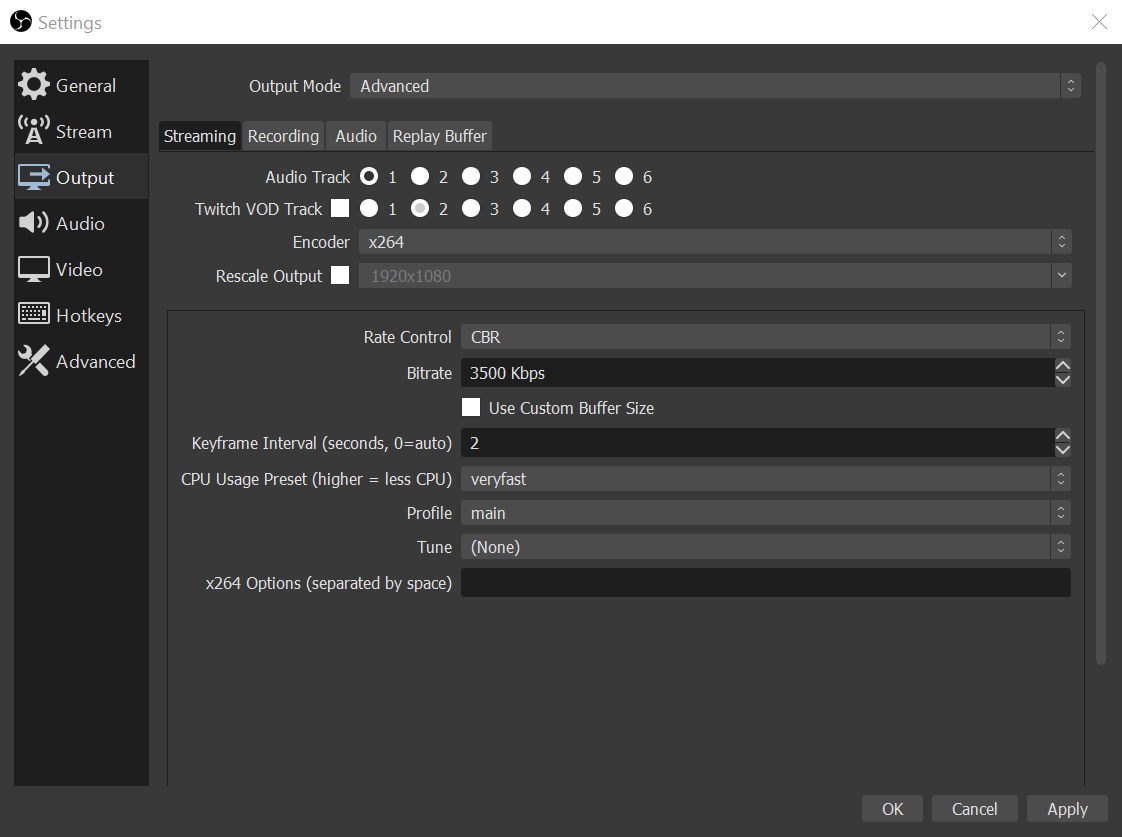
- Set your resolution and frame rate: Adjust the resolution and frame rate to optimize your stream for the platform you're using.
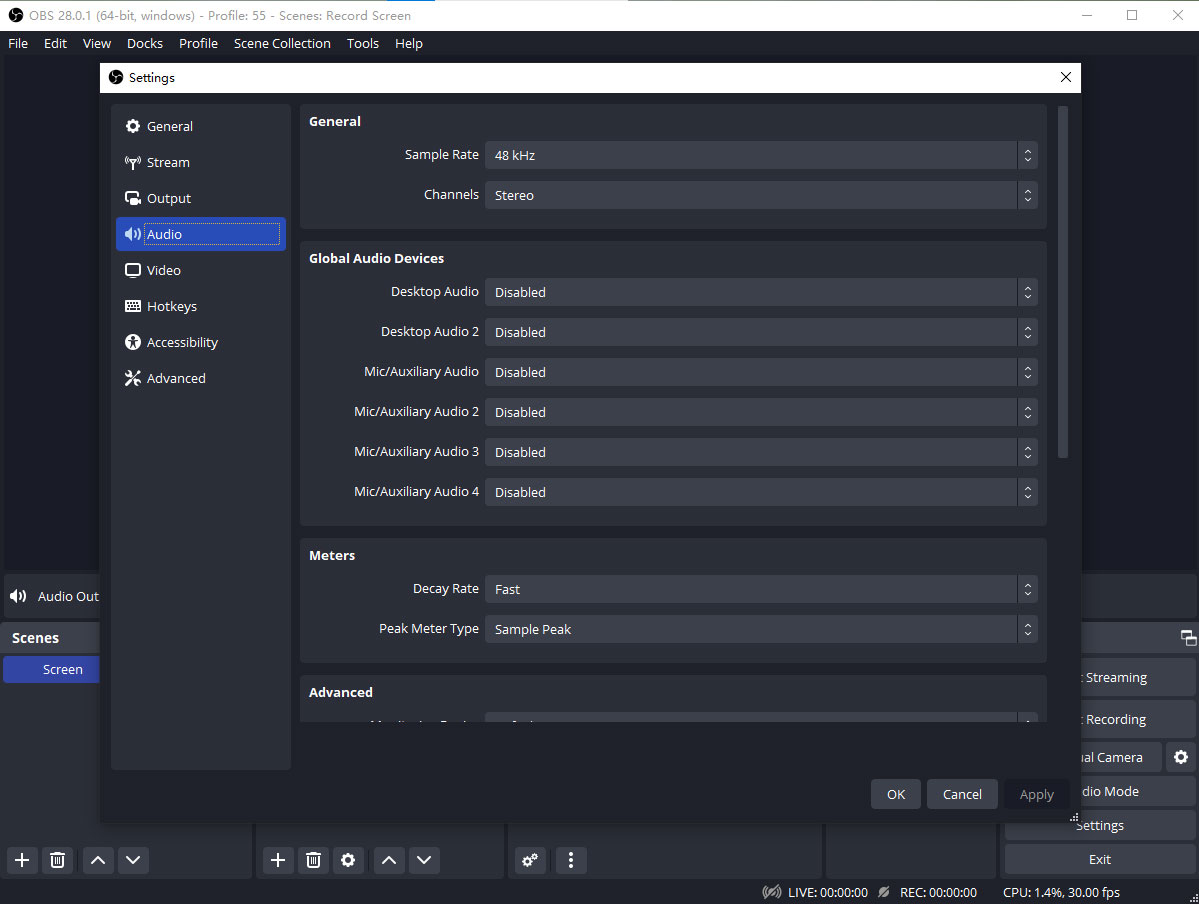
- Configure your audio settings: Ensure your audio levels are set correctly, and consider adding a VST audio filter for professional-level sound quality.
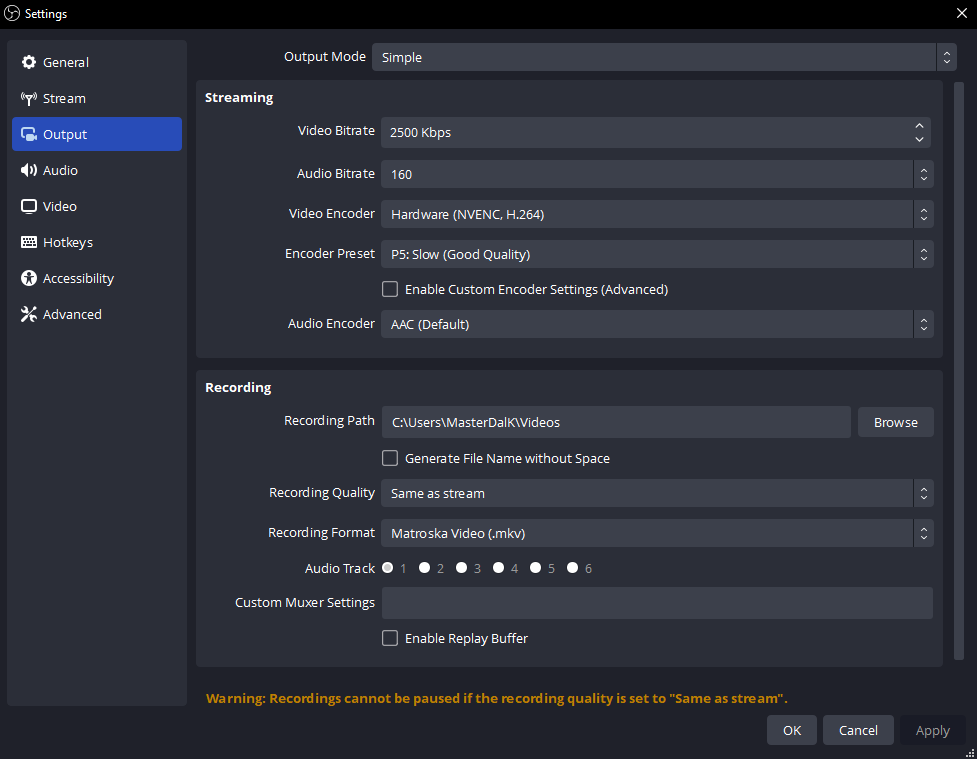
- Choose your output: Select the platform you want to stream on, such as Twitch or YouTube Live.
Using the OBS Auto-Configuration Wizard
OBS Studio includes an Auto-Configuration Wizard to help you set up your stream quickly and easily. When you first launch OBS, it will prompt you to run the wizard, which will guide you through the setup process.Mastering Advanced Features
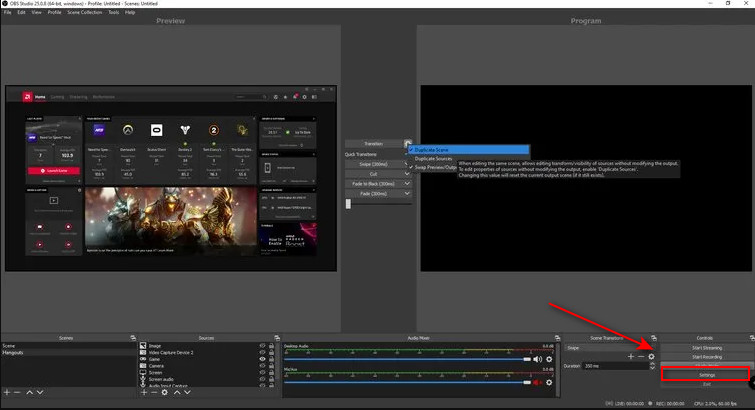
- Scenes: Create multiple scenes to switch between different camera angles, overlays, or effects.
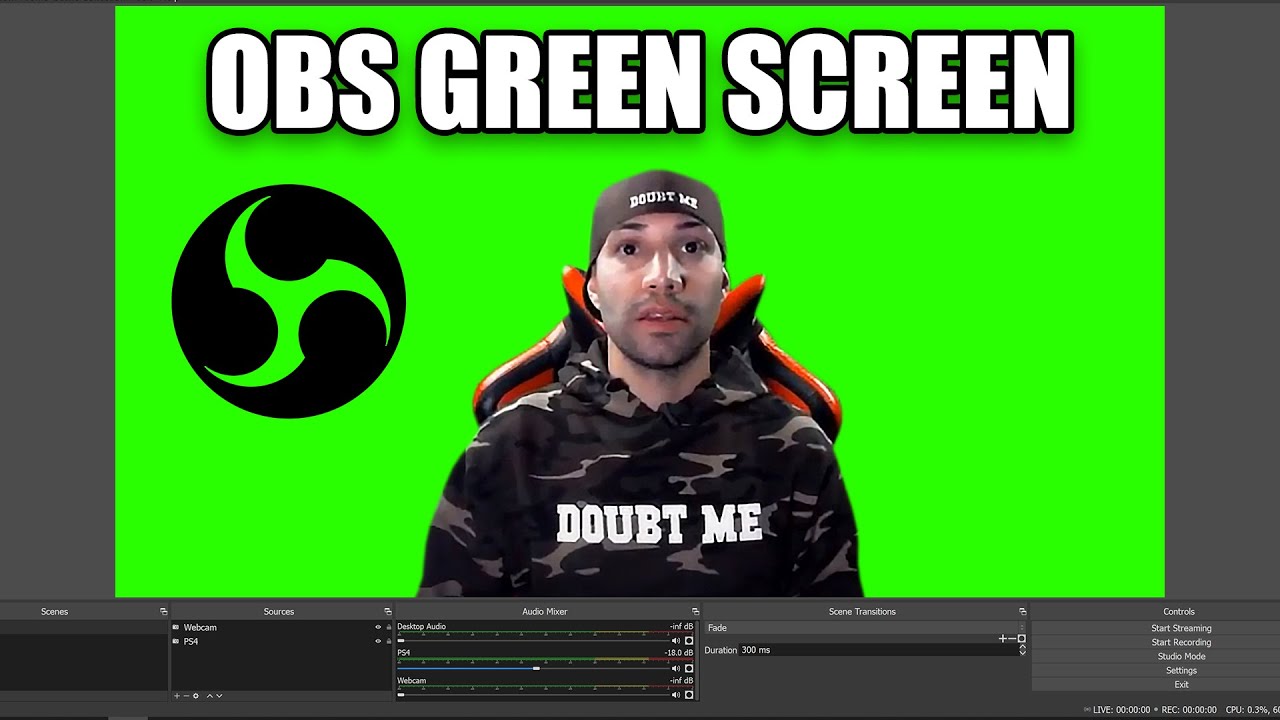
- Filters: Enhance your stream with filters that can help with noise reduction, chroma keying, and more.
- Transitions: Add smooth transitions between scenes to keep your stream engaging.





![OBS Studio - Tutorial for Beginners in 7 MINUTES! [ COMPLETE ]](https://i.ytimg.com/vi/zFM1Ik2SlAA/maxresdefault.jpg "OBS Studio - Tutorial for Beginners in 7 MINUTES! [ COMPLETE ]")