Setting IP Address on Router: A Comprehensive Guide
Configuring the internet protocol (IP) address on your router is a crucial step in managing your home network. In this article, we will guide you through the process of setting up a static IP address on your router, including finding the default IP address of your router, accessing the router's web-based setup page, and configuring various settings.
Why is Setting IP Address on Router Important?
The IP address is like a unique identifier for your router, and it's essential to know how to find and configure it. Having the correct IP address allows you to access your router's web-based setup page, where you can configure settings such as wireless network settings, security options, and parental controls. In this article, we will walk you through the process of finding your router's IP address and setting it up for your network.
How to Find Your Router's IP Address
To find your router's IP address, you can follow these steps:
- Type "ipconfig /all" in the command prompt on Windows and find the "Default Gateway" next to it. This is your router's IP address.
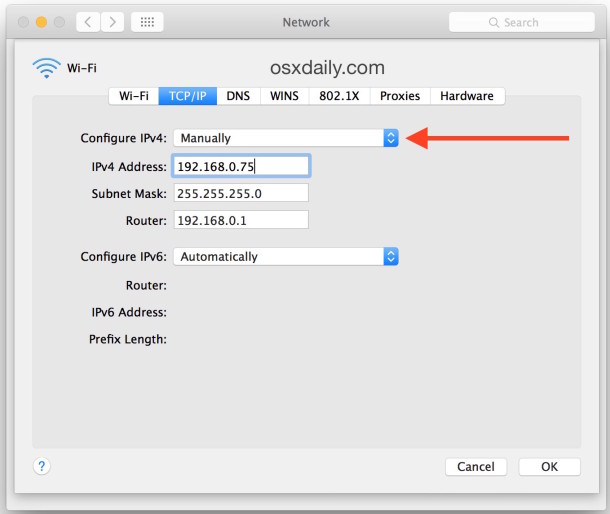
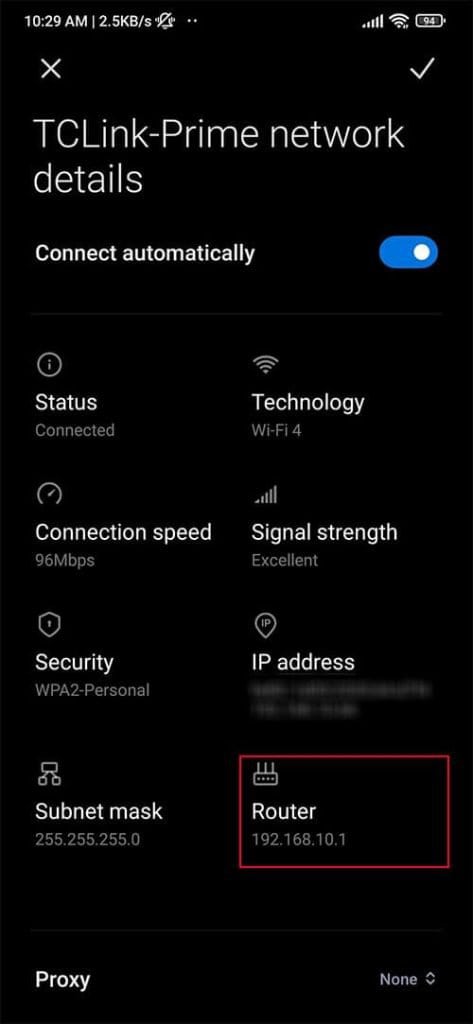
- On a Mac, go to System Preferences > Wi-Fi, click on "Details" on your connection, and find the IP address next to "Router."
- Look for a sticker on your router with the default admin login info, or try "admin" as both the username and password.
Accessing the Router's Web-Based Setup Page
Once you have the IP address of your router, you can access the router's web-based setup page by typing it into your web browser. The most common IP addresses for routers are:
- 192.168.1.1
- 192.168.0.1
- 192.168.10.1

Enter the IP address in the address bar of your web browser, and you will be taken to the login page of your router. The default username and password are usually printed on the sticker on the router or can be found in the user manual.
Configuring the IP Address on Router
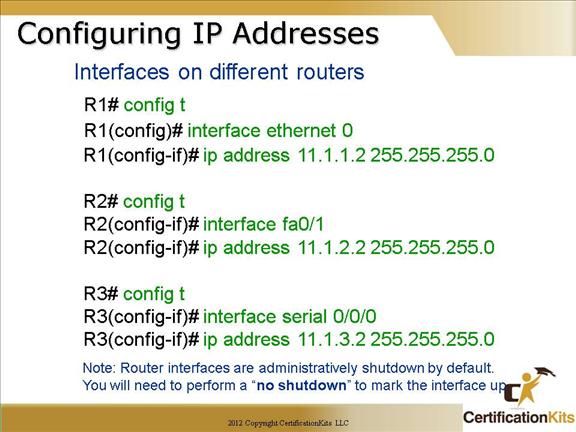
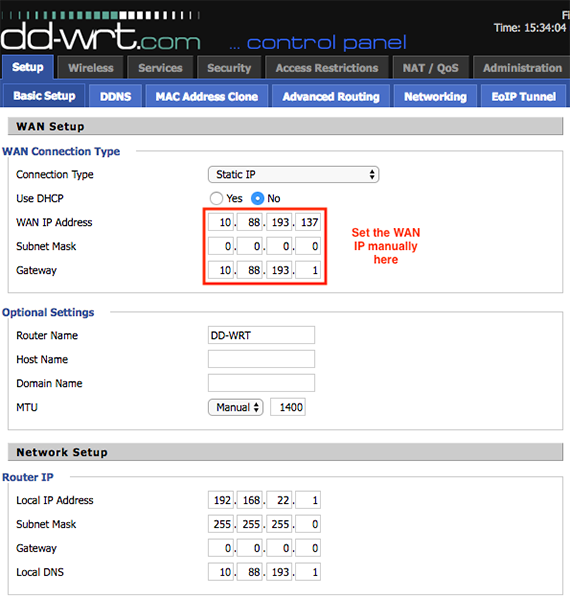
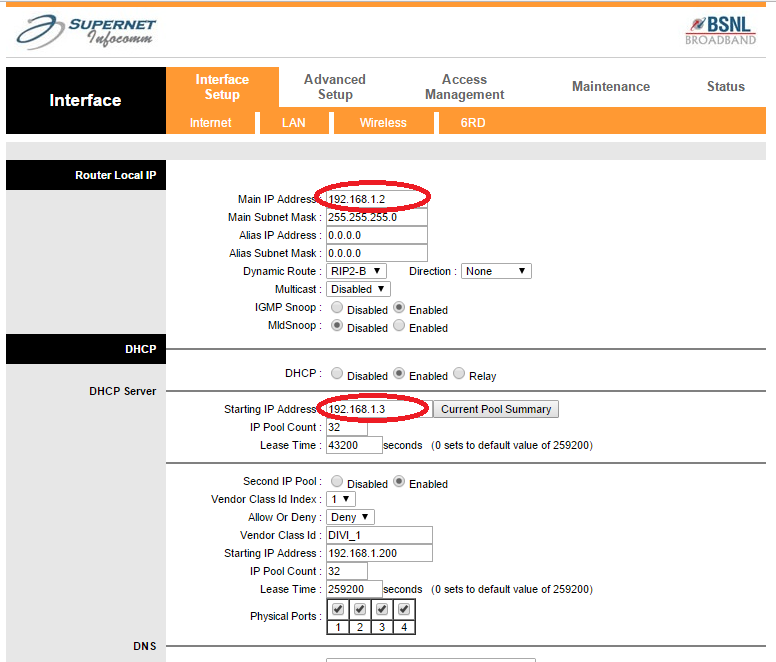
Once you are logged into the router's web-based setup page, you can configure the IP address of your router. The steps may vary depending on the type of router you have, but the general process is as follows:
- Login to the router's web-based setup page using the IP address and default credentials.
- Click on the "Advanced" or "Settings" tab, depending on the router.
- Look for the option to change the IP address and click on it.
- Enter the desired IP address in the text field and click "Save Changes."
Conclusion
Setting the IP address on your router is an essential step in managing your home network. By following the steps outlined in this article, you can find the default IP address of your router, access the router's web-based setup page, and configure various settings. Remember to change the default IP address on your router to prevent unauthorized access to your network.
Related Topics
- How to change LAN IP of ASUS Wireless Router
- How to set up DHCP Server on ASUS Router
- How to manually assign LAN IP around the DHCP list?

![[Wireless Router] How to manually assign LAN IP around the DHCP list ...](https://www.howtogeek.com/wp-content/uploads/2014/03/img_531f45188f28f.png "[Wireless Router] How to manually assign LAN IP around the DHCP list ...")

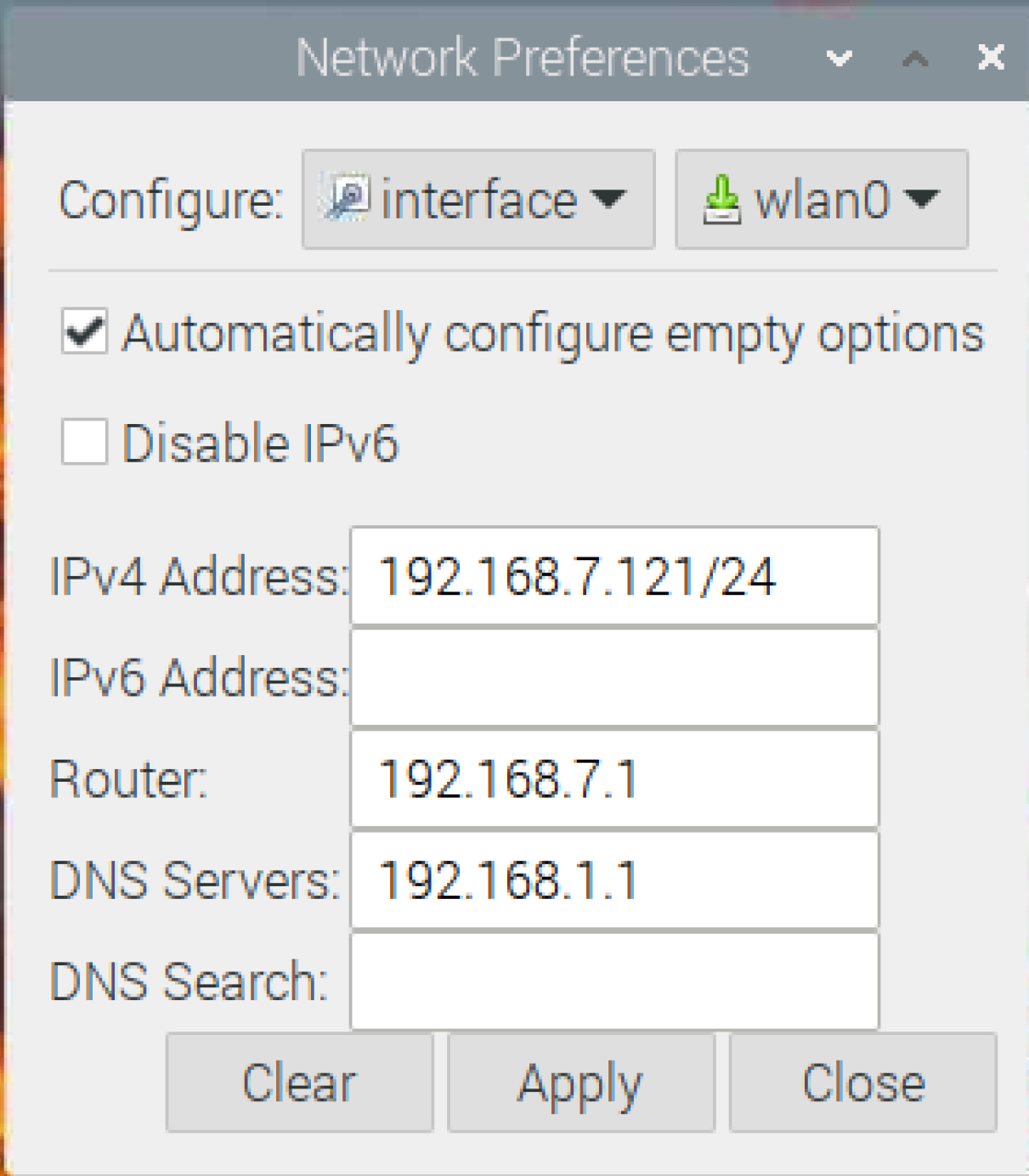

![[Wireless Router] How do I enter my ASUS router's setting page using ...](http://www.homenethowto.com/wp-content/uploads/manually-configured-ip-address.jpg "[Wireless Router] How do I enter my ASUS router's setting page using ...")