Effective Ways to Remove Malware from Chrome: A Step-by-Step Guide
Malware can be a significant threat to your online security, and Google Chrome is not immune to it. Malware can infiltrate your Chrome browser and compromise your personal and financial data, as well as steal your sensitive information. In this article, we will provide a step-by-step guide on how to clear Google Chrome from malware and keep your browser safe and secure.
Understanding Malware and Its Effects
Malware is a type of software that is designed to harm or exploit a computer system. It can take many forms, including viruses, trojans, ransomware, and adware. Malware can infiltrate your Chrome browser through various means, including suspicious extensions, infected downloads, and compromised websites. Once malware is installed, it can cause a range of problems, including:
- Unwanted pop-ups and ads
- Changes to your homepage or search engine
- Redirects to unfamiliar pages or ads
- Warnings about a virus or an infected device
- Slow or unresponsive browser performance
Method 1: Remove Suspicious Extensions
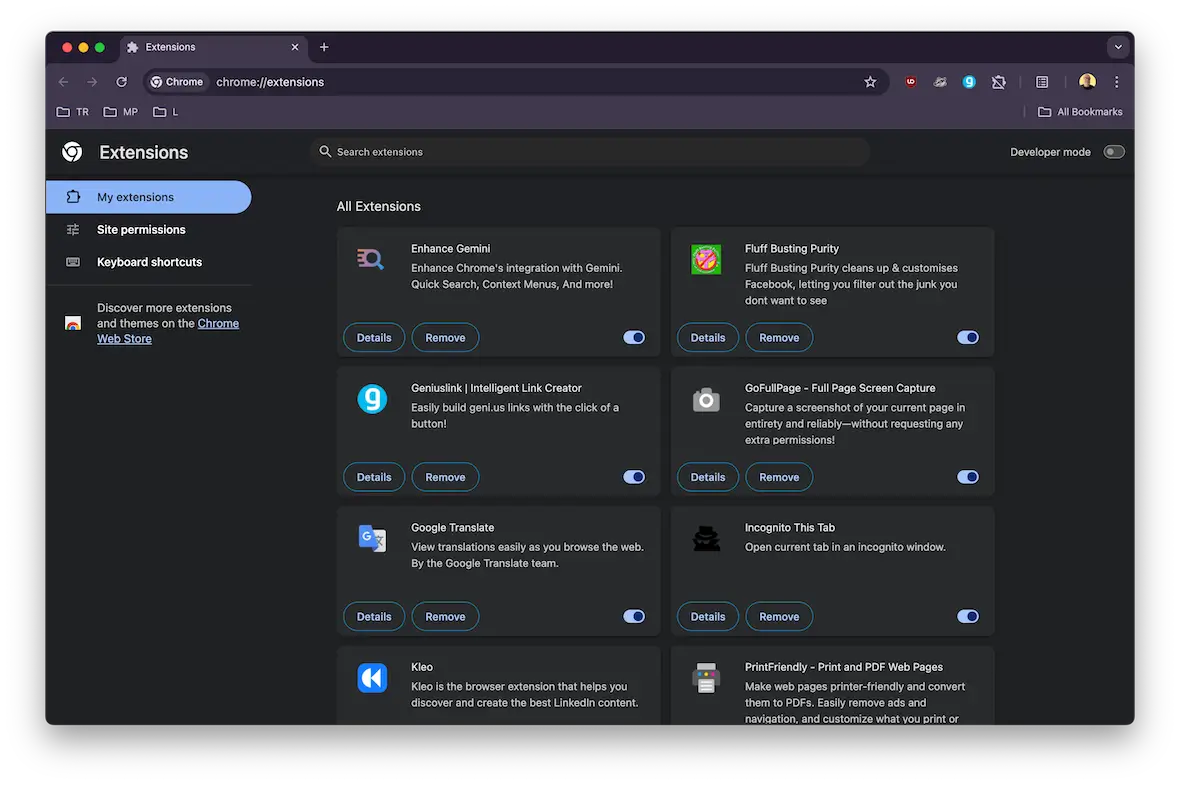
Malware can originate from bad extensions, and it can also install malicious extensions on your system. To get rid of these, go to your Chrome settings, open the Extensions tab, and remove any suspicious items. Follow these steps:
- Open Chrome settings
- Click on the Extensions tab
- Remove any suspicious extensions
- Restart your browser
Method 2: Use Chrome's Built-in Safety Check
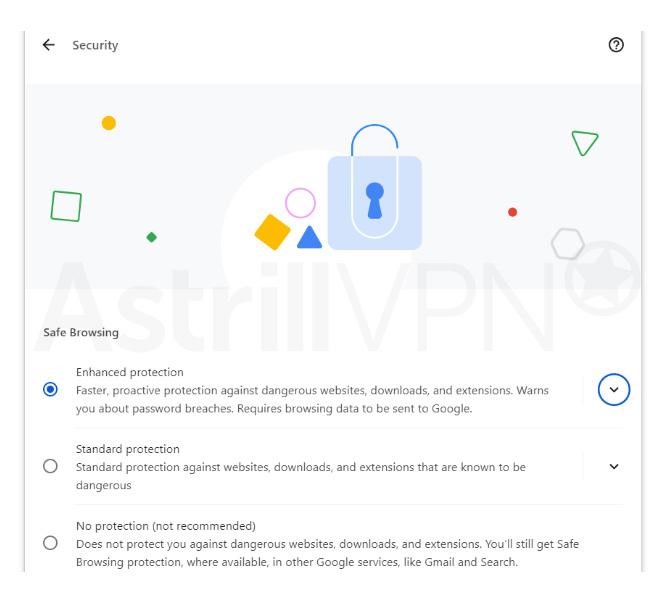
Google Chrome has a built-in safety check that can help identify and remove malware. To run the safety check, follow these steps:

- Open Chrome settings
- Click on the Help menu
- Click on the Safety Check button
- Follow the on-screen instructions
Chrome's built-in safety check will look for bad extensions, malware downloads, compromised passwords, out-of-date software, and more.
Method 3: Remove Malware with Antivirus Software
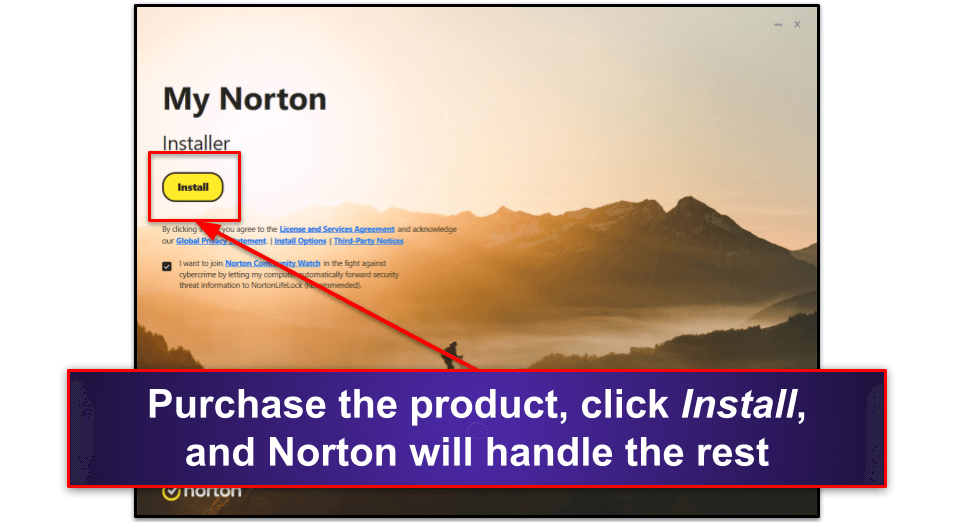
Antivirus software is a powerful tool that can detect and remove malware from your Chrome browser. Look for an antivirus software that is compatible with your operating system and run a full scan. This will help identify and remove any malware that may be present on your system.
Method 4: Reset Chrome Settings
If your Chrome browser is infected with malware, you may need to reset your browser settings. To do this, follow these steps:
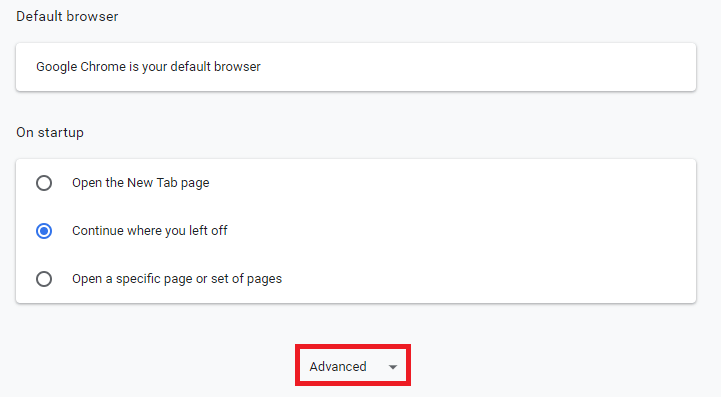
- Open Chrome settings
- Click on the Advanced menu
- Scroll down to the Reset settings option
Conclusion
Malware is a serious threat to your online security, and it's essential to take steps to remove it from your Chrome browser. By following the effective ways to remove malware from Chrome outlined in this article, you can keep your browser safe and secure. Remember to always be cautious when downloading and installing extensions, and use antivirus software to detect and remove malware.