Setting Up OBS for True Colors Streaming: A Comprehensive Guide
Are you tired of washed-out colors in your OBS recordings? Do you want to enhance the visual quality of your live streams and make them more engaging for your viewers? In this article, we'll show you how to set up OBS for true colors streaming and optimize your settings for the best possible results.
Understanding Color Space and Range
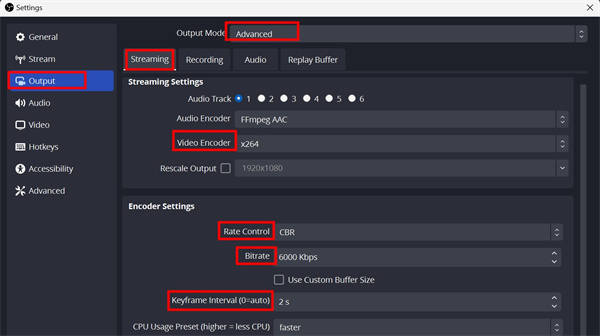
Color space and range are two important settings that can greatly affect the color quality of your stream. To start, go to Settings > Advanced in OBS and adjust the color format to YUV444 or RGB, depending on your needs. YUV444 is ideal for color-sensitive work, while RGB is better suited for video games.
- YUV444: This color format is ideal for color-sensitive work, such as film or video production.
- RGB: This color format is better suited for video games and other applications where color accuracy is not as crucial.
Adjusting Color Range
The color range setting controls how much color information is captured in your stream. To adjust the color range, go to Settings > Advanced and select Full or Partial, depending on your needs.
- Full: This color range setting captures all available color information, resulting in a wider color gamut.
- Partial: This color range setting captures less color information, resulting in a narrower color gamut.
Using Color Correction Filters
Color correction filters are a powerful tool for enhancing the color quality of your stream. In OBS, you can add color correction filters to individual sources or apply them globally to all sources.
- Multiply Color: This filter applies a color overlay to the source.
- Additive Color: This filter adds a color value to the source, useful for slight color tweaks.
To apply a color correction filter, simply select the filter from the list and adjust the settings to your liking. You can preview the filter in real-time and fine-tune the settings until you achieve the desired look.
Configuring Capture Card Settings
To ensure the best possible color quality, it's essential to configure your capture card settings correctly. In the properties of the newly added source, select your capture card from the drop-down menu and adjust settings such as resolution, color space, and buffering if needed.

Optimizing OBS Settings for Streaming
When it comes to streaming, there are several OBS settings that can greatly impact the color quality of your stream. To optimize your settings, follow these tips:
- Set the advanced settings to partial.
- Adjust the color format to YUV444 or RGB, depending on your needs.
- Select the correct color range setting.
- Apply color correction filters as needed.
Conclusion
By following the steps outlined in this article, you can set up OBS for true colors streaming and optimize your settings for the best possible results. Remember to experiment with different settings and find what works best for your specific use case. With a little practice and patience, you'll be streaming with true colors in no time!
Frequently Asked Questions
Q: What is the best color format for streaming?
A: The best color format for streaming depends on your specific needs. If you're streaming video games, RGB is a good choice, while YUV444 is better suited for color-sensitive work.
Q: How do I adjust the color range setting in OBS?
A: To adjust the color range setting, go to Settings > Advanced and select Full or Partial, depending on your needs.
Q: What are color correction filters, and how do I use them in OBS?
A: Color correction filters are a powerful tool for enhancing the color quality of your stream. To apply a color correction filter, simply select the filter from the list and adjust the settings to your liking.