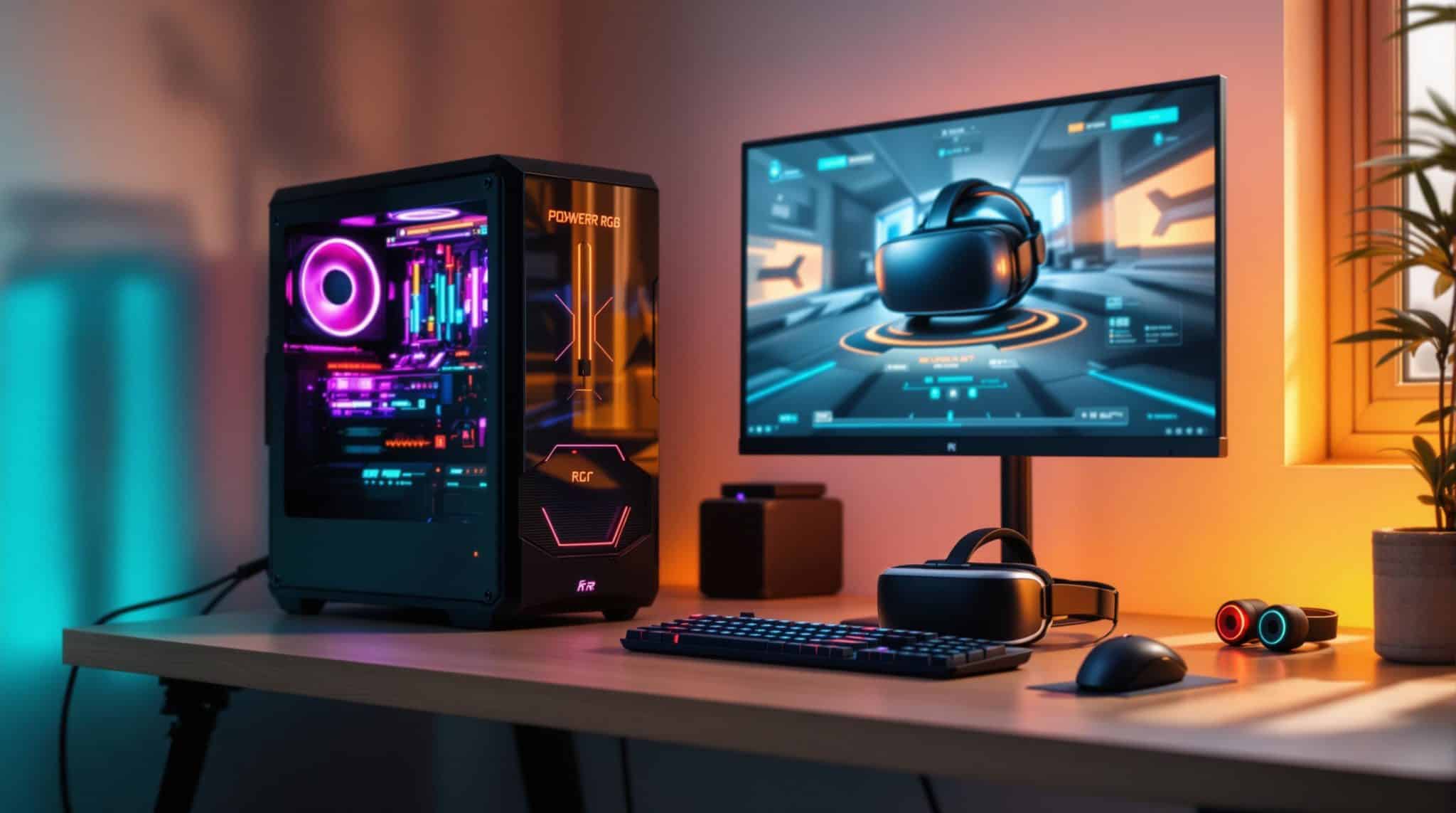
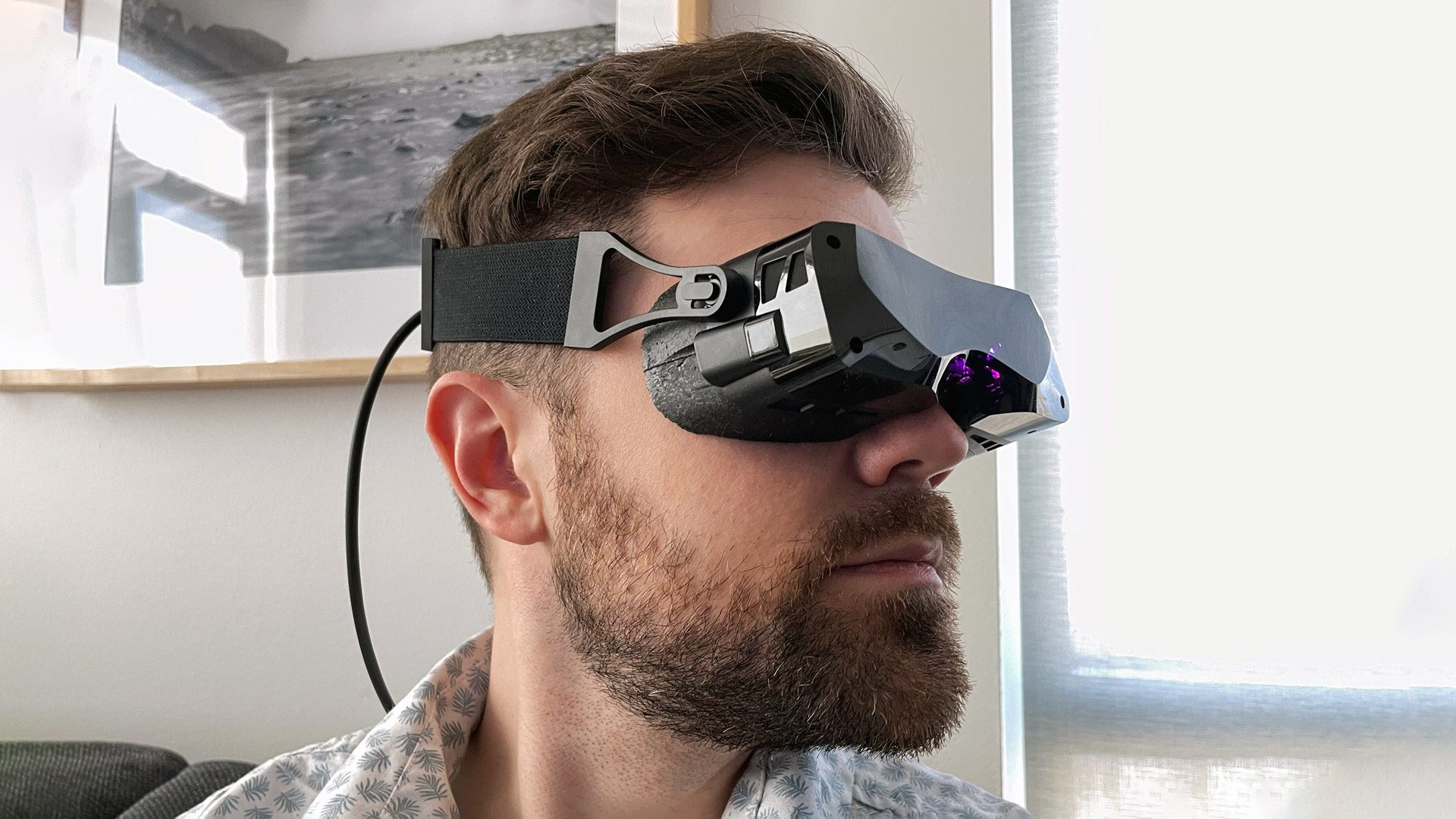
How to Set Up a VR Headset: A Step-by-Step Guide
Are you ready to dive into the world of virtual reality? Setting up a VR headset can seem intimidating, but with this comprehensive guide, you'll be immersed in amazing virtual worlds in no time. Follow these easy steps to learn how to set up a VR headset like a pro.Pre-Setup Checklist
Before you start, make sure you have the following: * A VR headset (we recommend the Meta Quest 3 or Quest 3S) * A compatible PC or laptop (check the manufacturer's website for recommended specs) * A stable internet connection * The Meta Horizon Link app (for Windows) or the Meta Quest Remote Desktop app (for Mac and older Windows versions)Step 1: Unbox and Inspect Your VR Headset
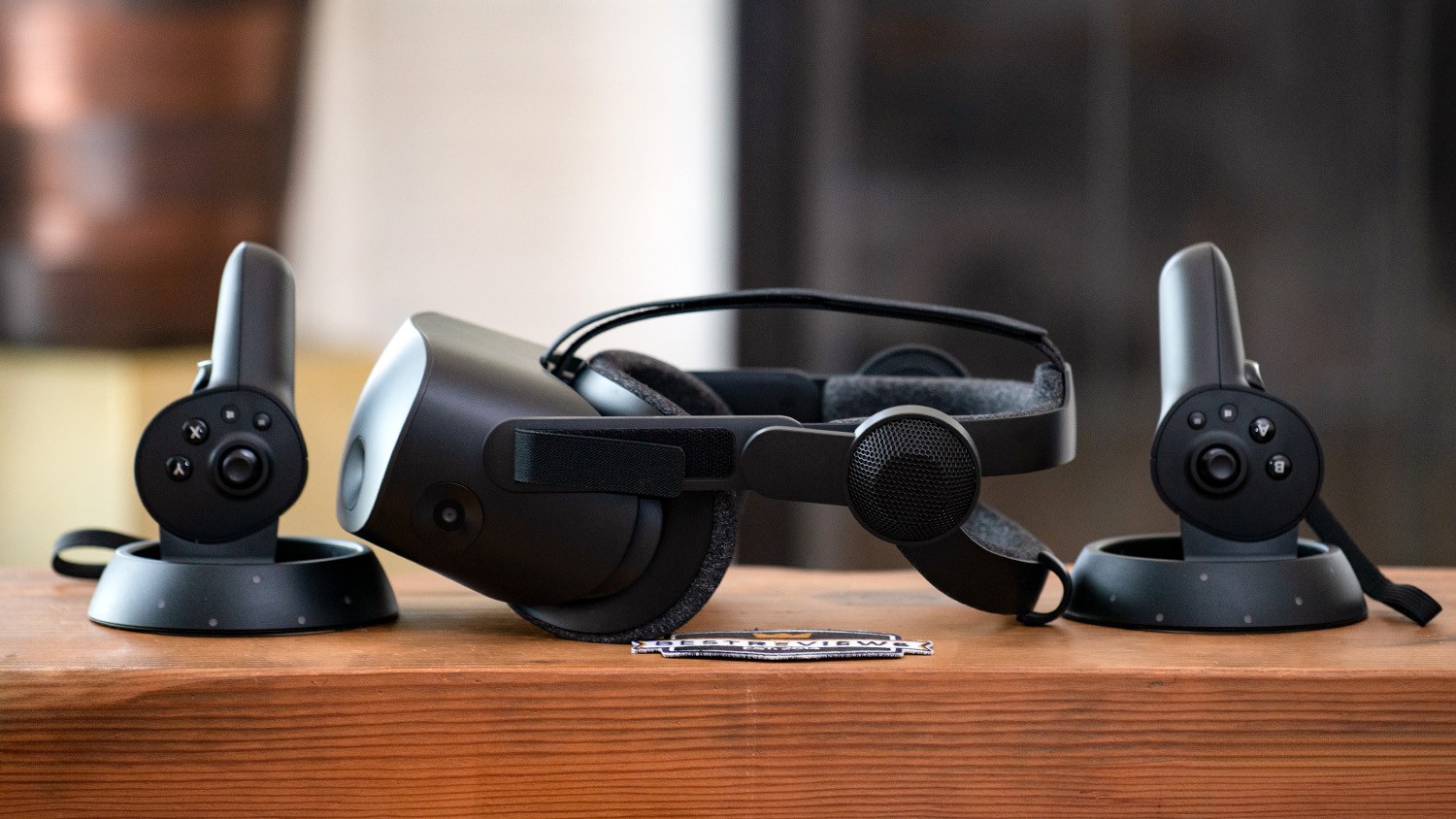
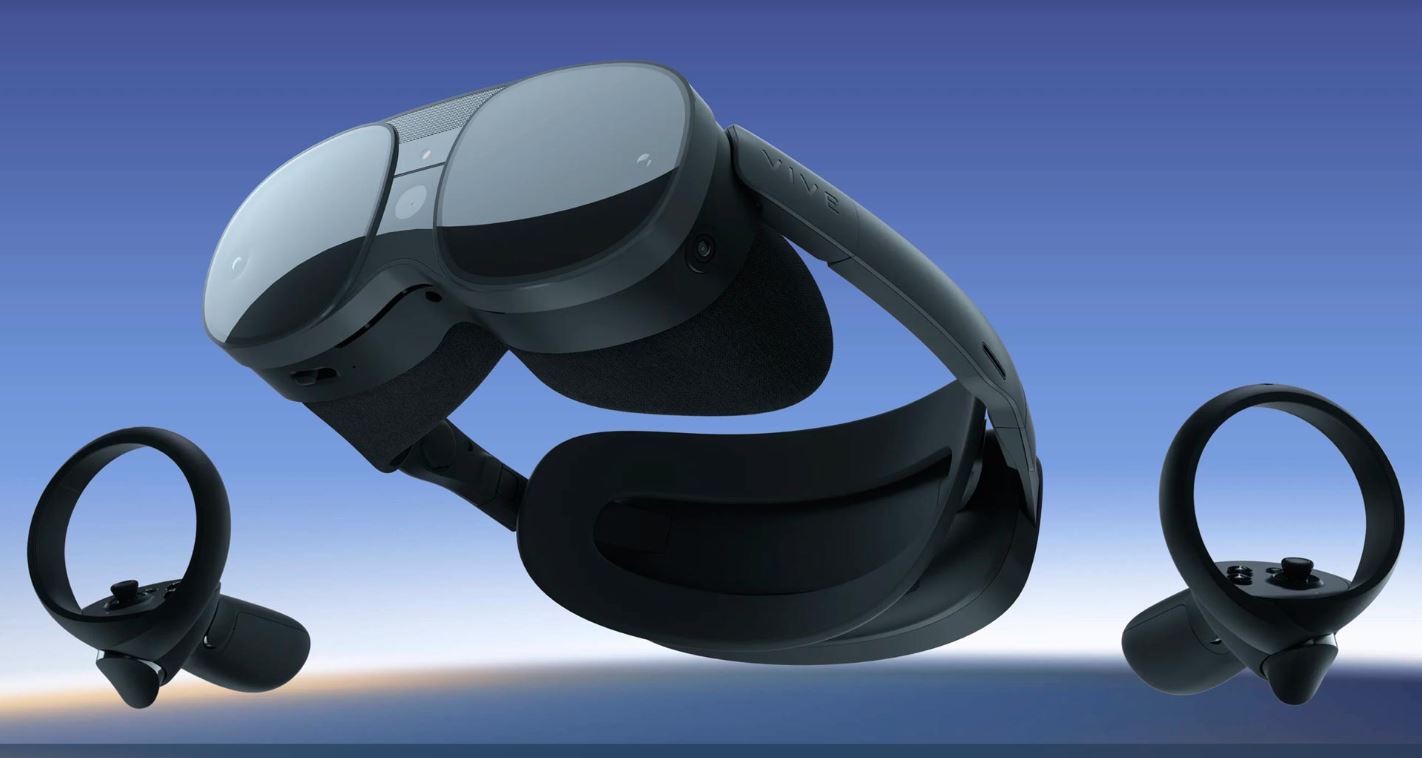
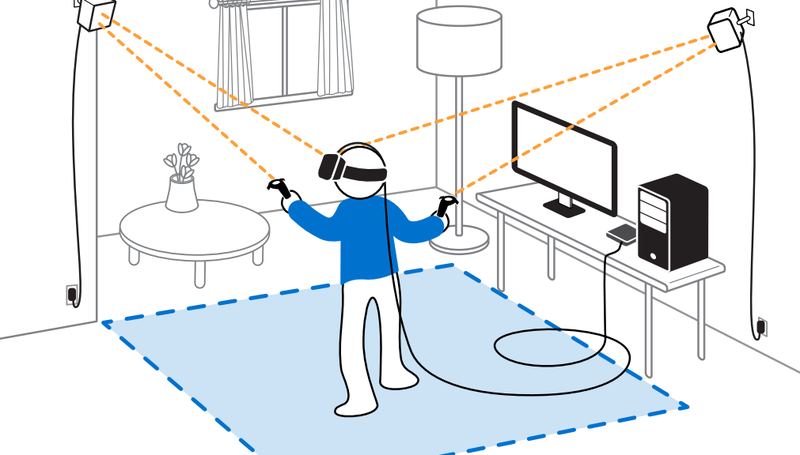
Carefully unbox your VR headset and inspect it for any damage or defects. Make sure all the included accessories, such as the controllers and sensors, are present and in good condition.Step 2: Install the Meta Horizon Link App (Windows) or Meta Quest Remote Desktop App (Mac/older Windows)
Download and install the Meta Horizon Link app on your Windows computer or the Meta Quest Remote Desktop app on your Mac or older Windows version. Follow the on-screen instructions to complete the installation process.Step 3: Connect Your VR Headset to Your PC or Laptop
Connect your VR headset to your PC or laptop using the USB-C cable provided. Make sure the headset is properly seated and the cable is securely connected.Step 4: Pair Your Controllers