Preventing Malware from Executing on Windows 8
Windows 8, like its predecessor Windows 7, is a robust operating system designed to provide a secure computing experience. However, as with any software, it's not immune to potential threats like malware. Malware can wreak havoc on your system, causing performance issues, data loss, and even identity theft. In this article, we'll delve into the world of malware, its types, and how to prevent it from executing on Windows 8.
Understanding Malware
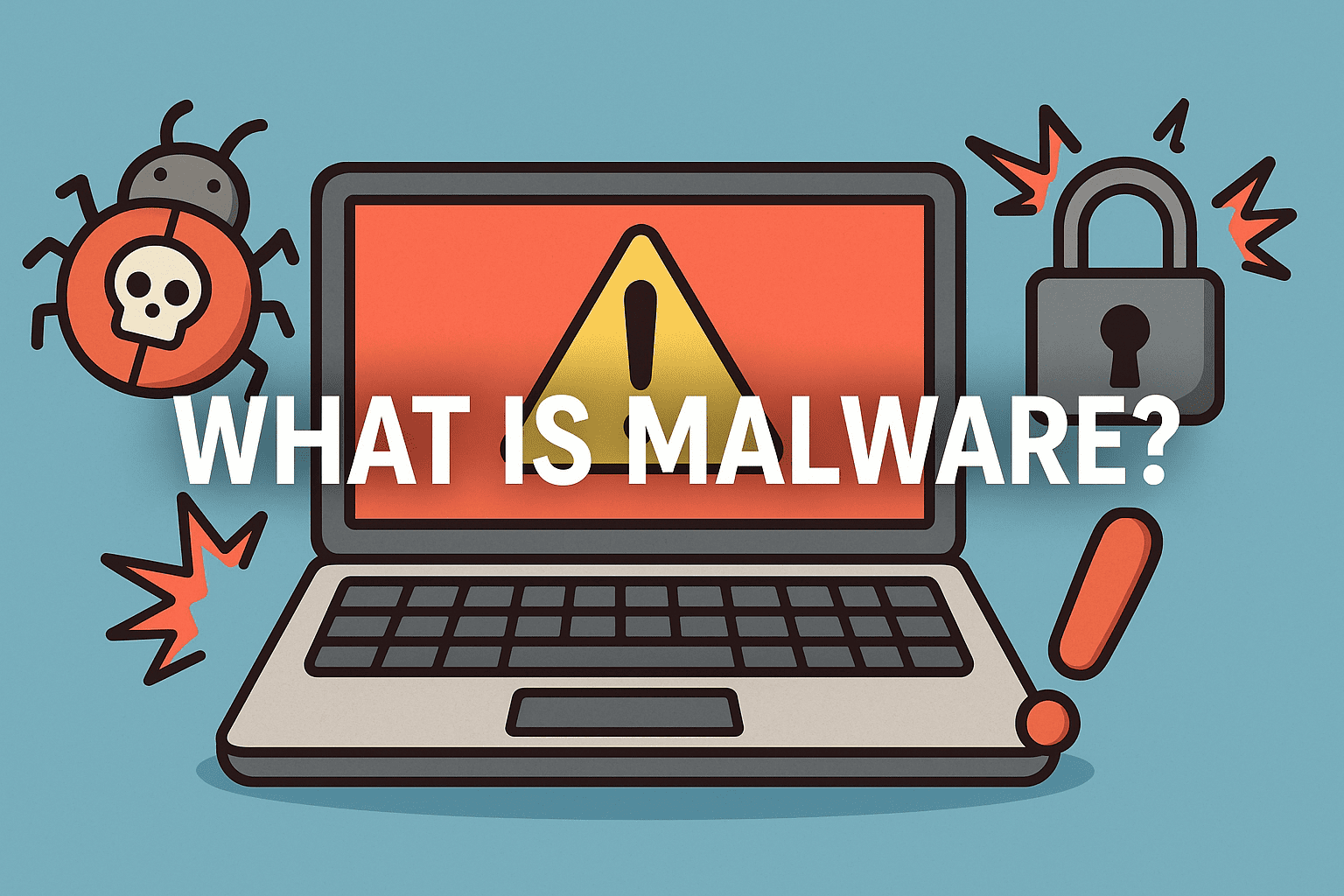
Malware refers to any malicious software designed to harm or exploit a computer system. This can include viruses, ransomware, spyware, trojans, adware, and more. Malware can install itself on your system through various means, such as opening infected email attachments, clicking on suspicious links, or visiting malicious websites.
Types of Malware
- Viruses: These malware programs replicate and spread themselves across your system, often causing damage to files and programs.
- Ransomware: As the name suggests, this type of malware encrypts your files and demands a ransom to decrypt them.
- Spyware: This malware secretly monitors your online activities, stealing sensitive information like passwords, credit card numbers, and browsing history.
- Trojans: These malware programs disguise themselves as legitimate software, but once installed, they can compromise your system's security and steal your data.
- Adware: This type of malware displays unwanted advertisements, often collecting user data and compromising online security.
Preventing Malware from Executing on Windows 8
Preventing malware from executing on Windows 8 is crucial to maintaining a secure computing environment. Here are some effective tips to help you do so:
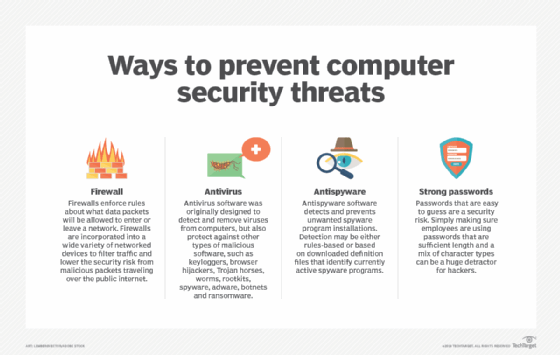
1. Keep Windows Defender Active
Windows Defender, now known as Microsoft Defender Antivirus, is a robust security tool that provides real-time protection against malware. Ensure it's enabled and set to scan your system regularly.
2. Whitelisting
Whitelisting is a powerful technique that allows only approved applications to run on your system. Tools like Windows AppLocker can be configured to allow only verified programs, enhancing your system's security.
3. Use Strong Antivirus Software
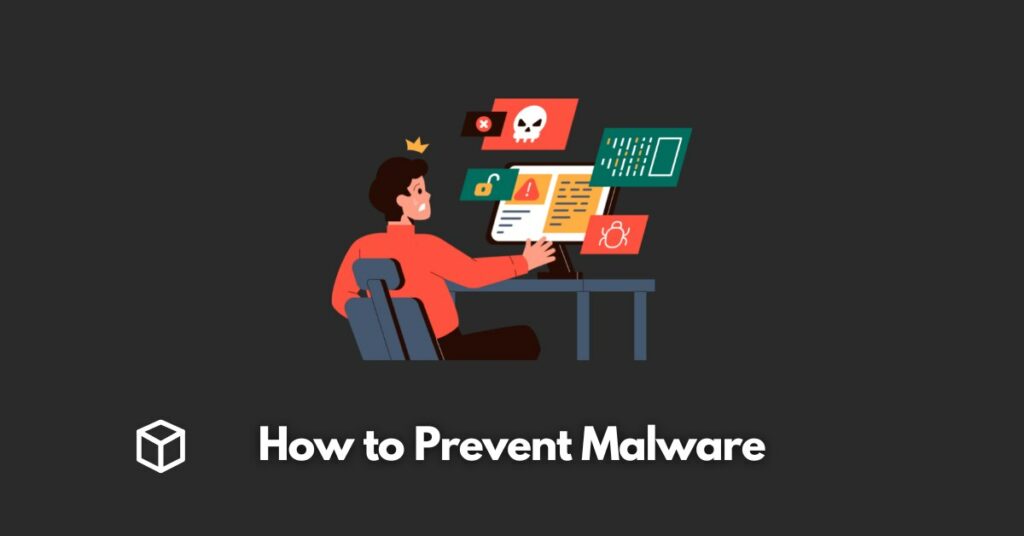
Invest in reputable antivirus software that provides comprehensive protection against malware. A robust antivirus will help detect and remove malware, ensuring your system's integrity.
4. Avoid Suspicious Links and Email Attachments
Be cautious while browsing online, as malware can spread through suspicious links and email attachments. Avoid clicking on unfamiliar links or opening attachments from unknown senders.
5. Regularly Update Windows and Applications
Regular updates for Windows and applications help patch security vulnerabilities, reducing the risk of malware infections.
6. Use Strong Passwords and Enable Two-Factor Authentication
Use strong, unique passwords and enable two-factor authentication to prevent unauthorized access to your system and data.
7. Be Cautious on Public Wi-Fi
Public Wi-Fi networks are breeding grounds for malware. Avoid accessing sensitive information or using public Wi-Fi networks for online transactions.
Conclusion
Preventing malware from executing on Windows 8 requires vigilance, caution, and a robust security setup. By following these tips, you can significantly reduce the risk of malware infections and maintain a secure computing environment. Always remember: prevention is better than cure, so be proactive in defending your system against malware threats.
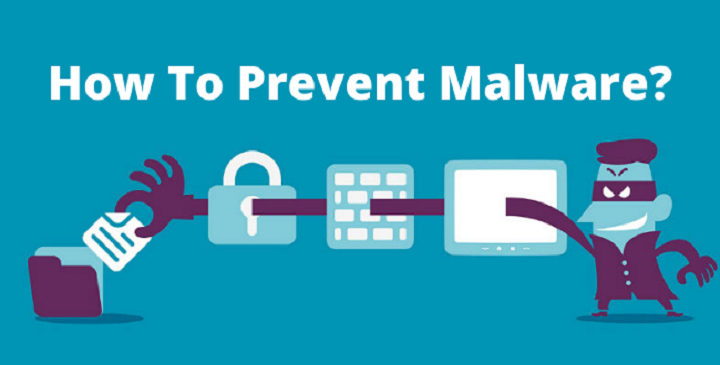

![How to Remove Adware, Trojans, Virus & Malware from Windows [Guide]](https://www.itarian.com/blog/wp-content/uploads/2025/06/how-can-you-prevent-viruses-and-malicious-code.png "How to Remove Adware, Trojans, Virus & Malware from Windows [Guide]")