How to Connect Google Home to Multiple Routers: A Comprehensive Guide
Are you looking to expand your home's Wi-Fi coverage and connect multiple devices to your Google Home system? Connect Google Home to multiple routers is a great way to ensure seamless wireless connectivity throughout your home. In this article, we'll walk you through the steps to connect multiple routers and set up your Google Home system for optimal performance.
Benefits of Connecting Multiple Routers to Google Home
Connecting multiple routers to Google Home offers several benefits, including:
- Expanded Wi-Fi coverage: Multiple routers help to eliminate dead spots and provide a strong, reliable signal throughout your home.
- Increased device capacity: Multiple routers can handle more devices, allowing you to connect multiple smart home devices, smartphones, and laptops without any performance issues.
- Improved network stability: With multiple routers, you can ensure that your network remains stable and fast, even during heavy usage.
Step 1: Prepare Your Routers
Before you start connecting multiple routers, you'll need to prepare them. Here's what you'll need to do:
Turn off any built-in Wi-Fi on your 3rd-party router. Use an Ethernet cable to hardwire each device together, making sure to use CAT 5e-rated cables for optimal performance. For example, with the Nest Wifi Pro, Nest Wifi, or Google Wifi devices, use a minimum of CAT 5e-rated cables.
Step 2: Distribute Routers Throughout Your Home
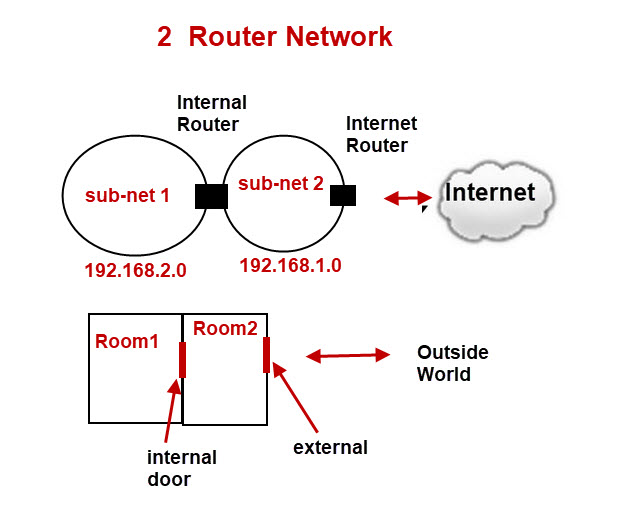
Next, distribute multiple routers throughout your home. For example, you can place four Google Nest Wifi or Pro routers throughout your house and plug them into the wall using Ethernet cables. You can cover a larger area by using more routers, but follow the guidelines, which recommend using no more than five routers. Alternatively, you can use mesh Wi-Fi points to extend coverage without additional routers.
Step 3: Connect Routers and Devices
Once you've distributed your routers, follow these steps to connect them:
- Take the first Google Nest Wifi and connect one Ethernet cable to its port.
- Take the end of this cable and plug it into the LAN port on your modem.

Step 4: Set Up Your Google Home Network
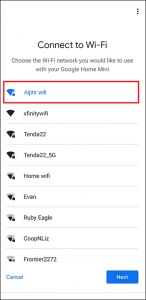
After connecting your routers and devices, set up your Google Home network by following these steps:
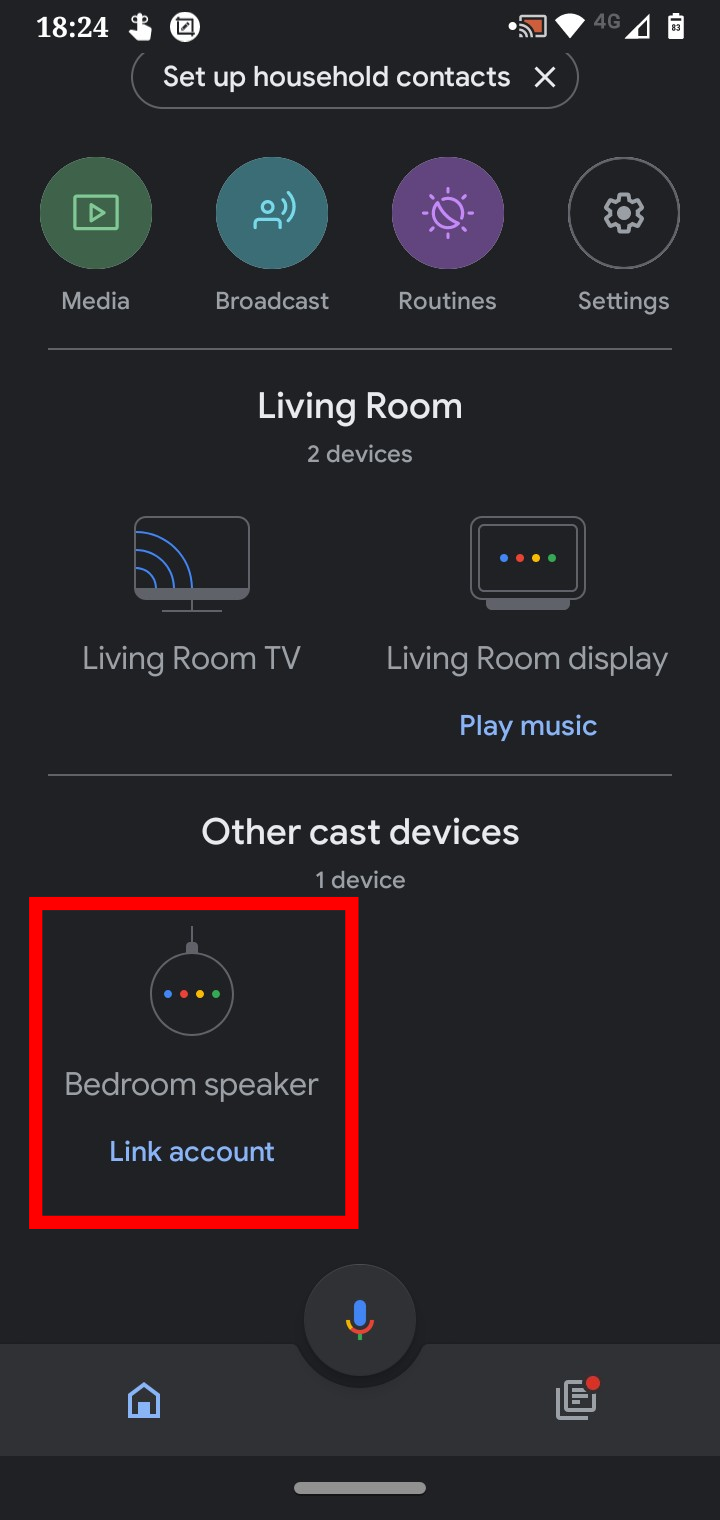
- Open the Google Home app on your device.
- Tap "Add device or service."
- Choose "Set up device."
- Follow the in-app instructions to complete the setup process.
Troubleshooting and Tips
If you're experiencing issues connecting multiple routers to Google Home, try the following tips:
- Use a Google Wifi point to connect to your existing network. As each device needs to be set up in the Google Home app for seamless communication.
- For existing networks, set up Google Wifi devices as add-on points to your home network.
Benefits of Using Google Wifi
Google Wifi is a mesh-capable wireless router designed to provide reliable Wi-Fi coverage and handle multiple active devices at the same time. With Google Wifi, you can connect multiple devices, including smartphones, laptops, and smart home devices, without any performance issues. Additionally, Google Wifi products include the Nest Wifi and Nest Wifi Pro, offering a seamless experience for expanded Wi-Fi coverage.
Optimize Your Home Network with Google Home
Connect Google Home to multiple routers to optimize your home network for better performance, greater connectivity, and enhanced Wi-Fi coverage. By following the steps outlined in this guide, you'll be able to keep your devices connected and your home network running smoothly. Whether you're streaming, gaming, or simply using your devices for everyday tasks, a well-connected home network makes all the difference.
Learn more about Google Home devices and network optimization at https://support.google.com/googlenest/master-setup





:max_bytes(150000):strip_icc()/add_device_android-0707d4da0c7c4b06ba9b633557c2b8ce.jpg "Home - Google Nest Community")
:max_bytes(150000):strip_icc()/FindingdeviceonGoogleHome-251ddcc33c874519b0f804522beac42a.jpg "Internet Help and Support | Xfinity by Comcast")